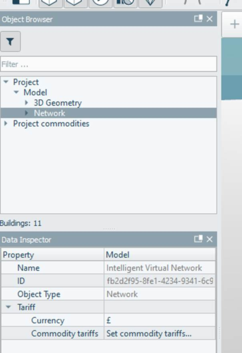
Network commodity tariffs are setup via the Data inspector upon selecting the ‘Network’ heading in the Object browser.
· Currency: User defined. Currency displayed as part of Analysis inspector plots
· Set tariff commodity: Launch commodity tariff dialog
Figure 42: Data inspector - Network commodity tariff
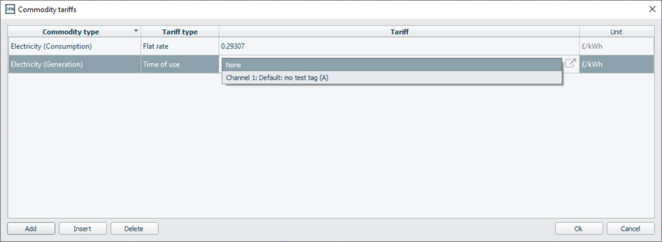
The commodity tariff dialog enables a user to set tariffs for demand and generation per network commodities:
· Flat rate: Float, applied at each simulation time step
· Time of use: via a dropdown menu a user can select an absolute profile listed in the Asset library
Figure 43: Commodity tariff dialog
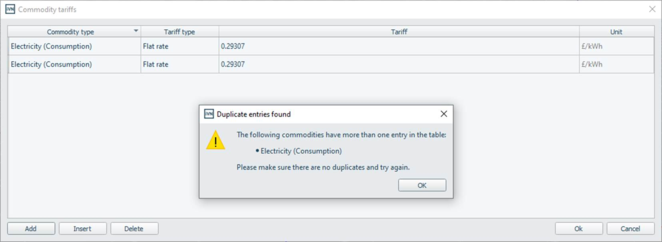
A user can only assign a single tariff; basic flat rate or time of use, per generation or demand of that commodity. If a commodity type is duplicated, then upon selecting the ‘OK’ button, the user will be presented with a warning dialog.
Upon selecting the ‘Network’ heading in the object browser, the ‘Network simulation’ area of the Simulation hub becomes active. Tariff commodity simulation are undertaken via the Simulation hub via the ‘Network simulation’ settings. Refer to Simulation Hub section
Tariff commodity simulation results are accessible via the Analysis inspector. Refer to Analysis inspector section.