Parametric tool - simulation
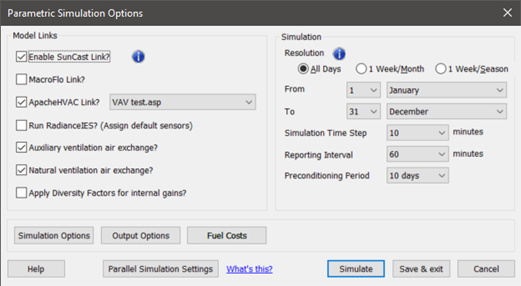
Once the Simulate button is pressed the Simulation options dialog will be displayed.
The Simulation options dialog settings will apply to all parametric simulations. The user will notice this dialog is the Apachesim dialog with additional parametric options.
Figure: Parametric Tools simulation options dialog.
• The simulation resolution radio buttons allow the user to adjust the coarseness of the simulation to suit the users need for accuracy / speed (see section 5).
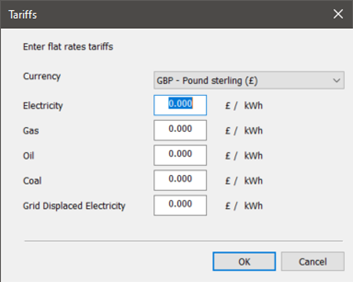
• The Fuel costs button opens a sub-dialog where flat rate tariff data can be entered for simple energy cost output.
Figure: Parametric Tools simulation options fuel costs sub-dialog.
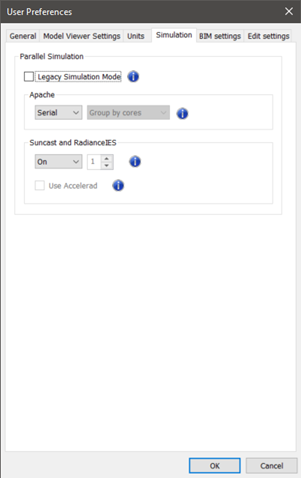
• The parallel simulation settings button will display the User preferences dialog. Parallel simulation settings default to serial, this is because it was determined that serial is the best simulation option for parametric runs. In parametric mode serial essentially performs as parallel where, based on the number of cores, it runs each parametric run in parallel.
Figure: Simulation – variant model creation.
Once the Simulate button is pressed the Parametric tool automates the creation of parametric models for mass simulation a group at a time. A group is an optimum collection of tasks. The Parametric Tool applies permutations to the whole building.
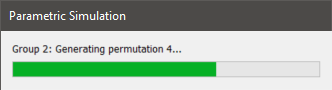
A dialog is displayed that shows progress generating the models in each group.
Figure: Simulation – variant model creation.
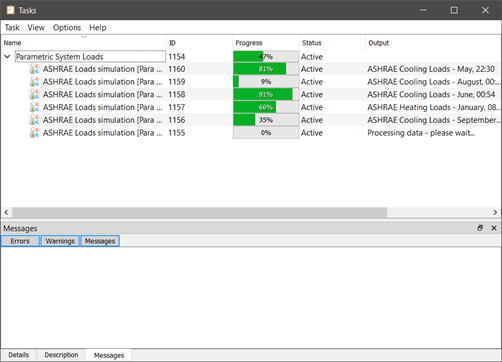
Once the group models have been created and if loads sizing is required a job is created on the task manager and the task manager displayed. The loads sizing simulations are then executed.
Figure: Simulation – task manager job loads sizing simulation tasks.
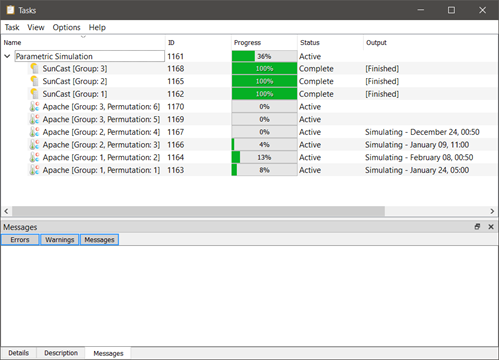
Once the group load sizing tasks have been completed pre-simulation and thermal simulation tasks are executed.
Figure: Simulation – task manager job Suncast and Thermal simulation tasks.
Each task can be inspected within the task manager tree.
All tasks: sizing simulations, pre-simulations, simulations and post-simulation data processing are executed within the limits of the processor cores and number of licences available and allocated.
Simulation output files are not retained to avoid hard disk space issues.
For loads sizing the following tasks are carried out as required:
o ApHVAC network room loads sizing.
o ApHVAC network system sizing.
o HVAC plant size assignment / updating.
For pre-simulation the following tasks are carried out as required:
o Suncast.
o RadianceIES.
For simulation the following tasks are carried out as required:
o Apache thermal simulation.
o Macroflo co-simulation.
o ApHVAC network co-simulation.
o KIVA TM co-simulation.
For post-simulation the following tasks are carried out:
o Data harvesting of Apache output
o Processing of raw results.
o Creation of a parametric study CSV results file.
o Creation of a parametric study HTML results file.
The parametric study results files are saved in the project ‘Studies’ folder.
The HTML results file is available via the VE Content manager or via the Alert Viewer (see section 6).