Variables & Logical Operators
Comparing Two Simulation Variables
All the previous examples involve a numerical comparison: the formula tests whether a simulation variable is greater or less than a numerical value. Many practical control functions involve comparisons of one variable with another. This can be also achieved with formula profiles.
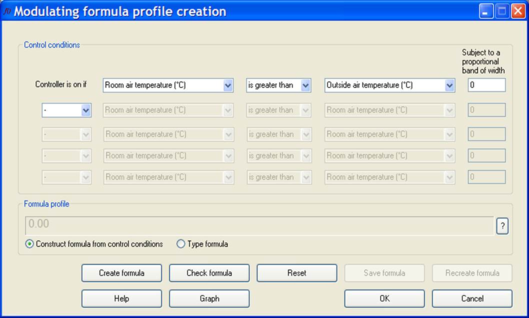
If a particular action is required when the internal air temperature is greater than the external air temperature this can be achieved using either a step or a ramp function. Select “Room air temperature (°C)” from the first drop down list, “is greater than” from the second drop down list, and “Outside air temperature (°C)” from the third drop down.
The dialog will then look like this:
If you now click on the Create formula button you will see the formula “ta>to” appear in the Formula profile box. Note that only meaningful comparisons can be set up in the formula profiles dialog. A comparison between (say) wind speed and temperature will not be allowed. A formula profile that compares two variables using a Ramp function can also be created, by entering a value in the “Subject to a proportional band of width” box.
Logical Operators (AND, OR)
Step and ramp functions can be linked to produce logical formula profiles. There is a drop down box that links the control action “sentences”. These drop down lists contain the logical statements AND and OR. By linking control actions together with the logical statements complicated control can be simply created. Consider a case where window opening is required when the internal air temperature is above 24°C but not if the external temperature is below 12°C.
To create this formula profile first generate the internal air temperature statement: select “Room air temperature (°C)” from the first drop down list, “is greater than” from the second drop down list, and type the value “24” into the third drop down list. The first line will then read
Controller is on if “Room air temperature (°C)” “is greater than” “24”.
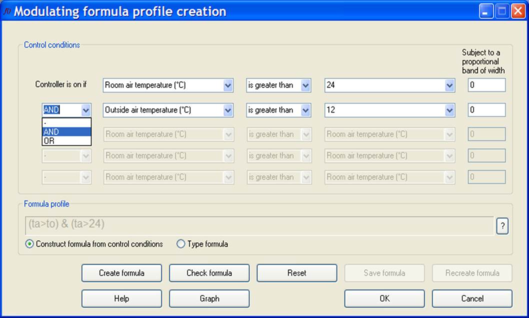
Now select the logical statement AND from the third drop down list as shown below:
Then in the second control line select “Outside air temperature (°C)” from the first drop down list, “is greater than” from the second drop down list, and type the value “12” into the third drop down list.
The full description now reads:
Controller is on if
“Room air temperature (°C)” “is greater than” “24”.
“AND”
“Outside air temperature (°C)” “is greater than” “12”.
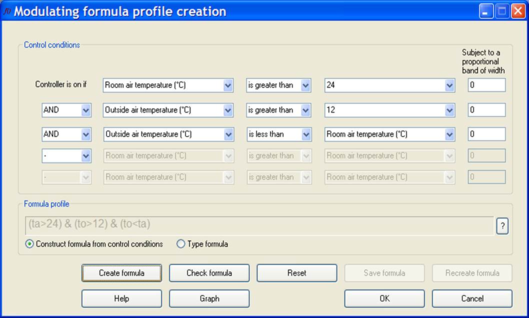
This functionality can be extended further. For example if the control action had to ensure that only cooler external air was bought into the zone, the third control line could be used with a further AND statement to give the following:
The full description is now:
Controller is on if
“Room air temperature (°C)” “is greater than” “24”.
“AND”
“Outside air temperature (°C)” “is greater than” “12”
“AND”
“Outside air temperature (°C)” “is less than” “Room air temperature (°C)”
If you click on the Create formula button you will see that the complete formula is now
“(ta>24) & (to>12) & (to<ta)”.