Typed Formulae & Menu Options
Typed Formulae
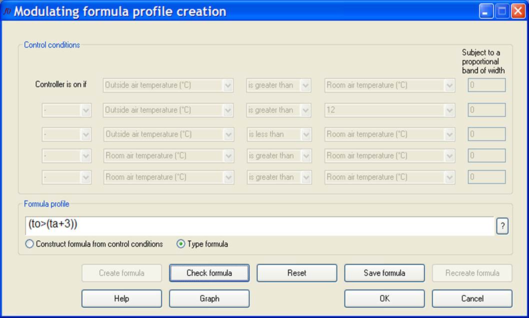
You do not need to use the control conditions interface to create your formula. By selecting “Type formula” you can simply type the formula or edit an existing one. In the example shown below the control will give an “on” signal (1) when the external temperature is 3°C greater than the internal temperature.
To confirm that the formula created is valid for use in ApacheSim you can click on the Check formula button. This will report any errors in the formula.
Refer to later sections for a list of valid functions operators and constants.
Menu Options
Buttons on the ‘Modulating formula profile creation’ dialog provide the following options:
Create formula: generates a formula based on the specified control conditions
Check formula: checks that the formulae created is valid
Reset: resets all the drop down boxes to the original configuration
Save formula: makes a temporary copy of the current formula
Recreate formula: reproduces the temporarily saved formula
Help: shows the help file for formula profiles
Graph: shows a graphical output of the current created formula profile
OK: saves the profile to the appropriate row of the Daily Profile table
Cancel: exits the formula creation dialog without saving any formulae
Formula Variables
Formulae can contain any of the following symbols representing weather and simulation variables:
Weather variables
|
Variable
|
Description
|
Metric unit
|
IP unit
|
|
ws
|
wind speed
|
m/s
|
ft/s
|
|
wd
|
wind direction
|
degrees clockwise from north
|
degrees clockwise from north
|
|
to
|
outside air temperature
|
° C
|
° F
|
|
twb
|
outside wet bulb temperature
|
° C
|
° F
|
|
go
|
outside air moisture
|
kg/kg
|
lb/lb
|
|
rho
|
outside air relative humidity
|
%
|
%
|
|
igh
|
global radiation on the horizontal plane
|
W/m2
|
Btu/(h·ft2)
|
|
ifh
|
diffuse radiation on the horizontal plane
|
W/m2
|
Btu/(h·ft2)
|
|
idn
|
direct normal radiation
|
W/m2
|
Btu/(h·ft2)
|
|
toav24
|
mean outside air temperature over previous 24 hours
|
° C
|
° F
|
Room variables
|
Variable
|
Description
|
Metric unit
|
IP unit
|
|
ta
|
room air temperature
|
° C
|
° F
|
|
tr
|
room mean radiant temperature
|
° C
|
° F
|
|
tdr
|
room dry resultant temperature
|
° C
|
° F
|
|
ta_
|
adjacent room air temperature
|
° C
|
° F
|
|
g
|
room moisture content
|
kg/kg
|
lb/lb
|
|
g_
|
adjacent room moisture content
|
kg/kg
|
lb/lb
|
|
rh
|
room relative humidity
|
%
|
%
|
|
rh_
|
adjacent room relative humidity
|
%
|
%
|
|
sol
|
short-wave solar gain to room
|
W
|
Btu/h
|
|
co2
|
room carbon dioxide concentration
|
ppm
|
ppm
|
|
e1
|
room illuminance (sensor 1)
|
lux
|
fc
|
|
e2
|
room illuminance (sensor 2)
|
lux
|
fc
|
Notes:
· Variable names can be uppercase or lowercase, e.g TO(1) or to(1), but not mixed, e.g. To(1).
· The illuminances e1 and e2 are computed only when the link to Radiance is used.
· e2 is not an active variable yet and should not be used.
Other variables
|
Variable
|
Description
|
Metric unit
|
IP unit
|
|
ii
|
incident solar irradiance
|
W/m2
|
Btu/(h·ft2)
|
Described in section 12.7.4 .
The input variables, and in the case of an absolute profile the profile value, are interpreted in metric or IP units depending on the Units Type of the profile.
The room variables ta, tr, tdr, g and sol refer to the state of the current room, and the room variables ta_ and g_ to the adjacent room on the other side of a building element. If a profile formula containing a room variable is used in a context where there is no current room (e.g. an on/off controller) the variable is assigned the value 0. Note that a single profile containing room variables can be used in any number of rooms and the result of the formula evaluation will be particular to each room.
A room variable may be linked to a particular room by following its symbol with a pair of brackets containing the room index number. Please note they start from 1 so the index number will be the zone number plus 1. For example ta(12) is the air temperature in the eleventh room, as seen in the ModelIT Rooms browser. When this syntax is used, the room number must be a literal integer. If you modify the geometry or reorder your room list after creating formula profiles (which reference to room index number) you may need to update the information in the formula profiles.
Note that the room air solar gain may not be used by the blind and shutter operating percentage profile groups, but the ambient variables such as global radiation on the horizontal plane and direct normal radiation may be.
Exceptions
In addition to the variables described above, there is the exceptional case of a “surface variable” which is neither a weather variable nor a room variable. Currently, the only example of this is the solar irradiance incident on a surface, denoted ii.
It is like a room variable in that its evaluation is context dependent; the ii variable is evaluated in reference to the surface to which the formula is attached. Unlike some of the room variables, it has no corresponding function, the evaluation of which would yield the value of the variable in reference to another specified surface (as described in section 12.9). Therefore, the expression “ii(1)”, for instance, is always illegal.
Note that ii is currently only used in electrochromic control functions. It should not be used in any other context.
Formula Operators
The table below lists the operators that can be used in formula profiles. They include the common arithmetic operators and Parentheses ‘(' and ‘)’ can be used to define the order of evaluation. In general operator precedence is taken as the table below:
|
Operator
|
Precedence
|
Unary?
|
Usage
|
Description
|
|
-
|
1
|
Yes
|
-x
|
Unary minus operator
|
|
^
|
2
|
No
|
x ^ y
|
x raised to the power of y
|
|
*
|
3
|
No
|
x * y
|
Multiplication operator
|
|
/
|
3
|
No
|
x / y
|
Division operator
|
|
\
|
3
|
No
|
x \ y
|
Integer divide operator; divides the first operand by the second and rounds the result to an integer (rounding towards zero)
|
|
%
|
3
|
No
|
x % y
|
Modulo; find remainder of the division of x by y
|
|
+
|
4
|
No
|
x + y
|
Addition operator
|
|
-
|
4
|
Yes
|
x - y
|
Subtraction operator
|
|
>
|
5
|
No
|
x > y
|
“Is greater than” logical operator. Returns 1 if true, 0 if false.
|
|
<
|
5
|
No
|
x < y
|
“Is less than” logical operator. Returns 1 if true, 0 if false.
|
|
>=
|
5
|
No
|
x >= y
|
“Is greater than or equal to” logical operator. Returns 1 if true, 0 if false.
|
|
<=
|
5
|
No
|
x <= y
|
“Is less than or equal to” logical operator. Returns 1 if true, 0 if false.
|
|
!
|
6
|
Yes
|
!x
|
“Fuzzy NOT” logical operator. Returns 1-x, but subject to range [0,1].
|
|
&
|
7
|
No
|
x & y
|
“Fuzzy AND” logical operator. Returns min(x,y), but subject to range [0,1].
|
|
|
|
8
|
No
|
x | y
|
“Fuzzy OR” logical operator. Returns max(x,y), but subject to range [0,1].
|
Operators are processed in order of precedence. Operators of equal precedence are evaluated in left-to-right order. Brackets override the processing order, e.g., if ta=21, 3*ta-20=43, but 3*(ta-20)=3. If in doubt, use brackets.
Operators involving a test for equality (those containing the “=” sign) are for most practical purposes equivalent to the version of the operator without the equals sign.