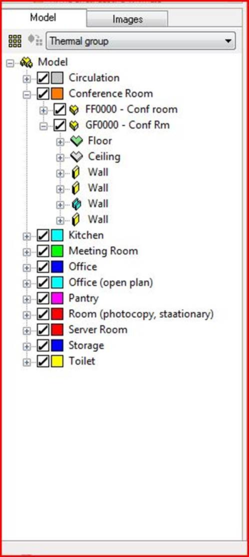
This has the standard “Model Browser” window which can be used to navigate through the model in the traditional way by selecting rooms or surfaces using the “Up” and “Down” to change the “level of decomposition”.
The two reasons to do this are to change the “Status” of the selected object and to browse through the Solar Shading data (see section 10.1).
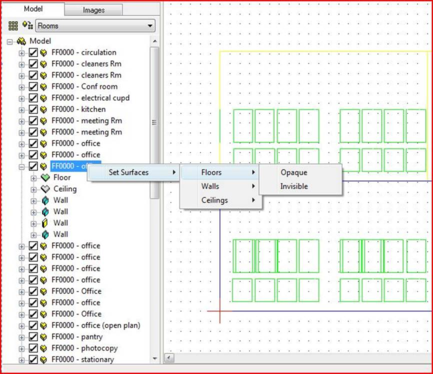
First selecting the room either from the browser or graphically from the Viewport.
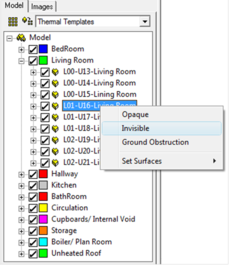
Right-click on room to bring up the pop-up menu:
Drag the cursor over the menu to highlight the option required.
The “Set Surfaces ►” option can be used to set the status of all “Floors”, “Walls” and “Ceilings” in the selected zone –
Room Obstruction Status
Each room/zone in the model can be set to one of the following obstruction states:
Opaque - this is the “normal” obstruction state of a room.
Invisible - this obstruction state hides the room from view but still allows it to cast shadows on other objects in the model.
Ground Obstruction - a separate obstruction state used to represent terrain.
Surface Obstruction Status
Every surface in the model can be set to one of the following obstruction states:
Opaque - this is the “normal” obstruction state of a surface.
Invisible - as with rooms when a surface is set to hidden it cannot be seen in any generated images but still casts shadows.
Transparent - the surface when flagged as transparent acts in the same manner as an opening and allows all light to pass through it.
Null - when the obstruction state is set to superficies (“hole”) the surface is left out of the calculations.


 Opaque - this is the “normal” obstruction state of a room.
 Invisible - this obstruction state hides the room from view but still allows it to cast shadows on other objects in the model.
 Ground Obstruction - a separate obstruction state used to represent terrain.
 Opaque - this is the “normal” obstruction state of a surface.
 Invisible - as with rooms when a surface is set to hidden it cannot be seen in any generated images but still casts shadows.
 Transparent - the surface when flagged as transparent acts in the same manner as an opening and allows all light to pass through it.
 Null - when the obstruction state is set to superficies (“hole”) the surface is left out of the calculations.