Outline
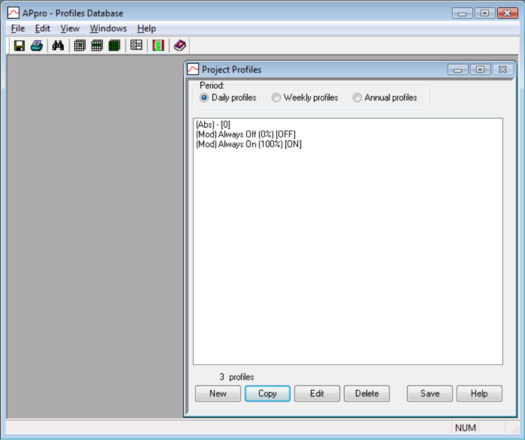
The main dialogue, headed APpro - Profiles Database (Figure 1) displays lists of the profiles in the project in a dialogue headed Project Profiles. The profiles are organised in categories: Daily, Weekly and Annual. By double-clicking on a profile you can display its properties and edit them. Buttons on the Project Profiles dialogue provide further operations on the profiles such as creating, deleting and copying.
Figure 1 APpro main dialogue, including the Project Profiles dialogue
The menus and toolbar at the top of the interface provide access to features such as the system profiles databases, printing options and search facilities.
When you first enter APpro with a new project you will see a list of default profiles, together with any additional profiles that have been brought into the project via templates. The APpro facilities allow you to add to and edit these profiles so that they describe the time variation patterns required to describe events and activities in the building.
Daily, Weekly and Annual Profiles
Profiles are organised in three categories, selected with radio buttons:
· Daily profiles cover a period of one day. Daily profiles are used as building blocks to create time variation patterns over longer periods.
· Weekly profiles cover a period of one week, and are built up from seven daily profiles, plus a special holiday daily profile. When used directly, this pattern is assumed to continue throughout the year. However a weekly profile may also be used in an annual profile if you need further refinement of the schedule.
· Annual profiles are sets of weekly profiles, each one starting and ending on defined dates in the year, and together defining the variation over a whole year. A common use for annual profiles is to allow different set-points to be specified for summer and winter; a more complex use may be for specifying different lighting schedules at different times of year.
· Free-form profiles are a set of values specified at given points in time and defined over periods of up to one year. Values are linearly interpolated between the specified points. These profiles are typically used to allow measured time series data to drive variables in Apache.
NB Annual profiles replace monthly profiles. Any monthly profiles in your existing projects will be converted automatically to equivalent annual profiles.
When the term profile is used outside the context of APpro it always refers to a weekly profile or an annual profile. In this context a profile always represents a pattern of time variation covering the entire year (as mentioned above, a weekly profile is assumed to continue throughout the year).
Note: Holiday assignation is currently only used in UK Building Regulations for Non-Domestic building compliance. Holidays are pre-assigned (note the 1st Jan) by the UK ODPM and BRE. Holiday assignation will be included in the next development phase.
Project Profile Lists
Within each category (daily, weekly, annual) a list of project profiles is displayed, with the following summary information:
· Description: A description of the profile in words.
· ID (in square brackets): A unique identifier assigned to the profile when it is created.
To edit a profile, double-click its entry on the list. Alternatively click once on the profile and then on the Edit button.
Project Profile Buttons
The buttons on the Project Profiles dialogue perform the following operations:
· New: creates a new profile and opens it for editing.
· Copy: copies the selected profile to a new profile, which is then opened for editing.
· Edit: displays a dialogue allowing you to edit the profile data.
· Save: saves all profiles to file.
· Help: provides help on the Project Profiles dialogue.
Menus
The menu options are described below. Some of these functions are also accessible from elsewhere in the interface.
File
o Save: Saves the project data to file.
o Print: Displays options for printing profile data.
o Exit: Exit APpro.
Edit
o Find a daily profile: Accesses a facility for finding daily profiles in either the system database or the project database. See Finding a daily profile for details.
o Profile substitution table: Displays the profile substitution table. See NCM Considerations for details.
o Allow NCM edits: If this is ticked on it allows NCM profiles to be edited. See NCM Considerations for details.
View
o System daily profiles: Accesses the system database of daily profiles.
o System weekly profiles: Accesses the system database of weekly profiles.
o System annual profiles: Accesses the system database of annual profiles.
Windows
o Cascade Windows: Arranges the windows in an overlapping cascade
o Tile: Arranges the windows in a grid pattern.
o Arrange icons: Arranges the icons representing minimised windows.
o Project Profiles (etc): A list of the displayed windows with a tick indicating which has the current focus.
Help
o Contents: Displays the contents of the Help facility
o About: Provides information on the software version.
o IES Ltd: Provides contact information for IES Ltd.
Toolbars
The toolbar icon options are described below. Some of these functions are also accessible from elsewhere in the interface.
· Save: Saves the project data to file.
· Print: Displays options for printing profile data.
· Find a daily profile: Accesses a facility for finding daily profiles in either the system database or the project database. See Finding a daily profile for details.
· System daily profiles: Accesses the system database of daily profiles.
· System weekly profiles: Accesses the system database of weekly profiles.
· System annual profiles: Accesses the system database of annual profiles.
· Profile substitution table: Displays the profile substitution table. See NCM Considerations for details.
· Exit: Exits APpro. You will be prompted to save any edits.
· Help: Provides help on using APpro.