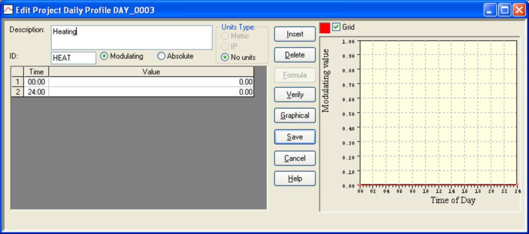
The dialogue displaying the attributes of a project daily profile is shown in Figure 2. This dialogue appears when daily profile is selected for editing by means of a double click or the Edit button. It displays the properties of a daily profile and allows them to be edited.
Figure 2 Editing a daily profile
The fields displayed on the dialogue are:
· Description: A description of the profile in words.
· ID: A unique identifier assigned to the profile when it is created. The ID may be edited on creation of the profile, but not thereafter.
· Modulating/Absolute: The type of profile, selected with a radio button when the profile is created. A Modulating profile specifies a time-varying value, and is used to modulate an input parameter or as a control switch. Where the profile is used as a control switch, values greater than 0.5 are interpreted as ‘on’ and other values as ‘off’. An absolute profile specifies a time-varying physical variable such as temperature.
· Units Type: The units system applying to the profile. In the case of absolute profiles and formula modulating profiles, the Units Type must be set to Metric or IP (inch-pound) to indicate the units system to be used to interpret the numerical values of the profile and any variables appearing in the formulae. The Units Type is initialised to the current units system set for the project, but this setting may be edited. For non-formula modulating profiles the Units Type is immaterial, and is set by default to No units.
· Profile times and values: A daily profile is defined as a series of values applying at different times of day.
· Time: The time at which the associated value applies. Times are subject to daylight-saving adjustments as set in APlocate. The first and last rows of the table must have times 0:00 and 24:00, respectively. If the profile undergoes an abrupt change at a particular time the transition must be defined using two rows of the table having the same time but different values or formulae.
· Value: The value of the profile at the stated time. This may be a numerical value or a formula (see Formula Profiles).
The buttons perform the following functions:
· Insert: Inserts a row in the table above the selected row.
· Delete: Deletes the current row of the table.
· Formula: Accesses a facility for generating formula profiles (see – Formulae Profiles)
· Verify: Verifies the correctness of the data, checking for impossible sequences of times and values.
· Graphical: Accesses a facility for editing the profile graphically (see – Graphically Edit Daily Profile).
· Save: Saves the edits made to the profile and exits the dialogue.
· Cancel: Discards the edits made to the profile and exits the dialogue.
· Help: Provides help on editing a daily profile.
Graphically Editing a Daily Profile
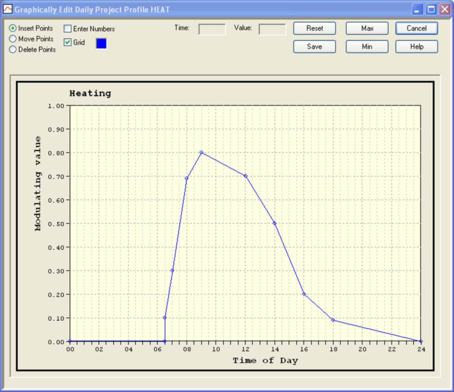
The facility headed Graphically Edit Daily Profile, accessed via the Graphical button on the Daily Profile editing dialogue, will allow you to edit the profile by manipulating points on a graph, shown in Figure 3 below:
Figure 3 Graphically editing a daily profile
The settings and buttons have the following meanings:
· Points editing mode radio buttons:
· Insert Points: Allows you to insert points by clicking on the graphic.
· Move Points: Allows you to move points by clicking and dragging.
· Delete Points: Allows you to delete points by clicking on the graphic.
· Enter Numbers: if you tick this box you will be prompted to enter numerical times and values for inserted or moved points.
· Grid: toggles the grid on and off.
· Reset: resets the profile times and values to their settings on entry to the facility.
· Max: allows you to set the maximum of the value axis.
· Min: allows you to set the minimum of the value axis.
· Save: closes the graphical editing facility and saves any edits
· Cancel: closes the graphical editing facility and discards any edits
· Help: provides help on graphical editing.