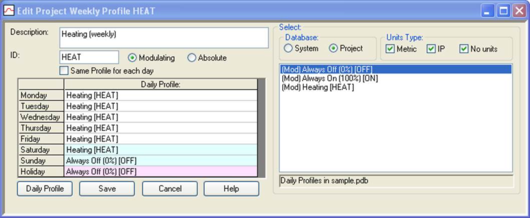
The dialogue displaying the attributes of a project weekly profile is shown in Figure 4. This dialogue appears when a weekly profile is selected for editing by means of a double click or the Edit button. It displays the properties of a weekly profile and allows them to be edited.
Figure 4 Editing a weekly profile
Daily profiles may be assigned from either the system or project daily profile databases. The source profiles are listed on the right of the dialogue in the box headed Select. The list is controlled by the following buttons:
· Database: Switches between the two databases:
· System: A centrally stored database of daily profiles.
· Project: Daily profiles in the project.
· Units Type: Restricts the listing to daily profiles expressed in particular unit types:
· Metric: Profiles expressed in metric units.
· IP: Profiles expressed in inch pound units.
· No units: Profiles expressed in no units (non-formula modulating profiles).
The attributes of the weekly profile are:
· Description: A description of the profile in words.
· ID: A unique identifier assigned to the profile when it is created. The ID may be edited on creation of the profile, but not thereafter.
· Modulating/Absolute: The type of profile, selected with a radio button when the profile is created A Modulating profile specifies a time-varying value in the range 0 - 1, and is used to modulate an input parameter or as a control switch. An absolute profile specifies a time-varying physical variable such as temperature. A weekly profile may only reference daily profiles of the same type.
· Daily profiles for each weekday: A weekly profile is defined as a series of eight daily profiles, one for each day of the week, plus one to be used whenever a holiday is in effect. Selecting a daily profile in this table and clicking the Daily Profile button displays its attributes, but they may not be edited here. To assign the daily profile for a particular weekday, first click on the row of the table corresponding to the weekday, then select one of the daily profiles from the list appearing on the right of the dialogue, using a double-click. This will be assigned to the selected weekday, and if the check box Same profile for each day is ticked, it will be assigned to all weekdays.
Note : Holiday assignation is currently only used in UK Building Regulations for Non-Domestic building compliance. Holidays are pre-assigned (note the 1st Jan) by the UK ODPM and BRE. Holiday assignation will be included in the next development phase.
Buttons provide the following functions:
· Same profile for each day: if ticked, replicates day profile assignments over all weekdays.
· Daily profile: displays the attributes of the selected daily profile.
· Save: closes the dialogue and saves any edits.
· Cancel: closes the dialogue and discards any edits.
· Help: provides help on editing weekly profiles.