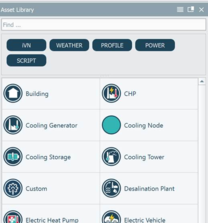
3D geometry is not required in order to perform iVN simulations. To include buildings in a 2D iVN model without 3D geometry, drag and drop a building asset from the asset library (see Figure 3-31) into the 2D iVN (Level 1) workspace view.
Figure3-31:Buildings are also available in the asset library.
It is also possible to associate 2D buildings with 3D geometrical buildings after they have been added to the iVN workspace view. This is done by dragging a 3D building object listed in the object browser onto the building icon in the 2D iVN (Level 1) workspace view. The icon changes to indicate this association in the schematic 2D workspace view, as shown in Figure 3-32 below. The building will now also have the associated building geometry and location in the geographical 2D iVN (Level 1) workspace view.
Figure3-32:Icons representing 2D buildings in the 2D iVN (level 1) workspace view that are either associated with 3D geometry (left) or not (right)