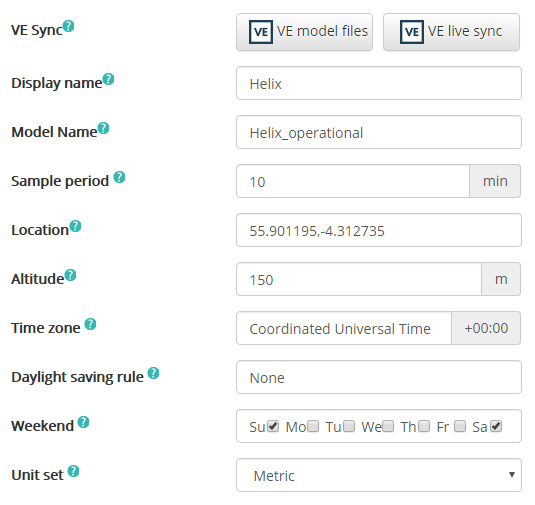
Display name of the building. This is the name set when creating the Building and can be changed at any time. The building name is shown on each page at building level.
Model Name
Globally set the name of your model. This will be used as a prefix for the .ies file when apm files are exported.
Sample Period
The sample period is the number of minutes between points when data is plotted or exported. Allowable sample periods are 1, 2, 3, 4, 5, 6, 10, 12, 15, 20, 30, 60 minutes. Raw imported values are not affected by this value but plots and exports will resample raw data to this period. For calculated summaries {LINK PLOTS}, if no expected sample period is set in the channel details. The Building sample period will be used.
Changing this cause data summary of all channels to recalculate, which may take a considerable amount of time depending on the data available.
Location
The location of the Building can be set either by entering the latitude and longitude in the format “Latitude,Longitude” or clicking and dragging the “Building” icon on the map that’s shown when the location textbox is selected.
The location is used for:
· Set the location for weather data from Weather Analytics®.
· Set the location in FWT export files for the IES-VE.
· Location based expressions in ISCAN
Altitude
Enter a value in meters. The Altitude is used for:
· Location based expressions in ISCAN
Time zone
You can select the appropriate time zone for the building. This enables handling of data that is recorded in the “Local” timezone rather than UTC, where other sources might use UTC.
The timezone of a building is used for
· Plot displays
· Data exports (except CSV)
· Time-based Expressions
Daylight saving rule
You can select the appropriate daylight saving rule for the building. This enables handling of data that is recorded with daylight savings accounted for rather than the local winter time.
The daylight saving rule of a building is used for
· Time-based Expressions
Weekend
You can use the checkboxes to select the days that should be considered to be the weekend. This can then be used in Time-based Expressions.
Unit set
For channels that are created from built in sources and autocompleted channel names, the unit set determines what units are used. You can select between Metric and Imperial units by clicking on the dropdown selecter.
Setting the Unit set will not perform any unit conversion
Building Details page buttons
The building details page controls are located at the bottom of the Building details page.
Save changes/Changes saved
Any time a change is made to an input box the “Save changes” button becomes active. Changes are automatically saved after 7 seconds. Once changes are saved the button is no longer active and the button will show “Changes saved”
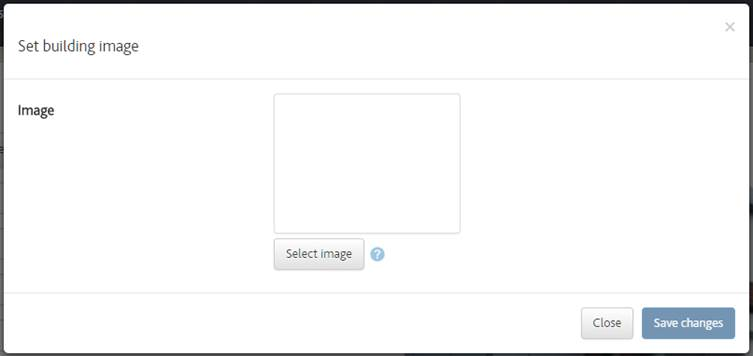
Upload image
Shows a dialog to upload a new building image. To upload a new image click “Select image” and locate the image you wish to upload. You’ll see a preview of the image you’ve selected and clicking save changes will update the building image.
To cancel click the “Close” button or “x” in the dialog box.
Metadata
Opens the Building Metadata page
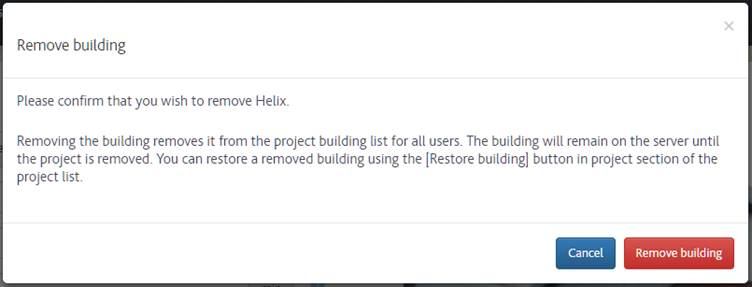
Remove building
Shows a dialog to remove the building for all users of the project. The building will be stored and can be restored using the “Restore building” button on the Projects page. If the administrator removes the Project, the building will be permanently removed from the server.
To remove the project click on the “Remove project” button. To cancel click the “Cancel” button or “x” in the dialog box.