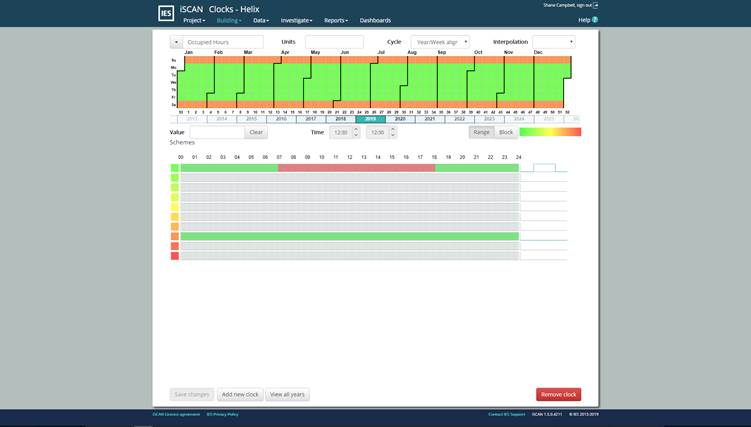
The clocks page allows you to define daily profiles on an annual schedules that can be used in channel expressions . These are useful when multiple channels use the same annual schedule allowing a global change to be applied to all the channels using the clock. Clocks can have a sample period as low as every 5minutes.
Dropdown/selector
Displays list of available clocks. The selected clock is shown in the text box. To rename the current clock the name can be edited in this text box.
Units
Unit of the value. Type in the unit text box of a clock to define appropriate units for that clock. Not currently used.
Cycle
Repeat cycle for values in the clock. The following options are available:
None – Each Day/Month/Year value must be defined
Annual (day of the year) - values repeated every year on the same day of the year
Year/Week aligned - values repeated in the same week of the year
Month - values repeated in the same week of the month
Four week – Values are repeated every four weeks
Two week - Values are repeated every two weeks
One week - Values are repeated every week.
Interpolation
Linear – Straight line interpolation between two values in a scheme
Discrete step – Stepped interpolation between two values in a scheme. i.e. a value is held constant until a change in value.
Calendar area
Selectable calendar grid where each square is a day in the year. Days of the week (Sun-Sat) are from top to bottom and week of the year from left to right. Month boundaries are also shown by a heavy black line. The year can be changed by selecting it in the year timeline below the calendar
To select a date you can click a cell and drag the selection. Clicking on one of the following labels will select that range i.e. Month name, Week number of year, day of week. Use “Ctrl” and “Shift” keyboard keys to make select multiple selections.
To select a full year, double click on the year in the timeline below the calendar.
Value
The value in the current time window for the selected scheme. To set a value for a time range type the value here.
Time
For a scheme, the highlighted start and end times are shown or can be selected.
Selection
Range - select consecutive calendar days
Block - select non-consecutive days
Colours
Changes the colour swatch for the values shown in the clock. For each colour swatch the scale shows lowest values on the left to highest on the right.
Schemes
A 24 hour day at 5-min sample period.
Save changes/Changes saved
Any time a change is made to an input box the “Save changes” button becomes active. Changes are automatically saved after 7 seconds. Once changes are saved the button is no longer active and the button will show “Changes saved”
Add new clock
Adds a new clock to the clock list. To rename the clock use the text box next to the dropdown box.
Note: each new added clock copies the selected clock.