9.2.3. Import an existing iCIM or iRoadmap project
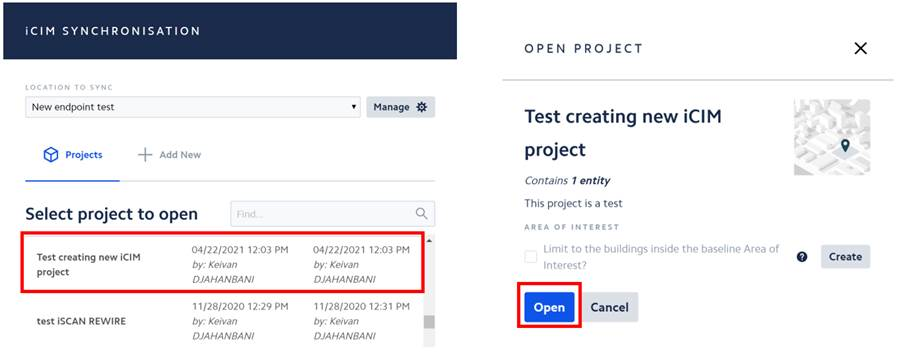
To load a pre-existing iCIM or iRoadmap project into the iCD model, the project should be selected from the list in the Projects tab (see image below) in the iCIM synchronisation window. Clicking the project opens the Open Project window (see Figure 9-29 below). Click the Open button to import the project into iCD.
Figure9-29iCIM Endpoint – Importing an existing iCIM model
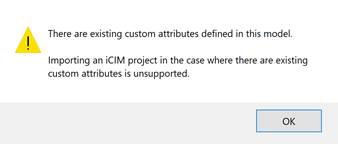
Note: It is not currently possible to synchronise to an existing iCIM project, an iCD model which already has custom attributes. The below error message will be prompted if so (Figure 9-30).
It is advised to first synchronise the iCD models to the iCIM project without any custom attribute, then add them in iCD and finally re-synchronise the iCD model to iCIM so that the new custom attributes will be available in iCIM.
Figure 9-30: Error message synchronising an iCD model with custom attributes to a pre-existing iCIM project
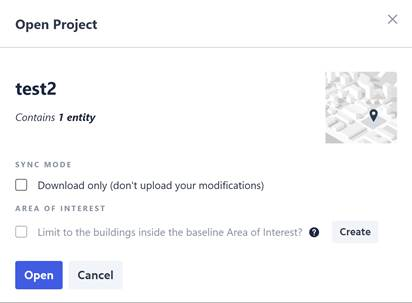
Note: If trying to open an existing iCIM or iRoadmap project into an iCD model that already contains objects, the Open Project dialog (shown in Figure 9-29) changes slightly and gives the user the possibility to select the Synch mode (see Figure 9-31 below).
Figure 9-31 Open Project dialog with Synch mode
If the Download only option is ticked, clicking Open will only import the object in the iCIM or iRoadmap project into the iCD model.
If the Download only option is not ticked, then clicking open will both import what is on iCIM into the iCD model but also upload the objects in the iCD model to the iCIM/iRoadmap project.