Data can be imported and exported into a variety of formats from iCD.
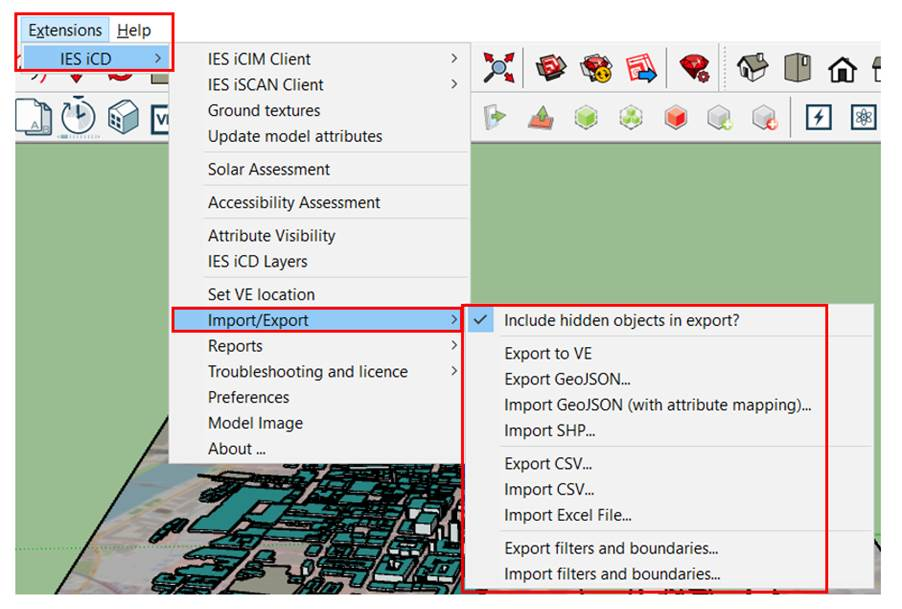
The user can access the Import/Export tool from Extensions->IES iCD->Import/Export.
Figure 8-1 Import / Export options
Include hidden objects in export
It is recommended to keep this checked, unless the user deliberately wants to omit or avoid importing/exporting hidden objects.
Export to VE
The user can export the model to VE for further detailed analysis.
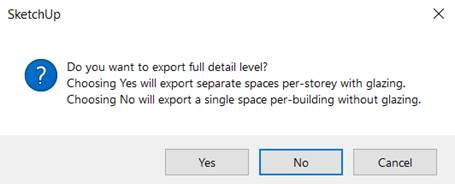
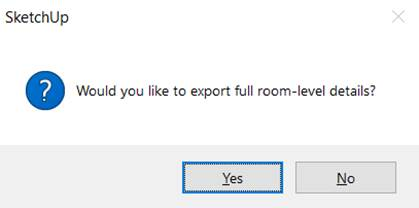
When the user clicks on Export to VE, a pop-up window opens asking to confirm the type of export. Click “Yes” or “No” depending on the import required.
Figure 8-2 VE Import options
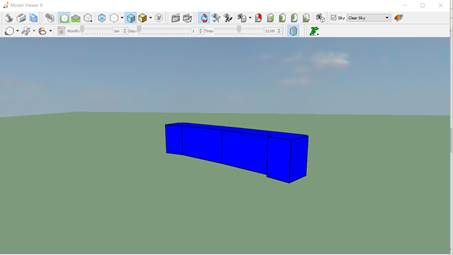
Clicking “No” will export the object as a single space per-building without glazing (figure to the left).
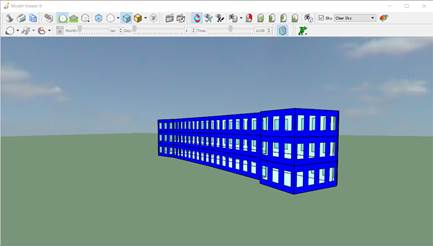
Clicking “Yes” will export the objects as separate spaces per-storey with glazing (figure to the right)
Figure 8-3 Export Results – Clicking “No” Figure 8-4 Export Results – Clicking “Yes”
Note, that all layers are imported into the VE. For example, even if the roads layer is switched off it will be imported to the VE.
Export GeoJSON
The user can export the object as a GeoJSON file.
Clicking on “Export to GeoJSON” the user will be prompted a dialog to select if the full room-level details should be exported or not.
Once selected, the user will be prompted to save the file on its computer.
Import GeoJSON (with attribute mapping)
Import shp
Export CSV
Import csv
This is covered in a previous chapter. Refer CSV IMPORT
Import excel file
This enables the user to import an Excel spreadsheet directly.
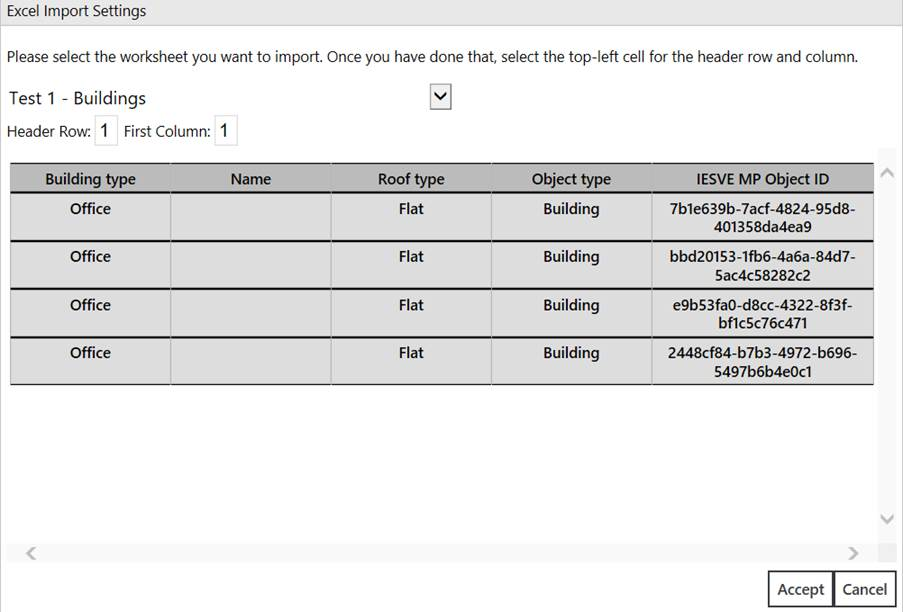
Browse and select the Excel spreadsheet. The spreadsheet will now be visible
Select the required rows and columns and click Accept. The Excel is now converted to a CSV.
Export filters and boundaries
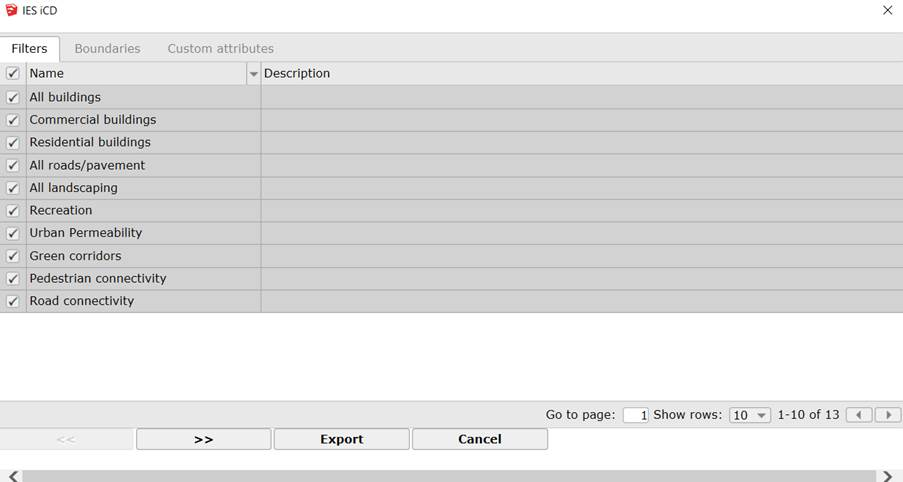
The user can export the filters and boundaries as a .json file.
Click on the Export filters and boundaries and check the filters, boundaries and custom attributes to export. Once selected. Click Export.
Import filters and boundaries
In a similar manner the .json files with boundaries demarcation can be imported to iCD.
Export IES geojson to file
The user can also export an IES geojson to file.