The simulation year can be set before launching the simulation.
Note: The simulation year becomes a crucial parameter if iCD simulation data are destined to be exported or synchronized in other ICL tools. The Digital Twin, as a dynamic model, gives the possibility to compare data of the same model from one year to another, thus the importance of this variable.
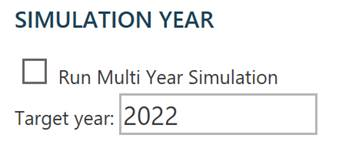
Choosing the simulation’s year is done by simply entering the desired year in the editable field (see Figure 5-9).
Figure 5-9 : Simulation year set to 2022
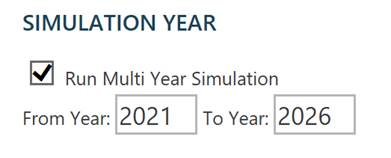
Multi-year simulation: It is also possible to run a multi-year simulation by ticking the Run Multi Year Simulation box and setting the starting and end year of the simulation (see Figure 5-10 below).
Figure 5-10: Multi-year simulation set for the period from 2021 to 2026
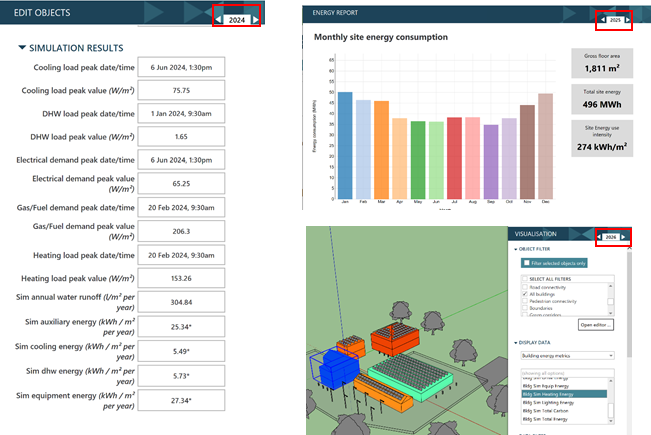
If a multi-year simulation is performed, it is important to keep in mind that simulation results are stored individually for each year in iCD. So, whether results are viewed through Reports, the Room/Building Query Tool or the Visualisation Tool, it is important to make sure the desired year is selected in the editable field in the top-right part of the window
It is possible to view the yearly aggregated results for each building and each year using the Room/Building Query Tool in the Simulation Results section (see Figure 5-11 and chapter 4.9.9SIMULATION RESULTS – Buildings).
Figure 5-11: Simulation results shown in the Room/Building Query Tool for year 2024 (left) in a report for year 2025 (top-right) and in the visualisation Tool for year 2026 (bottom-right)