The Weather Data option gives the possibility to manually set the weather file to be used for the simulation.
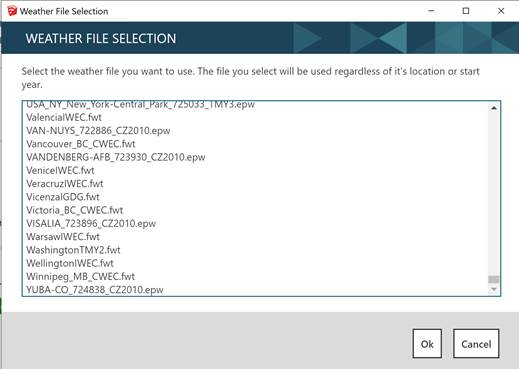
Clicking the Manually Selected Weather Data box opens the Weather File Selection dialog in which the end-user can select any weather file amongst the available list (see Figure 5-12 below).
Figure 5-12: Weather File Selection dialog
Note: The Weather File Selection dialog gives access to all the weather files available for the VE and the iCD. They are usually located in the following folder: C:\Program Files (x86)\IES\Shared Content\Weather. To add specific weather files or On-site weather data to this list, follow the steps below:
1- Copy the desired file in this folder C:\Program Files (x86)\IES\Shared Content\Weather;
2- Re-start the iCD model if already open.
3- Open the Simulation launcher by clicking on the simulation button in the iCD toolbar.
4- Tick the box Manually Selected Weather Data. The weather file should now be added in the list.
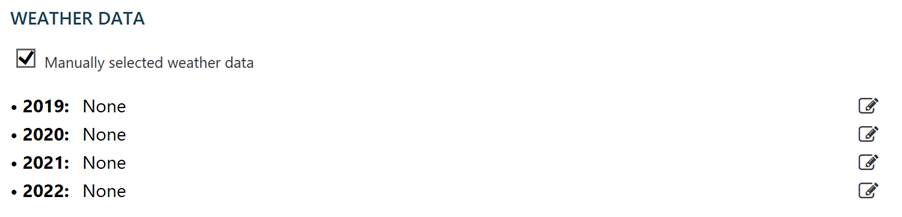
If the simulation is a multi-year simulation, it possible to independently assign a weather file for each simulated year clicking on the “pen” icon on the right side to each year (see Figure 5-13).
Figure 5-13: Weather file selection for multiyear simulations
When a weather file is manually selected, iCD to assess the file’s validity against two criteria:
8. The coordinate of the location for the weather file compared to the simulation’s location: the model’s location should be less than 50km away from the weather file’s coordinates.
9. The year the weather files refers to compared the to the simulation year: the weather file’s time stamp should match the simulation year.
If the selected weather file fails to comply with one or both criteria, the weather file will still be applied (and will be used by iCD for the simulation) but one of the following warning messages will be prompted:
10. Applied weather file. Please note that one or more of the weather files selected is more than 50km from the model location.
11. Applied weather file. Please note that one or more of the weather files selected does not contain data specific to the year(s) selected.
12. Applied weather file. Please note that one or more of the weather files selected does not contain data specific to the year(s) selected and is not within 50kM of the model location.
Note: the second warning will always be prompted when using a .fwt file as they are TWY files (Typical Weather Year) and thus not year specific.