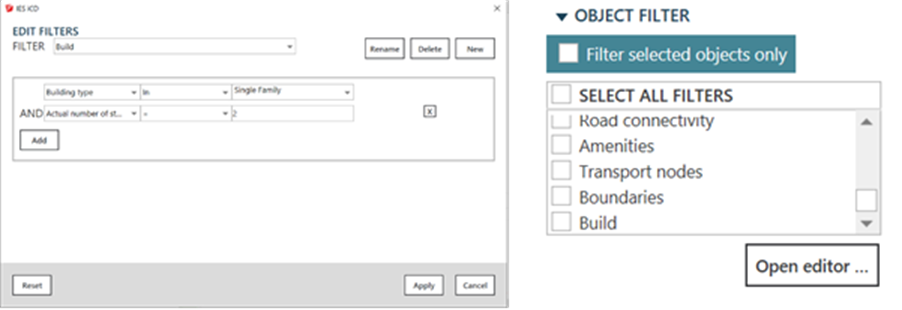
Object Filters provides the list of filters which can be seen in Data painter, Visualisation and Simulation options in the iCD toolbar. Object Filters are used to select specific objects based on the user’s preference.
Filter selected objects only– This option includes/considers the buildings which are manually selected by the user.
Select All Filters– This option provides a list of Filters (including Everything, Commercial Buildings, Residential Buildings etc) which can be selected based on the user’s preference. For instance, if the user wants to include only commercial buildings from the iCD model, commercial buildings option can be selected from the object filter option.
Open Editor– Open Editor option is used to create a customised filter based on the user’s choice. The following example shows the methods to create filters:
4. Select a New Filter option from the Edit Filters dialogue box.
5. Enter the Filter name based on the user’s preference and select ok.
6. From the other Filter options, select the appropriate building attribute from the list and select apply.
7. The new filter will be added to the Object Filter Dialogue Box, and can be selected while using Data Painter, Visualization or Simulation option in the iCD toolbar.
8. Use reset to delete the filters.
Example:Type a New Filter name as Build. Enter Building type In Single Family and Actual number of storeys = 2 (this filter includes only residential buildings with 2 storeys, all other buildings are excluded from the model). Select Save. This option will be added to the Object Filter Dialogue Box, and can be selected if needed.