As previously mentioned, a custom attribute can be defined with different types depending on the values the attribute may take. Here below is a description of the different type of custom attributes.
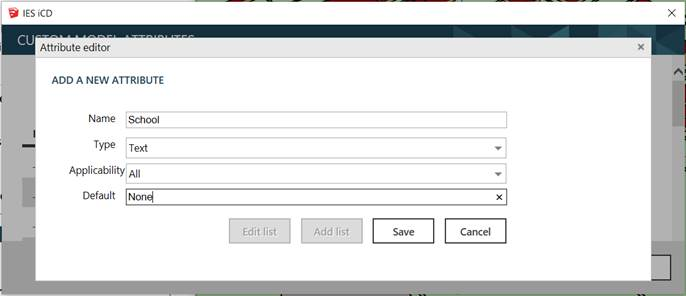
Text: Text is used to add/enter the attribute information in a text format.
Figure4-60New Custom Attribute Editor – Type: Text
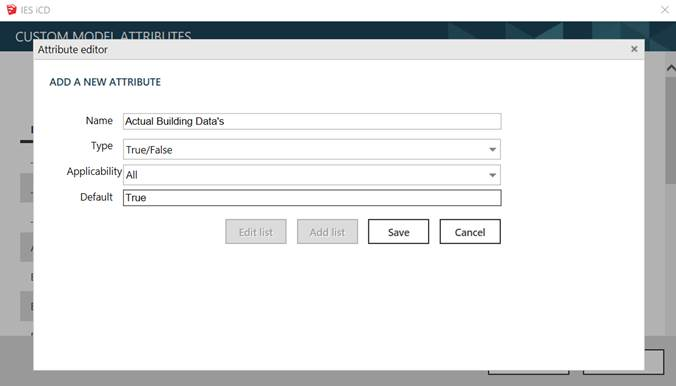
True or False: This option is used to exhibit the attribute as True/False statement.
Example:New attribute has been created to show whether Actual Building Data are real or predicted. The user can select True / False based on real/predicted data.
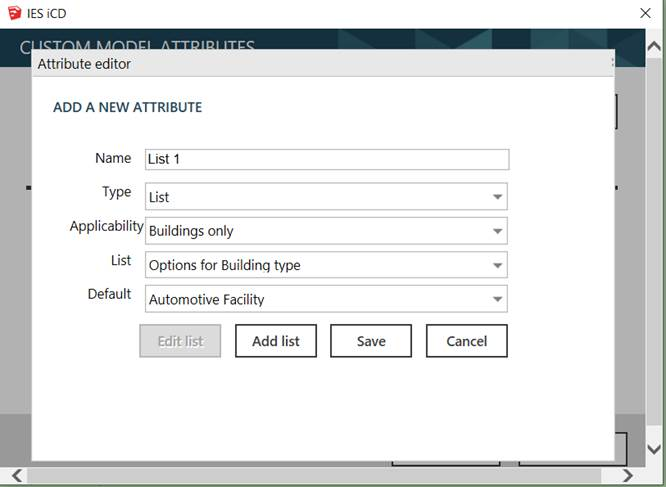
List: If the custom attribute can only take a limited number of values within a pre-set list, the end user can then define it as a list. The user can either choose a list from the existing ones or create a new list (using the Add list button) based on the model requirements.
Example:The Attribute List 1 is created to represent the options for Building Type (Options for Building Type is the existing option available in attribute editor dialogue box).
Figure4-62New Custom Attribute Editor – Type: List
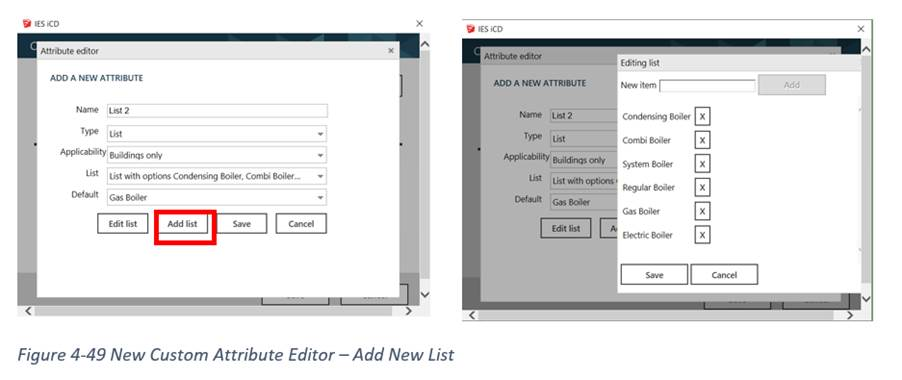
The Attribute List 2 is created to represent the options for Boiler types (custom attribute options). Select Add list to create a list with appropriate options (In this example: Condensing Boiler, Combi Boiler, System Boiler, Gas boiler etc). Select save and the new list will be created. The user can create any number of customised lists to the model based on user requirements.
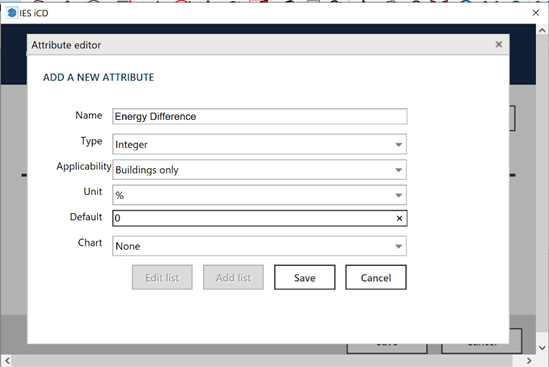
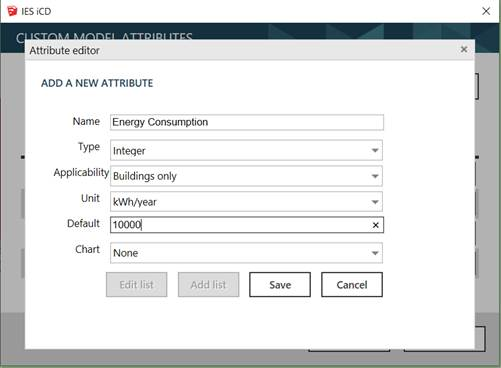
Integer / Numbers:Integer/Numbers can be used to represent the available data in numeric form (such as °C, %, £, $ etc). Numbers can be used to represent decimal data.
Example: The following example shows a new attribute Energy Consumption (kWh/year).