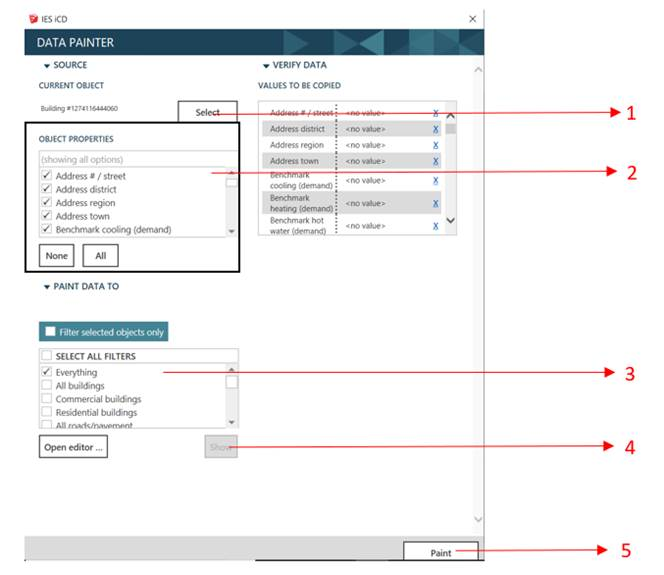
Data Painter is one of the easiest methods to paste data to multiple buildings in the iCD model at the same time. To use the Data painter tool, user must have all the data’s assigned to the base building which is used as a source to copy the preferred data. Steps to use data painter tool are as follows:
1. Select the Data Painteroption from the iCD toolbar.
2. Select a building (source) from the iCD model (1) and select the attribute data from the object properties list to be pasted (2).
3. From the object filters option, mark the appropriate filters (3) to paste the selected properties to the targeted objects (Everything, All buildings, Commercial Buildings etc).
4. Select show (4), the data to be copied will appear in the Values to be copied window. In here the user can delete a selected attribute by clicking the x next to the name to the selected attribute
5. Once the attribute to be copied are verified, click paint (5) to paste the data to the selected buildings in the iCD model. Note that if no attribute is selected or the show button has not been activated, the paint button will remain grey.
6.Open Editor option can be used to create own filters based on the user’s preference (refer Object Filters4.9.12.3for more details).
7.Filter selected objects onlyis used to paste the selected data to the particular set of buildings based on user’s preference.


 option from the iCD toolbar.