The following elements of the model dataset should then be revised as required to revise occupancy:
· Daily profiles:
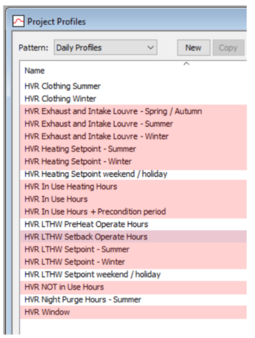
Open Apache profiles database manager and select the pattern daily profiles.
Check the filter checkbox and enter ‘HVR’ to see the HVR specific daily profiles.
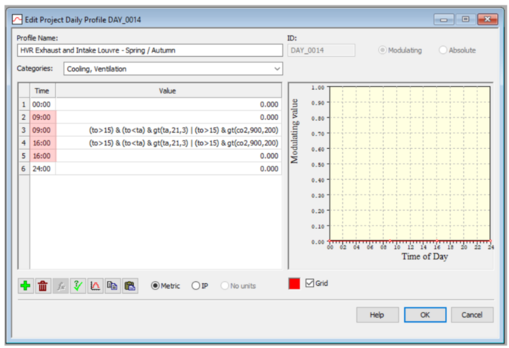
The highlighted daily profiles are the profiles that typically will need editing to change hours of use. Select a profile and amend the hours of use (highlighted) to suit the project.
· Weekly profiles:
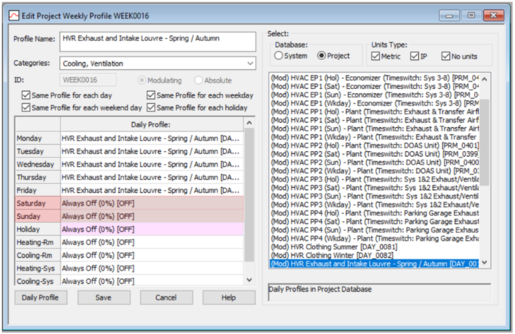
Change the pattern to weekly profiles.
If the project has weekend use revise the assignments for Saturday and Sunday.
· Simulation calendar:
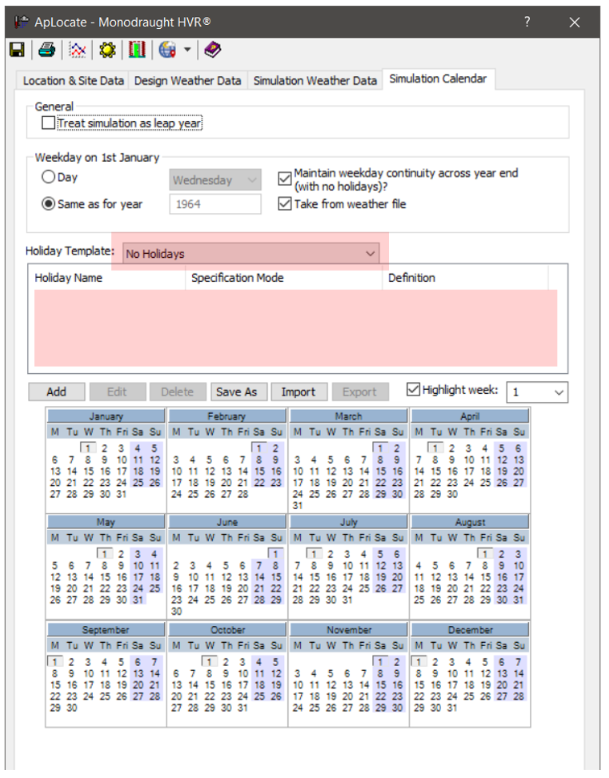
Open Aplocate and the Simulation Calendar tab.
Notice that the model is set-up for no holidays and default weekends.
Using the holiday template control to add suitable public holidays e.g. Scotland. These will now appear in yellow highlighting in the calendar. Then add any project specific holidays manually using the add control.
Holidays will now picked-up in the simulation and will use the assigned daily profile (by default always off).
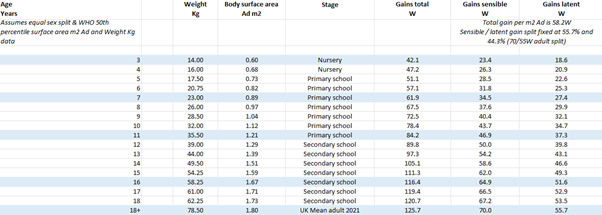
For education projects and BB101:2018 it is important to set-up model room people casual gain data accurately to reflect the student cohort. IESVE scales CO2 production off the total people casual gain so this data affects both BB101:2018 comfort and CO2 checks. The following table provides student cohort data based on CIBSE guidance and WHO data.
If the operation of the project diverges further edit the model as required using the guidance of TM54; however note that control setpoints are coordinated in the dataset including in the ApHVAC networks so editing setpoints should be only carried out by advanced users with an ApHVAC licence.