Changing Opening Type using Opening Selection and Assignment
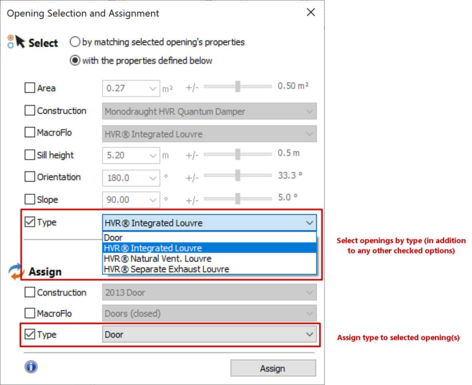
The Opening Selection and Assignment functionality in ModelIT has been extended to allow it to additionally select by type and assign type to openings. This method allows you to quickly select openings by their type (in addition to other settings such as area, sill height and orientation), as well as quickly set the type for selected openings.
The Opening Selection and Assignment utility operates on external windows or external doors – it cannot select and apply across both types simultaneously, nor can it act upon internal openings. Before using it for a particular type, you can select an opening manually on the view to ensure the utility is in the correct mode (e.g. to select/assign to doors, click on a door in the view first).
Note: The Type options for select and assign will only be displayed if at least one room is assigned to an HVR unit group. If you have changed the room assignments whilst the utility is opened, you will need to close the Opening Selection and Assignment window and re-open it again in order to display the options.
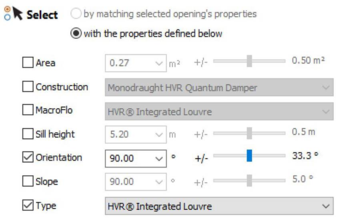
In the case of selection, you can use the Type option in combination with the existing options to fine-tune which opening(s) will be selected. For example, select all HVR Integrated Louvres at an orientation of 90°:
In the case of assignment for HVR types, you should avoid using it in combination with the MacroFlo option (and, in the case of louvres, the Construction). This is because assigning the HVR types will also update the MacroFlo/Construction assignments of the openings, thus cancelling out your selected choices.
If you attempt to assign an HVR type onto a window/door in a room that is not assigned to an HVR unit, the type will be left as a standard window/door.