On this tab we have three sections:
· Type
· Options
· Simulation
Type
This section allows the user to set the simulation type (Luminance, Illuminance, Sensors or Advanced including Daylighting Autonomy Calculations).
Using the radio buttons provided, we can choose to generate one of the following types of results:
· Luminance - to generate a photo-realistic image or to analyse glare, This option has two suboptions:
o Standard
o Daylight Glare Probability
· Illuminance - to determine LUX levels or Daylight Factors.This option has five suboptions:
o Standard – creates standard perspective view
o WP View Image
o WP Zone Image – creates a working plane Illuminance image, a notional working plane is specified by the user.
o WP Zone Data (T) – creates a grid of Lux values – the results are displayed in WP Grid tab; this option uses rtrace method
o WP Zone Data (C) - creates a grid of Lux values – the results are displayed in WP Grid tab; this option uses Daylight Coefficient (rcontrib) method with hard-wired dynamic parameters settings.
·
Sensors – see sensor settings tab for details
[PC1] o Apache (default)
o Apache (custom)
o Apache (dynamic)
o Radiance (dynamic)
· Advanced
o Vertical Sky Component
o Annual Dynamic (UDI)
o (ASE) Annual Sunlight Exposure
o sDa (Spatial Daylight)
Advanced
There are 4 options available for advance simulation:
· Vertical Sky Cmponent (VSC)
· Annual Dynamic (UDI) - Useful Daylight Illuminance
The UDI is a metric where the illuminances are categorized into bands that
are considered “useful” by occupants. These bands are, by default:
less than 100 - fell short
100 – 500 - supplementary
500 – 2500 – autonomous
and can be edited in post-processing.
· ASE (Annual Sunlight Exposure) -
The ASE is a metric that describes the potential for visual discomfort in
interior environments. It is defined as the percent of an analysis area that
exceeds a specified illuminance level more than a specified number of
hours.
· sDA (Spatial Daylight Autonomy -
The sDA is a metric describing annual sufficiency of daylight levels in
interior environments. It is defined as the percent of an analysis area that
meets a minimum illuminance level for a specified fraction of the operating
hours per year. It reports a percentage of floor area that exceeds a specified illuminance level, e.g. 300 lux for a specified amount of annual hours, e.g. 50% of the hours from 8.00am to 6pm.
Preferred threshold: sDA300/50% ≥75% of analysis area
Nominally acceptable threshold: sDA300/50% ≥55% of analysis area
greater than 2500 – exceeded
The drop-down combo provides five time-step options:
Full year: 365 days - full 365 days
Full year: Weekdays only - Monday to Fridays over full year
Full year: Holidays profile - Simulate for days that are not flagged as Holidays
Monthly: 12 design days - use single "design" day per month (15th of Month)
Weekly: every 7 days - use every 7th day (starting on 1st January)
(assume 1st January is Monday)
Options
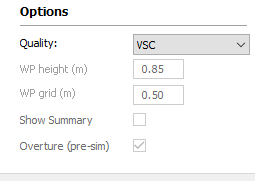
This is were the quality of the simulation, working plane height and grid size are set up.
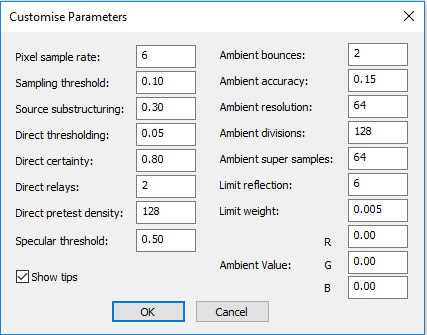
The quality setting can be set to Medium, High or Maximum – these are options with default settings. There is also a possibility to customise the parameters by clicking on Custom from the drop drop down menu.
The "Customise" button opens a dialog box to allow the setting of individual simulation parameters.
This feature is best left to the more experienced user.
Note: The "Ambient Value" parameters are new to this tab and should be left at 0.0 for most simulations.
The quality settings can be saved to a file or retrieved from a file (*.rdp file). To load a *.rdp file select ‘Browse’ from the quality drop down.
The VSC option is used for Vertical Sky Component simulation – it has the "Ambient bounces" parameter adjusted to generate the Sky Component (Vertical Sky Component) values.
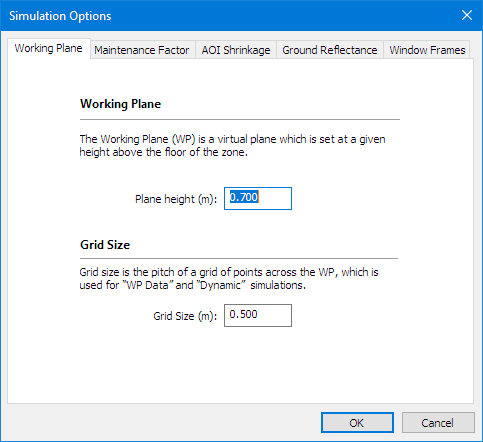
The working plane height is 0.85m by default but it can be changed in the WP height field:
The user can also set this height by selecting the zone of interest and going to RadianceIES (main menu bar) > Simulation Options > Working Plane, or by clicking the

button on the toolbar:
To improve the simulation quality an “Overture” simulation can now be performed (this is similar to doing a pre-simulation for thermal modelling). This option is switched ON by default.
Simulation
This is where you start your simulation.