Radiance is a software package developed by the Lighting Systems Research group at the Lawrence Berkeley Laboratory in California, USA.
Radiance was developed as a research tool for predicting the distribution of visible radiation in illuminated spaces. A three-dimensional geometric model of the physical environment is used, and a default material or map file detailing the spectral radiance values into a “photo-realistic” colour image. It can be used to calculate lighting levels, Daylight Factors or Glare for daylight and/or artificial lighting.
Radiance is internationally recognised as one of the leading lighting simulation tools available. IES have been using Radiance over a wide range of commercial projects for many years and to facilitate this work IES have integrated Radiance into the Virtual Environment. The latest version of this integration RadianceIES provides users with even greater ease of use through its customised Graphical User Interface (known as the Virtual Environment Framework), which integrates with all the IES software packages (SunCast, Apache, etc.).
Everything you want to know about Radiance can be found in the book “Rendering with Radiance” by Greg Ward Larson & Rob Shakespeare, published by Morgan Kaufmann Publishers.
More introductory information can be found in the supplementary IES document “Radiance – Overview”.
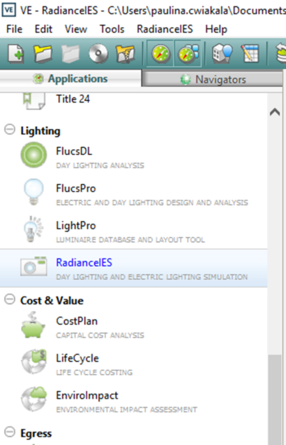
Radiance is started by clicking the “RadianceIES” button from the “Lighting” section of the Application Selector.
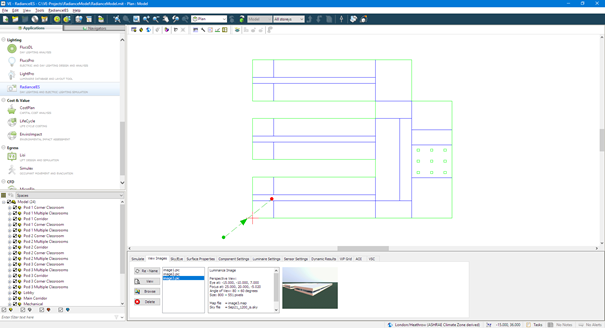
The Radiance view consists of the usual Model Browser and Viewport, with a toolbar at the top and a series of tabs at the bottom of the view. The toolbar items are as follows:
 Tabular Space Data
 – displays the Tabular Space Data window, allowing for editing of basic properties on all selected spaces
 Apache Construction Database
 – opens the construction database, allowing editing of the construction data within the project
 Set Location
 – opens ApLocate, allowing the location and weather information for the project to be changed
 Assign Constructions
 – allows the assignment of which construction(s) are assigned onto the selected object(s).
 Enable Components
 – toggles the use of components within Radiance. This also makes the Component Settings tab active.
 Enable Luminaires
 – toggles the use of luminaires within Radiance. This also makes the Luminaire Settings tab active.
 Switch Daylight Off
 – toggles the use of daylighting in relation to luminaires. This setting is only enabed when using luminaires.
 Working Plane
 – Height and Grid – opens the Simulation Settings window to display the settings for the working plane.
 Maintenance Factors
 – opens the Simulation Settings window to display the settings for maintenance factors.
 AOI Shrinkage
 – opens the Simulation Settings window to display the settings for Area Of Interest (AOI) within spaces.
 Ground Reflectance
 – opens the Simulation Settings window to display the settings for customising ground reflectance.
 Window Frames
 – opens the Simulation Settings window to display the settings for window frames.
 Enable Illuminance Sensors
 - toggles the use of sensors within Radiance. This also makes the Sensors Settings tab active, and will also trigger the placement of default sensors if none are defined.
 Place Default Sensors
 - allows control over the placement of default sensors in the spaces.
 Add New Sensor
 – allows a new sensor to be added to the selected space.
 Remove Highlighted Sensor
 – removes the sensor that is currently highlighted in the Sensor Settings tab.
 Sensors for Apache (Default)
 – runs a sensors simulation with the Apache (default) option.
The tabs along the bottom of the view have been categorised as follows -
Simulate
View Images
Sky/Eye
Surface Properties
Component Settings
Luminaire Settings
Sensor Settings
Dynamic results
WP Grid
AOI
VSC
The function and data requirements for these tabs are described below.
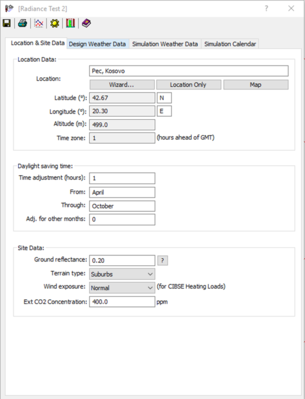
Site location data is inherited from ModelIT but can be changed in Radiance by clicking the location icon in the bottom right corner of the screen

. This will open ApLocate dialog where the location and weather data can be changed
Documentation on the “WP Grid”, “AOI” and “VSC” tabs is in a separate document.