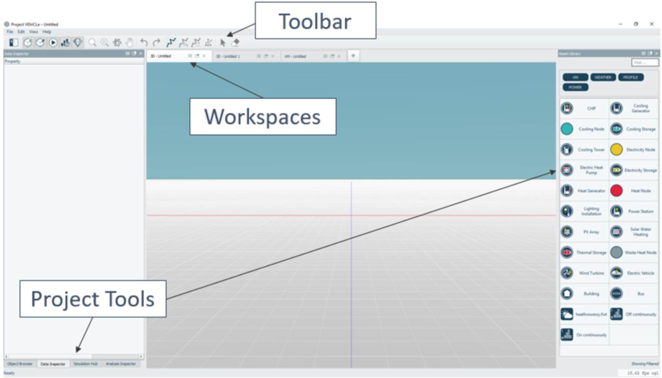
The iVN user interface is comprised of a toolbar, workspaces and project tools. These are shown in Figure 3-20
Figure 3-20: iVN user interface
Once an existing or new project is opened, the default 3D workspace view is displayed. The 3D workspace, toolbar and primary tools that facilitate the majority of the user workflow are displayed by default. The primary tools displayed can be toggled on and off from the toolbar or the view menu.
Dialog settings menus on the 3D & 2D view tabs give access to individual view tab settings, as shown in Figure 3-21.
Figure3-21:View tab with dialog settings menu expanded to show all view tab settings
The interface is highly configurable and can be particularly useful when analysing multiple outputs or working over multiple screens. Project tools and workspace tabs can be undocked and relocated using the Dock Tile button in the upper right-hand corner of the project tool. Each view tab includes a Pop-Out button that opens the view in a separate, moveable window. Once a view tab is open in a unique window, buttons appear to dock it back within the iVN interface as either a tab or a tile.
Keyboard shortcuts and mouse controls follow industry norms including a right-click/control-click context menu option. Multiple instances of the software can be opened (but not for the same project).