iSCAN is a web-based tool from IES which is used to import, manage and analyse operational (time-series) data from various sources in a single platform (see https://www.iesve.com/icl/iscan. Measured building energy consumption data from smart meters, or simulated energy consumption data from the IESVE and iCD, can be uploaded to iSCAN. This data can then be imported into the iVN tool as a profile asset to be assigned to a building in the iVN model.
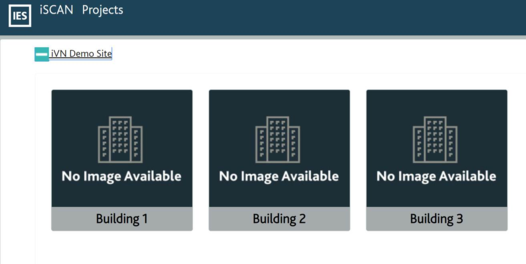
Figure 3-7: iSCAN project page showing example buildings within a project
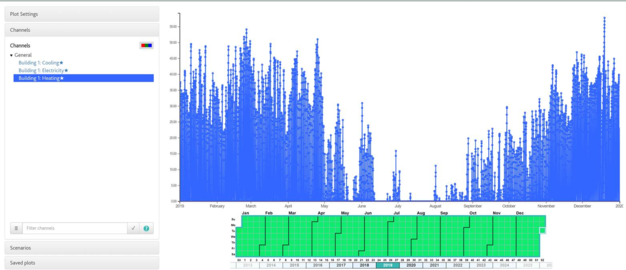
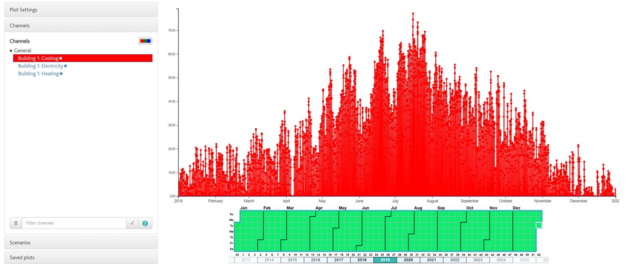
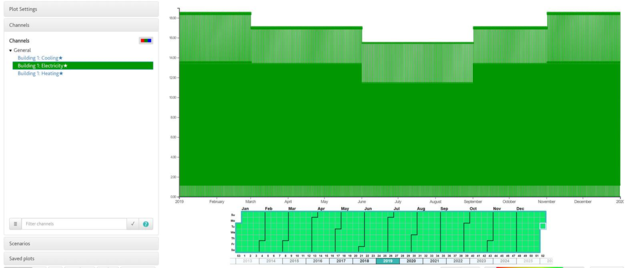
Measured data is imported into each building and can be viewed in the iSCAN tool. Below figures show examples of time-series data plotted in iSCAN representing, in this case, a building’s demand for heating, cooling and electricity (respectively).
Figure 3-8: iSCAN plot of time-series data representing the heating demand of a building
Figure 3-9: iSCAN plot of time-series data representing the cooling demand of a building
Figure 3-10: iSCAN plot of time-series data representing the electricity demand of a building
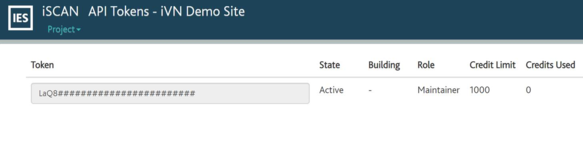
To import data from iSCAN into the iVN, an iSCAN API Token and project URL are required, which can be set-up and accessed in the iSCAN project under API tokens (see Figure 3-11).
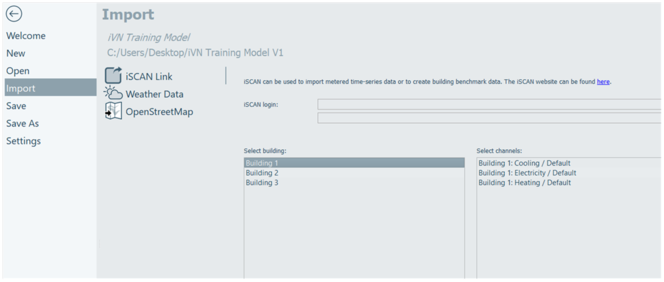
To import the iSCAN data into the iVN, navigate to the homepage button and click “Import”. Then click “iSCAN Link” to show the iSCAN login fields. The project URL and API token are entered here. Once entered the buildings available in the iSCAN project will appear in a list and a building can be selected. A list of data channels for that building will then appear. Then select the channels with data to import into the iVN and click “Import”. Selected channels will be marked “imported” when complete.
Figure 3-11: iSCAN API tokens page, showing an active API token and the project URL location for an iSCAN project
Figure 3-12: iSCAN project homepage showing example buildings within the project
Imported data channels appear as profiles in the iVN Asset library (refer to section 3.11) and can be assigned as demand or generation profiles to an iVN building. The iVN profile will start and end with the same dates that are set-up in the iSCAN channel.
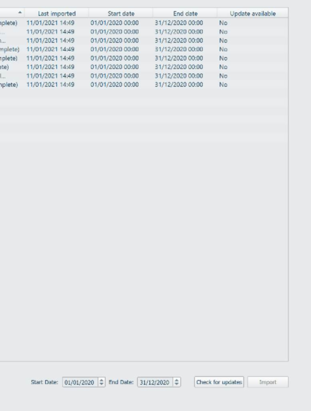
In addition, In the same way as iCIM import, a user can select the ‘Check for updates’ button and the ‘Update available’ column will inform the user if any changes are available in iSCAN (Figure 3-13). Re-imported iSCAN data channels update profiles within the Asset library.
It is important to note that if units for a data channel have not been defined in iSCAN, they will be set to kilowatts when imported into the iVN. If data is missing for some time-steps of a channel, the missing time-steps will be populated by dividing known data into those time-steps. For example, if hourly data is imported for a channel configured for 10-minute time-steps, the hourly values will be divided by six and used to populate the 10-minute intervals.
Figure 3-13: iSCAN import – Check for updates