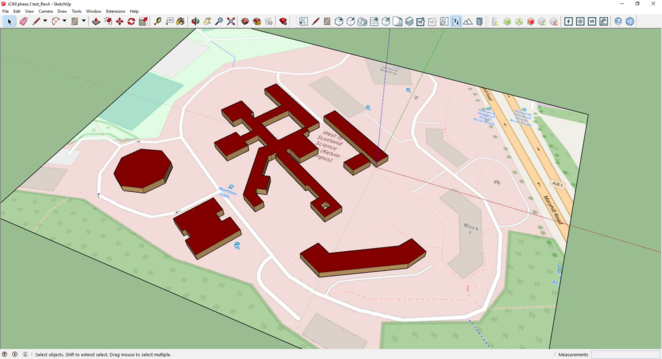
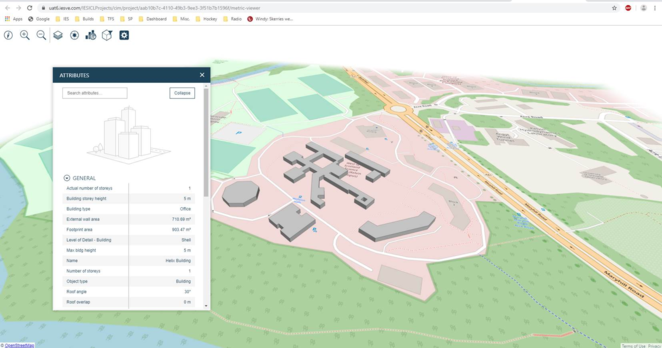
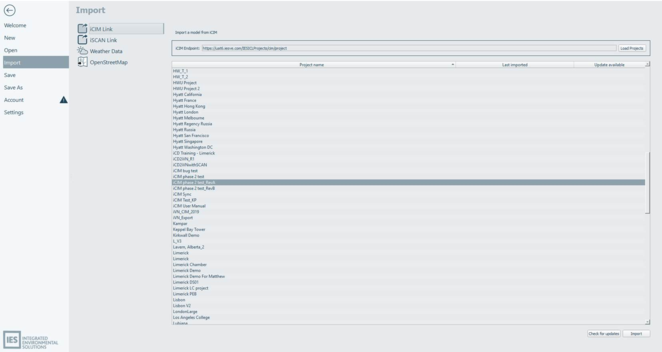
Models created within iCD, and uploaded to iCIM, can be imported into the iVN via the Homepage > Import > iCIM link.
At present this is a one workflow from iCD -> iCIM -> iVN, in that the user cannot make changes to the 3D objects or run Energy simulations within iVN and sync them back to iCIM > iCD.
Initial import
iCD
· Creation of an iCD model
iCIM viewer
· Sync model to iCIM
iVN > Homepage > Import > iCIM link
· Insert iCIM endpoint
· Load iCIM projects
· Select iCIM project and import into iVN
The user can specify the import start and end date during import. In addition ‘Sync building results’ are ticked by default. This feature automatically synchronises a select number of iCD > iCIM building simulation results upon drag/drop of 3D building objects into the 2D iVN view.
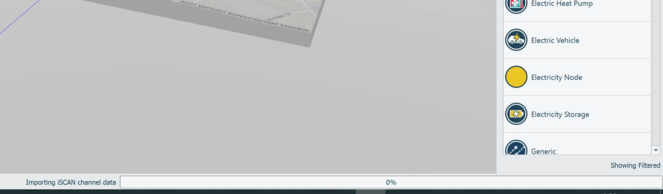
On initiating an iCIM import via the iCIM link, the iSCAN part will retrieve the available channel list. This is used to create empty profiles, within the Asset library, to which the user has immediate access and can assign to demands/generations. Meanwhile, the iSCAN timeseries data is being imported and the relevant profiles updated within the Asset library. The user is informed via the status bar at the bottom of the application.
No iVN simulation can be initiated until profiles assigned have been imported. However, the polling of iSCAN data channels in the background, to create Asset library profiles, avoids barrier to use of the application enabling users to create networks, assign profiles etc. and configure networks in preparation for simulation.
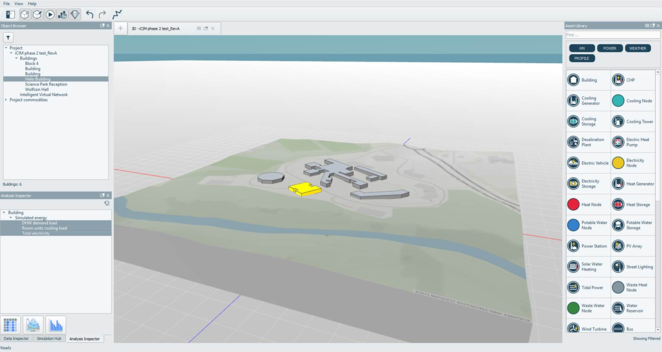
iVN > 3D viewer
· 3D objects are displayed within the iVN 3D viewer
· Results associated with 3D objects can be plotted via the Analysis inspector
iVN > 2D iVN viewer
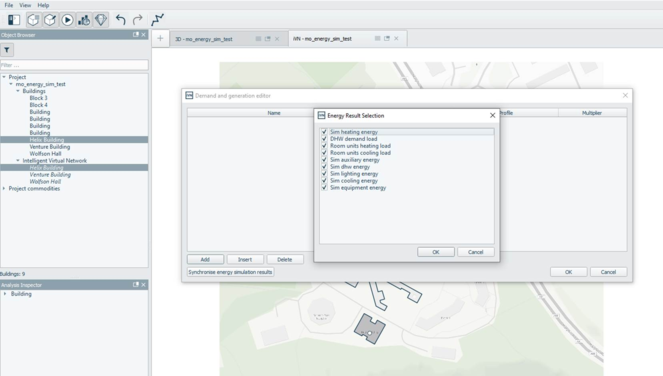
· User can drag/drop 3D object from the Object Browser onto the 2D iVN viewer
· Double click Building object to launch Demand and Generation dialog
· Synchronise energy simulation button becomes active, and enables user to sync results from the iCIM to the 2D iVN network. In addition Homepage > iCIM import ‘Sync building results’ automatically synchronises a select number of iCD > iCIM building simulation results upon on drag/drop of 3D building objects into the 2D iVN view
· Scenarios created from the original model imported from iCIM relate back to the original buildings results. This feature assists the user in defining demands and generation at the building object between original model and scenarios.
Re-import (changes made within iCD)
iCD
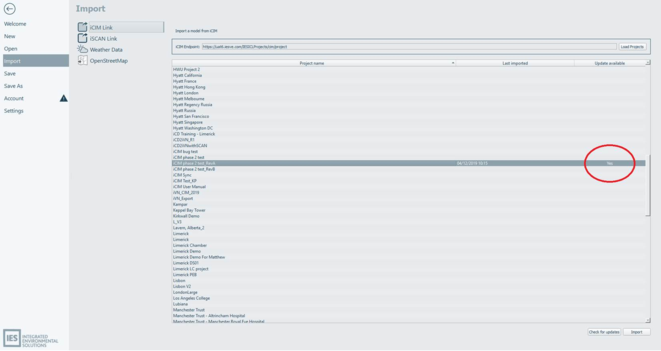
Changes made to the iCD model can be synced within the iVN by re-importing into the same project within iVN via the Homepage > Import > iCIM link. The iVN can detect changes made to an iCD model, uploaded to iCIM, and notification is displayed within the Homepage > Import > iCIM link, refer to column Update available. User can refresh the content of the columns by selecting the Check for Updates button.
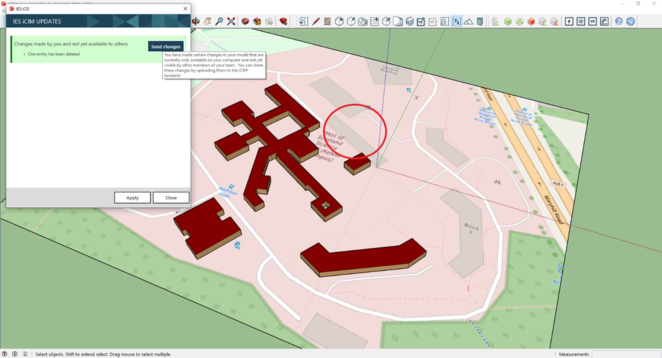
iCD > Change i.e. building deleted (red circle)
· Deletion of building within iCD
· Sync changes to iCIM
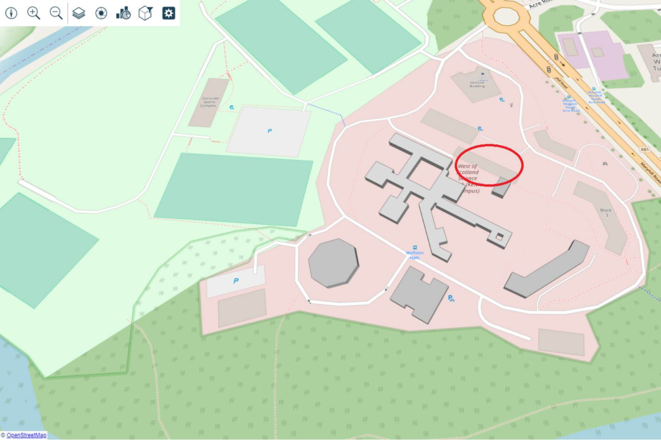
iCIM viewer (building deleted)
· Deleted building not displayed within iCIM viewer
iVN > Homepage > Import > iCIM link (Update available)
· Re-import ICIM model changes
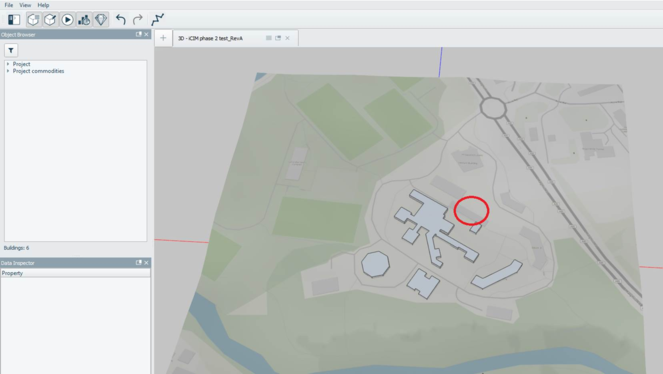
iVN > 3D viewer (i.e. building deleted (red circle))
· Deleted building removed from 3D iVN viewer and object browser
· Building also removed from Model iVN 2D viewer