Figure 5.2.4.a: iPIM Toolbar
The iPIM toolbar consists of the following tools:
Home 
Clicking on this icon, reverts the model back to the original opening/welcome page position i.e. the map of the world.
In here the user can view the project data in the form of pins in multiple locations across the globe.
Zoom in or Zoom out
This is used to adjust the image.
Clicking on the “plus sign” will zoom in to the model or enlarge the view of the model.
Conversely clicking on the “minus sign” will zoom out of the model or make the view of the model smaller.
Layers
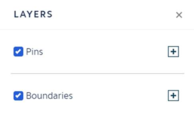
This shows all the layers present in the model such as Pins and Boundaries.
The user can check or uncheck the layers to show or hide the visibility of the layers as seen in the model based on their preference.
Figure 5.2.4.b: iPIM – Layers Tool
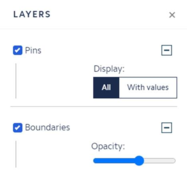
In the “Pins” set up, the user has the option to display all pins or only pins with values.
In the “Boundaries” set up, the user has the option to scroll across the bar and change the opacity of the boundary.
Figure 5.2.4.c: iPIM – Layers Tool - Boundaries
Filters 
This has to be used in conjunction with the Metrics tool.
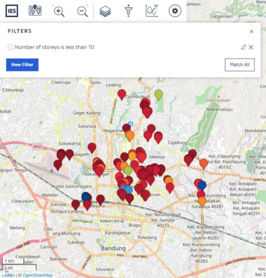
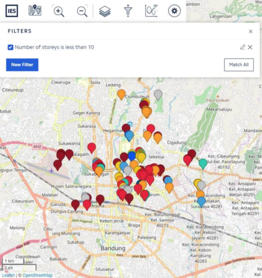
This option is used to create new filters or to create specific data views in the iPIM model. The buildings/objects which satisfies the filter condition will be displayed in the iPIM model while other buildings/objects will be displayed in grey.
To use a filter:
· Select an attribute say number of storeys
· Select Add Condition say is less than
· Select numeric value say 10
· Click save.
Keep the filter checked. Then go to the Metric tool and select the same attribute to view the results. Images below show the difference when the filter is check and unchecked.
Figure 5.2.4.d: iPIM – Filters Tool – Filters on Figure 5.2.4.e: iPIM – Filters Tool – Filters off
Multiple conditions can be created and applied simultaneously within a given project.
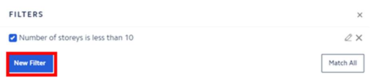
To add more conditions, click on “New Filter”.
Figure 5.2.4.f: iPIM – Filters Tool – New Filters
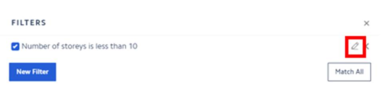
To edit the existing filter, click on the pencil icon against the filter name.
Figure 5.2.4.g: iPIM – Filters Tool – Editing filters
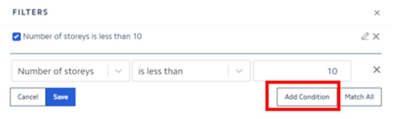
In here, the user has the option of adding a condition. Simply click “Add Condition” and select and type in the variables.
Figure 5.2.4.h: iPIM – Filters Tool – Add condition
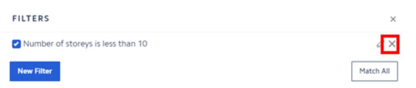
To delete the existing filter, click on the cross icon against the filter name.
Figure 5.2.4.h: iPIM – Filters Tool – Deleting filter
Metrics
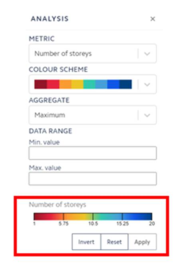
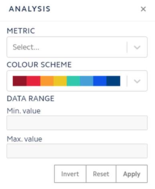
The Metrics or Analysis Inspector uses thematic rendering to view data in the iPIM model. Thematic rendering is used to colour urban feature based on a specific property such as energy consumption, building total floor area and any other numerical or categorical attribute.
To visualize specific data in the model, select a variable from the drop-down list of each of the below:
· Metric: Select the type of metric (i.e. object type, number of storeys, total floor area etc).
· Colour Scheme: Select the color scheme to be applied based on the user’s requirement. There are a variety of colour palettes to choose from depending on the user’s preference.
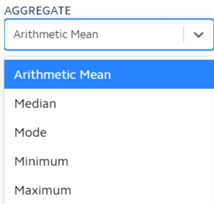
· Aggregate: It colour codes the boundaries based on the values of the pins within the boundary.
Figure 5.2.4.i: iPIM - Metrics Tool
For example, in the screenshot below, we have selected the metric Capacity in MW to view, and have chosen maximum to aggregate the data. See how the boundaries are colour coded based on the maximum aggregation of the values of the pins.
Observer boundary 1, the number of pins is less but the aggregate maximum capacity in MW is more so the boundary is a darker shade on the legend compared to boundary 2 that has more pins, but has a lesser aggregate maximum capacity in MW.
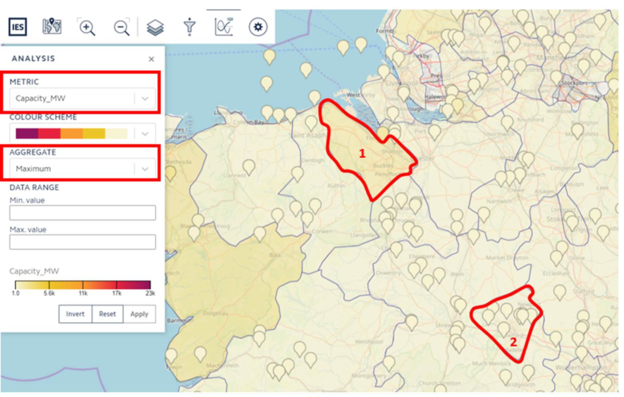 Figure 5.2.4.j: iPIM - Metrics Tool
· Data range: Sets the minimum and the maximum value of the displayed data. Any object holding a value out of this range will appear in grey. Images below show the data is visualized when a data range is applied.
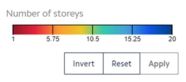
· Legend: The legend gives the user a visual reference of the colour scheme
Figure 5.2.4.k: iPIM – Metrics Tool – legend
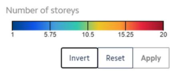
Invert: Clicking on this, inverts the selected colour scheme.
Figure 5.2.4.l: iPIM – Metrics Tool – Invert Figure 5.2.4.m: iPIM – Metrics Tool – Invert
Reset: This resets the analysis inspector and clear all the settings previously selected.
Figure 5.2.4.n: iPIM – Metrics Tool – Reset
Apply: Click on apply to view the options selected in the metric, colour scheme and data range tabs.
The user will need to click “Apply” very time a change is made the options in the metric viewer tabs.
Settings
This is divided into two parts:
· Attribute Panel
· Interface
Attribute Panel
These are settings for the attribute panel in the iPIM project.
From here the user is allowed to make some changes to the way the attribute panel is viewed. The settings that are allowed to change are:
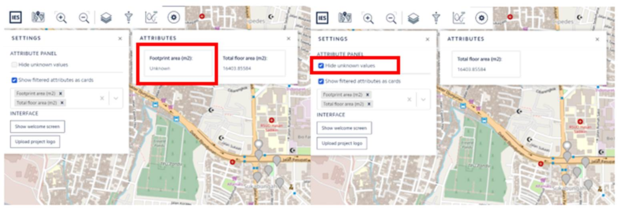
· Hide unknown values: This has to be used along with the “Show Filtered attributes as cards” setting. Check this box and select the “Show Filtered attributes as cards”, it will hide the attributes that don’t have an unknown value. Refer images below to see the differences when the box is checked and unchecked.
Figure 5.2.4.o: iPIM – Settings – Hine Unknown Attributes (unchecked) Figure 5.2.4.p: iPIM – Settings – Hine Unknown Attributes (checked)
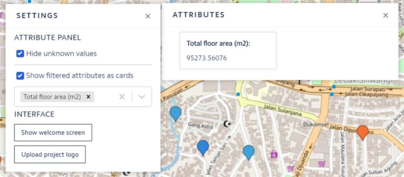
· Show Filtered attributes as cards: Use this to view specific attributes only for the objects in the model. Select as many attributes that are needed, to do so pick them from the drop-down list or key in the words and they will appear from the drop-down list. Select them. Now go to an object and click on it. Only the attributes selected will be visible.
Figure 5.2.4.q: iPIM – Settings – Reset
Interface
In the interface, there are two options:
Show Welcome Screen: Clicking on this will make the welcome page appear in the center of the screen.
Upload Project Logo: Clicking on this will open the browser to add an image. Brower and select image. Click on “Open”. The project logo will appear in the right corner of the screen.