The projects are listed under three categories:
· Active
· Archive
· Deleted
4.1.2.1. Active Projects
The Active iPIM project page consists of list of Available projects that have been created from a csv or projects that the user might have been given access to by some other iPIM user.
Figure 4.1.2.1a: Active Project page
Click on the hamburger icon (icon next to the project name) to expand the options of a specific project.
Figure 4.1.2.1b: Project Options
In here there are options to:
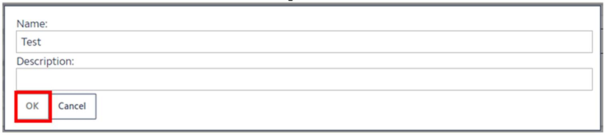
· Rename – This allows the user to rename the project. In here a short description of the project can be added. Click “OK” to save the changes.
Figure 4.1.2.1c: Renaming the project
· Delete – Delete a file by clicking “Delete”. A window will open asking to confirm the action. Choose “yes” or “no” based on the action to be taken. Note, as mentioned in this window the deleted file will be transferred to the “Deleted” page.
Figure 4.1.2.1d: Deleting the project
To access this page, simply go to the “Deleted” page from the main projects page, in here the user will find the deleted file in the available projects list.
· Update – the user can choose to update the csv data for a project which is already created.
Click on update, a new window pops up. In here click “Select CSV”. Browse and select the updated CSV file and click “Upload”.
Figure 4.1.2.1e: Updating the project
As mentioned here, a copy of the previous project will be archived. This can be accessed from the Archive Project list.
· Export – the user can export the CSV data from the iPIM project by clicking “Export”. A window will pop up asking the user confirm the action.
Figure 4.1.2.1f: Exporting the project data
Click “Yes” and browse to save the file in the desired location.
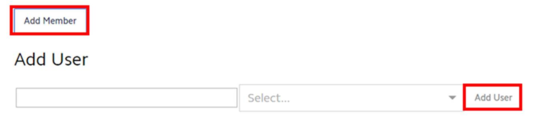
· Manage user - The primary user can add new users to every individual project to share/access the project information with them.
To add a new user, click on Add Member. Enter the email ID of the new user and select the Role of the user from the drop-down list. The options available to select are: Owner/Editor/Viewer.
Figure 4.1.2.1g: Adding a user to the project
The 3 different roles give different range of access to the user:
· Owner: As an owner the user will be allowed to make any changes to the project, update/delete the project or add any number of additional new users to the project based on their preference. There is no restriction to the number of owners that can be added to a project and every owner will have the same level of access and control on the project.
· Editor: The new user can make any changes to the project, update/delete the project. The Editor doesn’t have permission to add new user to the project.
· Viewer: As a viewer the user can only open to view the project. They cannot rename, delete or manage users within the project.
Choose the appropriate option and select “Add User”.
Note, that any new user added in iPIM to a project, would need to be a registered user in our webiste: www.iesve.com with a valid login and active password.
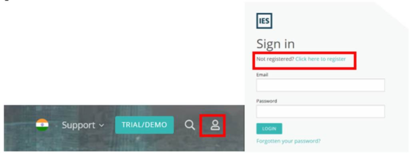
If the newly added user isn’t registered in our website, they will need to go to www.iesve.com, click on the login icon. This will redirect them to the login page. In here they will need to register by entering the required details. Once they have done so they will be able to log into the iPIM webpage.
Figure 4.1.2.1h: Registering on the IESVE website
The user can also select the access level for the project here.
· If the user selects “Yes”, the members of the general public will be able to view the project URL
· If the user selects “No”, the members of the general public will not be able to view the project URL
Figure 4.1.2.1i: Public Access
· Open – Clicking on this opens the iPIM project.
4.1.2.2. Archive Projects
When any project is updated with a revised CSV the previous project is archived and automatically moved to this section of iPIM.
Figure 4.1.2.2a: Archived Project Page
Click on the hamburger icon to view the options available to an archived project. The user can Rename, Delete, Export or Open the archived projects.
Figure 4.1.2.2b: Archived Project Page Options
4.1.2.3. Deleted Projects
All the projects which are deleted from the active project list are saved in Deleted projects list.
Figure 3.1.2.3a: Deleted Project Page
Click on the hamburger icon to expand the options available to a deleted project.
 Figure 4.1.2.3b: Deleted Project Page Options
There are options to:
· Permanently Delete - clicking this would permanently delete the file.
When the user clicks on permanently delete, a pop-up window prompts to confirm the action, since the action of permanently deletion cannot be undone. Click on the “Yes” or “No” based on the required action.
Figure 4.1.2.3b: Permanently delete option
· Restore – clicking on this will shift the file back to the active page
· Open – clicking on this allows to open the file to view