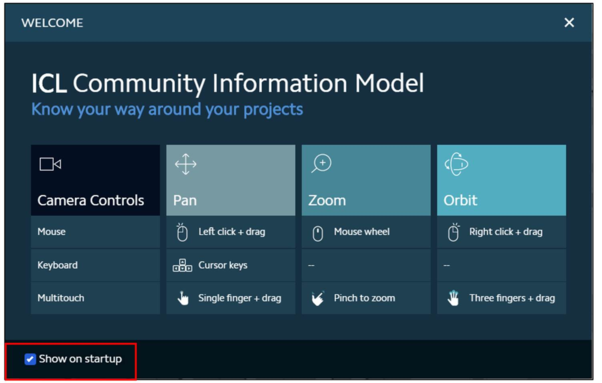
When the user clicks to open a project, the first thing that is seen on the iCIM project is the welcome page. This welcome page helps to understand how to navigate around the project in iCIM.
For Pan, Zoom and Orbit navigational options for mouse, keyboard and multitouch are provided for ease of working.
· Pan: is used to move left or right when viewing the model
· Zoom: is used to move closer or move far away from an object in the model
· Orbit: is used to change viewing plane in the model
Figure 4.1.a: iCIM Project – Welcome Page
Every time the project is opened, this Welcome window pops up. To disable it or not see it every time a project is opened, simply uncheck the box adjacent to the “Show on startup” and the next time the project is opened this window will not appear.
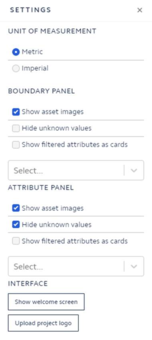
If the user wishes to view the welcome window again, click on the settings icon.
Figure 4.1.b: iCIM Project – Settings
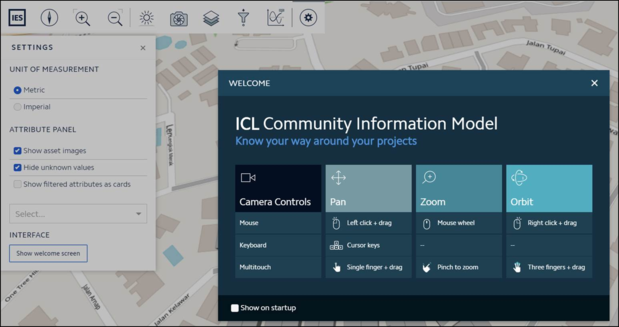
In the settings window, at the bottom of the window, under interface, there is “Show welcome screen”, clicking on this will make the welcome page appear in the center of the screen.
Figure 4.1.c: iCIM Project – Settings
The user can now view the navigational options.
Figure 4.1.d: iCIM Project – Settings and Welcome Page