5.3. iCIM project page – Side Panel
Within the main iCIM webpage, there is a side panel, click on the IES iCIM to expand the side panel.
Figure 3.2.a: iCIM – Side Panel
The side panel consists of four webpages:
· Home
· Projects
· Users
· User Guide
· Logout
Home Page: Clicking on the home page opens up the main page of iCIM. In here the user can log out of the web page.
Projects Page: This redirects to the main projects page, where the Available projects can be viewed.
Users: The primary user can add or remove users in iCIM to share ALL projects with them.
This will give the user access to all the projects.
Clicking on this opens the users page, in here a member can be added.
Figure 3.2.b: iCIM – Side Panel – add Users
To add a new user or member, click on Add Member.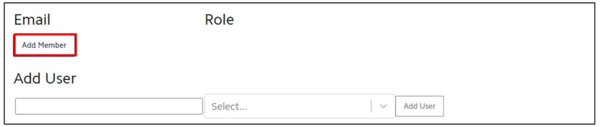
Figure 3.2.c: iCIM – Side Panel – add Users
Enter the email ID of the new user and select the Role of the user from the drop-down list. The options available to select are:
· Owner
· Editor
· Viewer
The 3 different roles give different range of access to the user:
6. Owner: As an owner the user will be allowed to make any changes to the project, update/delete the project or add any number of additional new users to the project based on their preference. There is no restriction to the number of owners that can be added to a project and every owner will have the same level of access and control on the project.
7. Editor: The new user can make any changes to the project, update/delete the project. The Editor doesn’t have permission to add a new user to the project.
8. Viewer: As a viewer the user can only open to view the project. They cannot rename, delete or manage users within the project.
Choose the appropriate option and select “Add User”.
Note, that any new user added in iCIM to a project, would need to have a registered user in our webiste: www.iesve.com with a valid login and active password.
User Guide: Clicking on this will open the iCIM user guide.
Logout: This is another way of logging out of the iCIM web portal.



