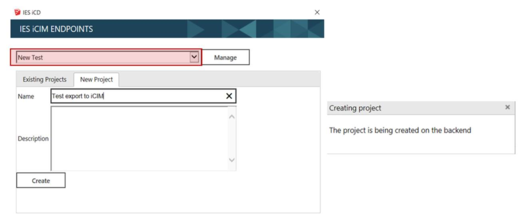
Once the endpoint set, it is possible to create a new iCIM from iCD using the New Project tab (see image below).
Start by adding in the name and a description, click the Create button, a new window will open that will re-direct the user to the IES Cloud login. Here the user will need to key in their www.iesve.com user name and password. If the user doesn’t have a user name and password, click on the register first on our main page and create a user login. Once this is done the user will be able to create a project in iCIM and also automatically export the iCD model to it.
Figure 3.1-1 iCIM Endpoint – New Project
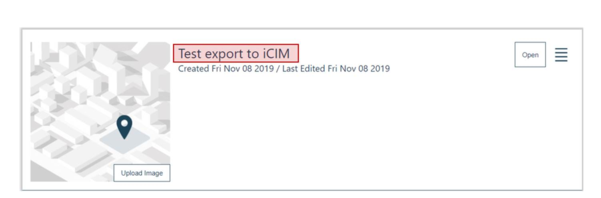
In the example above, the previously created New test endpoint has been selected and a New project called Test export to iCIM was created in it.
The model can now be visualised in the iCIM endpoint under the name set previously (see example below).
Figure 3.1-2 iCIM webpage – Project List (New Project)