3.1 iCIM Endpoint setting
iCIM project can be created from the other ICL tool, called iCD (Intelligent Community Design). The full array of data used or generated in iCD can be viewed in within the iCIM.
In order to let the iCD know which iCIM project to synchronize with, the iCIM endpoint needs to be mapped in the iCD.
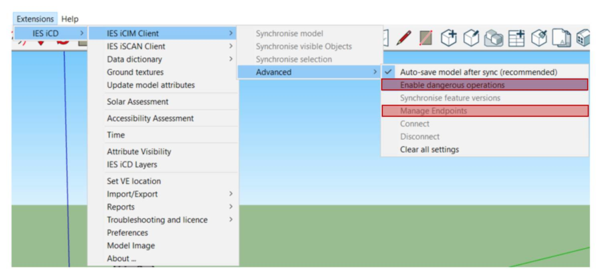
To be able to manage endpoints, the enable dangerous operations should be first activated.
It can be accessed via Extension Tab > IES iCD > IES iCIM client > advanced > enable dangerous operations as shown below.
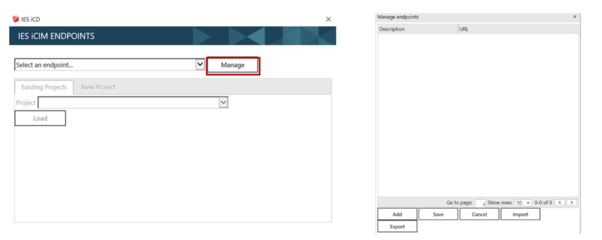
Once enabled, the manage endpoint tool can be access via Extension Tab > IES iCD > IES iCIM client > advanced > Manage Endpoints. This opens the IES iCIM ENDPOINTS window.
Figure 3.1-1 IES iCD - iCIM location
In the IES iCIM ENDPOINTS window, it is possible to add iCIM endpoints by clicking on the Manage button.
Note: the IES iCIM ENDPOINTS dialog box can also be accessed by clicking the Synchronize icon  in the toolbar for the first time.
Figure 3.1-2 – iCIM Endpoint windows
This opens the manage endpoint window shown above which allows end users to add, save, import or export lists of iCIM endpoints.
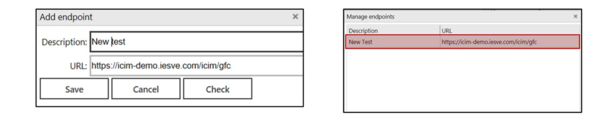
By clicking the Add button, new endpoints can be added in the add endpoint window. The end user is then asked to enter a description of the endpoint and its URL. The URL should then be checked by clicking the Check button. The endpoint will be then be added to the list once saved, as shown on the image above.
Here below is an example where an Endpoint named New test was added. Once added and checked, the endpoint appears in the list and is available to add projects to it.
Figure 3.1-3 iCIM Endpoint – Adding Endpoint
Note: The URL in the image above is only an example. For more information on an iCIM endpoint, please contact support@iesve.com.
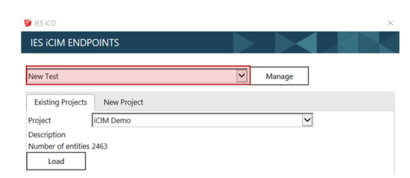
Now that the endpoint is defined in iCD and checked, it can be used to synchronise the iCD model to iCIM. Back in the IES iCIM endpoint window, the endpoint created can be selected from the dropdown list as shown below.
Figure 3.1-4 iCIM Endpoint – Create/Open Existing project
Once the endpoint selected, it is possible to either load a pre-existing iCIM project into iCD or create a new one.