9.4.2. Second method (using iSCAN and iCIM)
In case the model is more complex and contains a larger number of rooms or buildings, it is advised to use a more automatized process to assign time-series as energy demand in iVN.
This method allows end-users to automatically assign time-series as energy demands to iVN buildings using iCIM.
The process for this method goes as follow:
1. Simulate the model in iCD and export the results to an iSCAN project. For more information on exports to iSCAN see chapter 9.1 Import / Export with iSCAN. This first step is only important as it allows iCD to store the hourly simulation results within the model as Custom Attributes (These new custom attributes containing the hourly data will then be sent to iCIM and then imported into iVN).
2. Synchronize the updated iCD model with the iCIM project. If the project had not been linked to iCIM project, set the iCIM endpoint and export the project to iCIM. For more information on exporting a project to iCIM, see chapter 9.2 Import / Export with iCIM.
3. Open iVN.
4. From the homepage, click on Import > iCIM link.
5. Enter the iCIM endpoint, select the project within the list and click import. iVN will import the 3D model from iCIM.
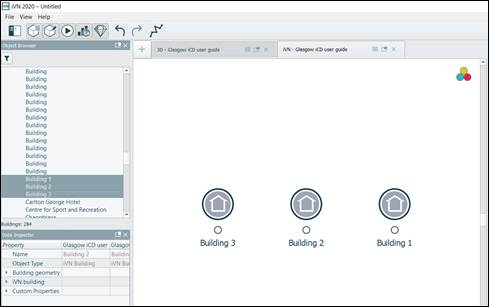
6. From the Object browser, select the buildings to be modelled in iVN and drag them to a 2D model workspace. In the example below (Figure 9-56), the three buildings simulated in iCD called Building 1, Building 2, Building 3 can be found in the object browser. Dragging them to the workspace create a building icon for each of them.
Figure 9-56 Object browser (on the left) containing the three modelled buildings
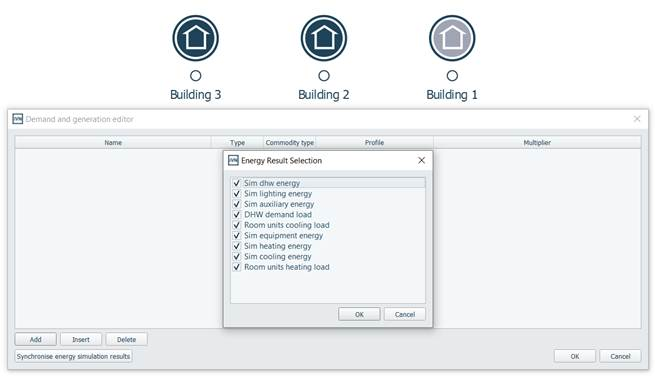
7. Double click on a building’s icon to open the Demand and generation editor dialog window. Click the Synchronise energy simulation results button. It opens the Energy results Selection dialog box with, for each building, the time-series of their iCD simulation results (see Figure 9-57 below). Select the time-series to be assigned as energy demands in the building and click OK.
Figure 9-57 Synchronize energy simulation results
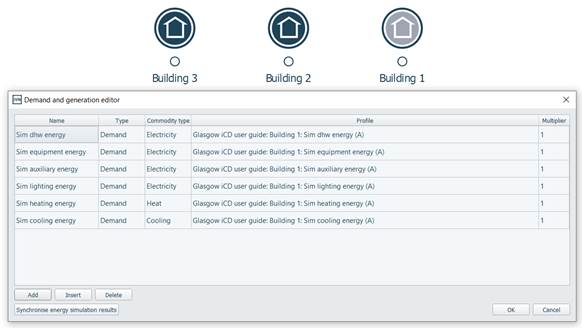
8. Finally, set the energy demands (type, commodity type and multiplier).
Figure 9-58 Energy demand settings