9.4.1. First method (using iSCAN)
The first method to export simulation results from iCD to iVN
The overall process goes as follow:
1. Simulate the model in iCD and export the results to an iSCAN project. For more information on exports to iSCAN see chapter 9.1 Import / Export with iSCAN
2. Open iVN
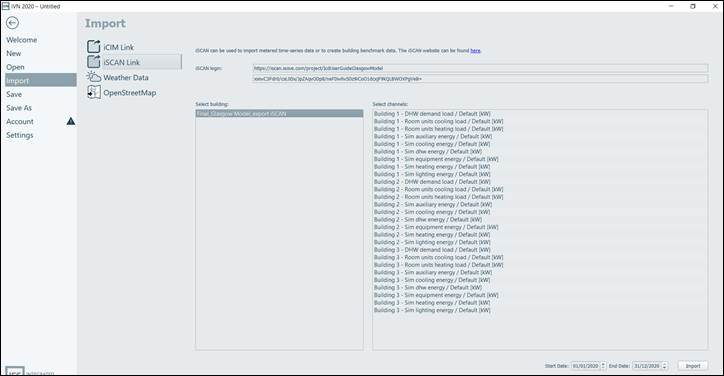
3. From the homepage, click on Import > iSCAN link
4. Enter the iSCAN project’s URL and token
5. Select the building and the channels to be imported
6. Select the start and end date for the imported data
7. Click Import
Once imported into iVN, the time-series (energy profiles) can be manually assigned as energy demands or loads to the desired buildings in iVN.
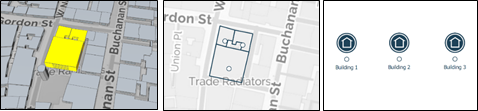
Example: In this model of Glasgow city centre, three buildings were simulated (Building 1, Building 2, Building 3) and the results exported to iSCAN. In iVN, the same location was imported from OSM. The three simulated buildings were identified, renamed accordingly and associated to iVN buildings.
Figure 9-52 3D view, geographical view and schematic view in iVN
The time-series, which had been exported from iCD to iSCAN, were then loaded into iVN using the Homepage > Import > iSCAN link page. The iSCAN project’s URL and token were entered.
Figure 9-53 Import window in iVN
iVN gives then the possibility to import all the channels available in the iSCAN project. Once the channels imported, the user can assign to each of them the appropriate time-series as energy demands. The process goes as follow:
1. Double-click on a building. This opens the Demand and generation editor dialog box.
2. Click Add. A new demand is created for the building.
3. Rename the energy demand; select the type as a demand.
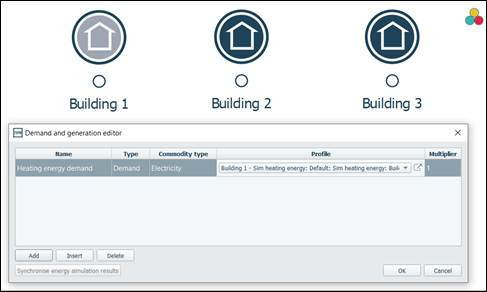
4. Choose the appropriate commodity. For example, adding a Cooling energy demand which comes from the energy consumption of a chiller will generate an electricity demand. The commodity for this demand will thus be electricity (see Figure 9-54 below).
Figure 9-54 Demand and generation editor window in iVN
1. In the profile column, select the imported time-series to be assigned to this energy demand.
2. Apply this process for all energy demand that need to be expressed in each building.
3. Click OK to save.
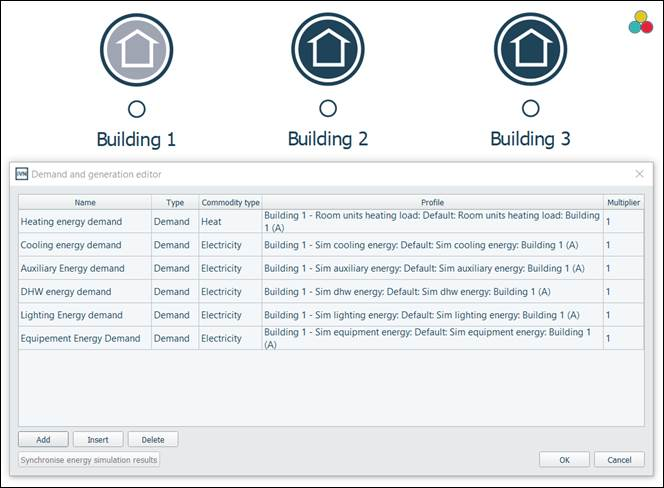
In the example below (Figure 9-55), the heating energy demand was expressed as a Heating load (that can be addressed by a District heating) whereas all the other demands are electricity demands.
Figure 9-55 Building 1 energy demand