9.2.7. Multi- Scenario Synchronisation
In iCD it is possible to create different scenario out of a baseline model. For more details on scenarios see chapter 2.5 Generating and comparing different analyses in scenarios.
The generated scenario can also be synchronised and visualised in the same iCIM project.
In the example below, the baseline and two additional scenarios were created.
Figure 9-47: The baseline (left) and two scenarios in iCD
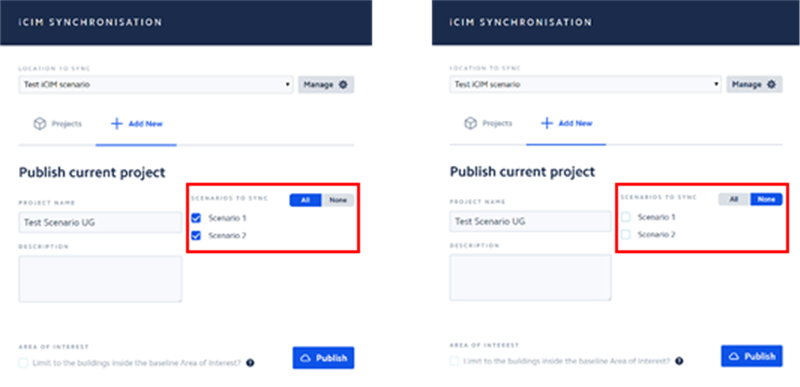
To synchronise the model for the first time, click the Synchronise button in the iCD toolbar and select the desired iCIM endpoint. As the model contains several scenarios, the synchronisation window gives the possibility to choose which scenario to synchronise (see Figure 9-48 below).
Figure 9-48: First synchronisation of a model with scenarios
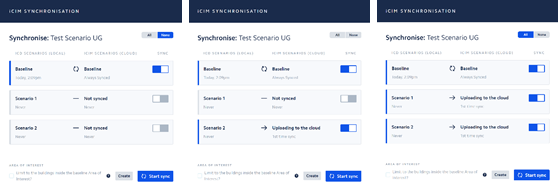
If the model had previously been synchronised or if scenarios were added after the first synchronisation, the synchronisation window will display the different available scenarios with an indication on which of scenario has already been synched and the latest time of synchronisation. It is possible to choose which scenario to synchronise clicking on the blue switch button next to each of them (see image below).
On the image below, the baseline had already been synchronised but not the other two scenarios. One the left image, only the Baseline will be synchronised. On the middle image, the baseline and scenario 2 will be synchronised. On the right image all the scenarios will be synchronised.
Figure 9-49: Synchronising a baseline model and other scenarios to iCIM
Note: Only the other scenarios can be ignored for a synchronisation, the baseline is always synchronised.
Note: any change made to the Baseline will be also applied to all other scenario while synchronising to iCIM. The user must then be cautious while editing and synchronising the baseline. Changes made to a scenario are only applied to this specific scenario.
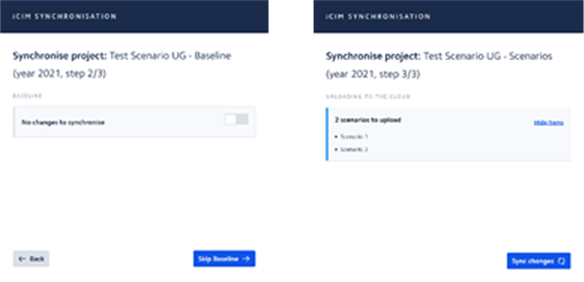
If the baseline is already synchronised, iCD will prompt that no changes are to be synchronised for the baseline. Clicking Skip Baseline will then show the different scenarios that need to be updated (see image below).
Figure 9-50: Up-to-date baseline skipped for synchronisation
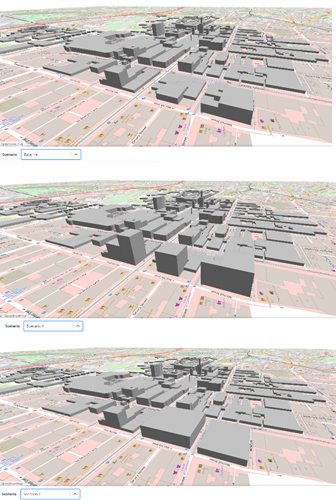
Once all the scenario synchronised, they are available for visualisation in iCIM. To switch from one scenario to another, select the desired scenario in the dropdown menu on the bottom left of the screen (see image below).
Figure 9-51: Baseline and 2 scenarios visualised in iCIM