iCD simulation results can be exported to iSCAN. Exporting simulation results to iSCAN allows end-users to access them as hourly time series which are not available within iCD.
Prior to export data to iSCAN, the endpoint of the iSCAN project should be set in iCD (see 9.1.1 iSCAN Endpoint setting).
Once the endpoint set, it is possible to run simulations in iCD the results of which can be exported to iSCAN. To do so, the simulation should be run as follow:
1. Select the buildings to run the simulations on;
2. Open the simulation launcher, select the appropriate filter and options for the simulation. For more information on simulation, please refer to chapter 5.4 iCD Simulation Launcher.
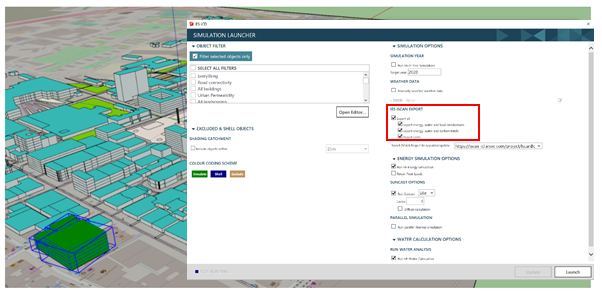
3. In the Simulation Launcher, in the section IES iSCAN EXPORT, chose your export option. make sure that the box to export the desired iSCAN channels is checked.
4. Click the launch button
Example: In the model below, the three buildings highlighted in green were selected for an energy and water simulation. As previously mentioned, the IES iSCAN EXPORT options are ticked.
Figure 9-16 iSCAN Export via Simulation Launcher window
iSCAN export options
The user can choose which time-series to export to iSCAN by ticking the appropriate option.
Energy Water and load breakdowns
Selecting this option will export nine channels containing energy and water consumption as well as energy loads for each end-use:
- DHW demand load (Domestic hot water)
- Room units cooling load
- Room units heating load
- Sim auxiliary energy
- Sim DHW energy
- Sim cooling energy
- Sim heating energy
- Sim equipment energy
- Sim lighting energy
Energy Water and carbon totals
Selecting the option will export 5 or 6 channels containing total energy consumption per commodity (electricity, gas, etc…), carbon emissions, water consumption and waste water produced:
- Sim potable water demand
- Sim total carbon
- Sim total electricity
- Sim total energy
- Sim total natural gas (or any other commodity selected in the fuel type if different than electricity)
- Sim waste water generated
Costs
Selecting this option will export 3 or 4 channels containing energy and water costs per commodity:
- Total cost
- Total energy cost
- Total electricity cost
- Total Natural gas cost (or any other commodity selected in the fuel type if different than electricity)
Select iSCAN Project to populate/update
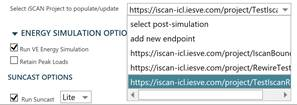
This option gives the possibility to select the iSCAN channel endpoint before launching the simulation. This enables iCD to directly send all the data to iSCAN once the simulation finished without any further intervention from the user.
Clicking on the dropdown menu, it is possible to select one of the endpoint previously set in iCD (see Figure 9-17).
Figure 9-17: iSCAN Endpoint selection dropdown menu
If the option “Select post-simulation” is chosen, the user will need to select the appropriate endpoint once the simulation is complete.
If the option “Add new endpoint” is chosen, this opens the IES iSCAN Endpoint dialog in order for the user to set a new iSCAN endpoint (see Chapter 9.1.1 iSCAN Endpoint setting).
Note: In order for iCD to be able to export the simulation results to iSCAN, the user must make sure that each building simulated has a name (as an Object name attribute). If a building does not have any name, its simulation results will not be exported to iSCAN. A building’s name can be created/edited by selecting the building and opening the Room/building query tool (see chapter 4.9.1 QUERY TOOL).
In the example, the three buildings simulated were named Building 1, Building 2, Building 3 as shown below.
Figure 9-18 Building Query Tool
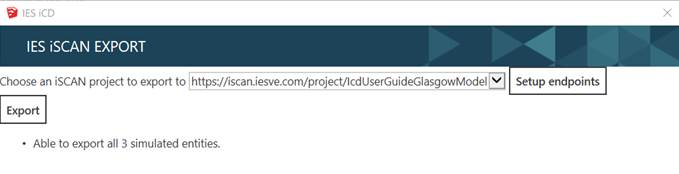
Once the simulation finished, iCD gives the user the possibility to export the results to the pre-defined endpoint in iSCAN.
Figure 9-19 IES iCD – iSCAN Export window (1)
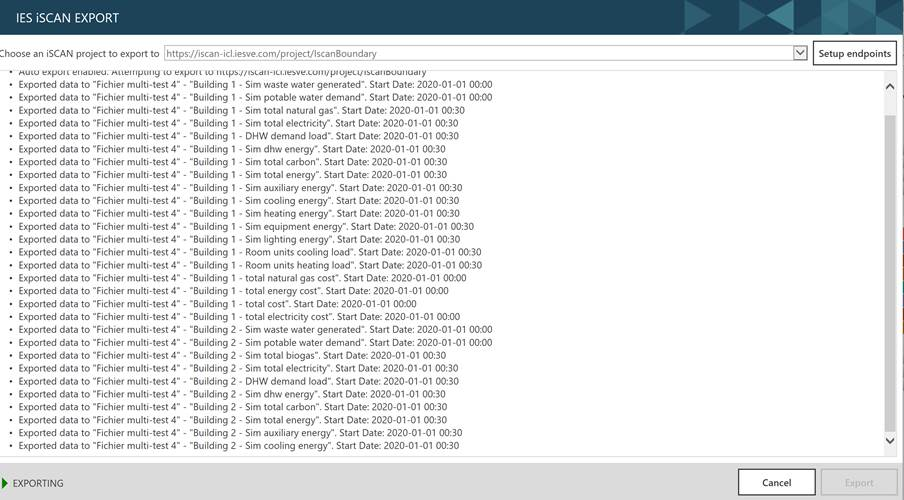
iCD will export to iSCAN the selected time-series (described here above) for each simulated building:
Figure 9-20 IES iCD – iSCAN Export window (2)
Each time-series is stored as a channel in iSCAN within a newly created iSCAN building. This iSCAN building is automatically created during the export process and has the same name as the .skp file of the iCD model.
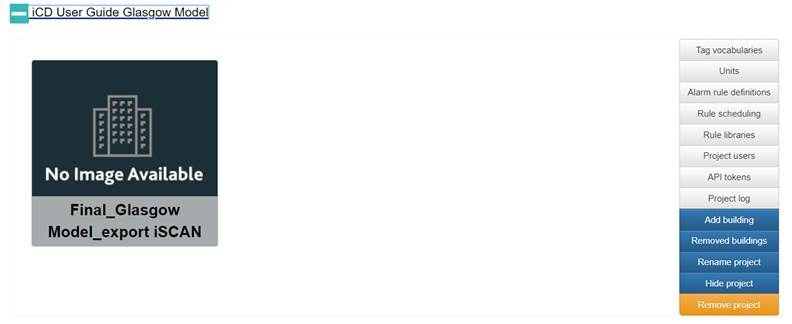
Example: In the example below, in the project called iCD User Guide Glasgow Model, the export process created an iSCAN building named Final_Glasgow Model_export iSCAN which the same name as the iCD file Final_Glasgow Model_export iSCAN.skp.
Figure 9-21 iSCAN – Project folder
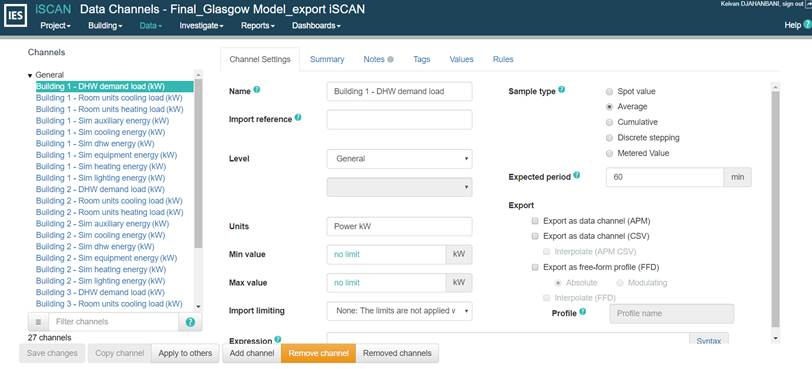
The name of each channel consists in the name of the building in the iCD model followed by the name of the time-series it contains.
Example: in the example below, the time-series of the heating energy of Building 1 can be found in the channel called Building 1 – Sim heating energy (kW)