Once the iSCAN endpoint set, it is possible to import data from iSCAN into the iCD model. Data imported from iSCAN will be assigned to buildings or boundaries in iCD as new custom attributes.
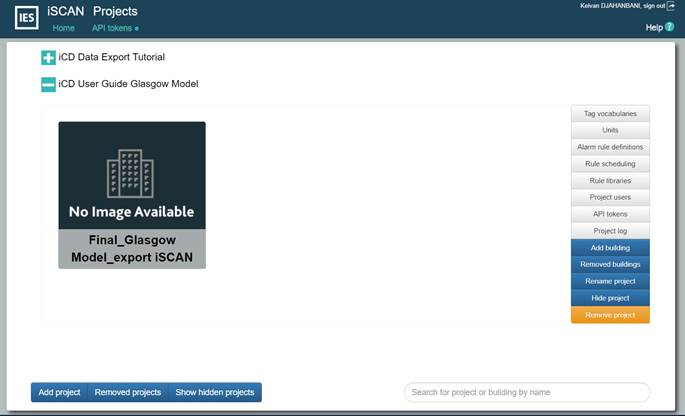
Figure 9-5 iSCAN Projects window
Data available in an iSCAN project appears as Channels in the Channels list. Channels list can be viewed by selecting Data < Channel list from the iSCAN toolbar.
In order to correctly import iSCAN channels into iCD, to the right building or boundary and with the right variable name, it is first necessary to assign these channels with tags. In iSCAN, Tags are labels that helps users to identify and organize the different channels. Tags are themselves organized into Tag Vocabularies.
To import data back to iCD, it is necessary to create two tag vocabularies:
· The first tag vocabulary should contain the names of the buildings/boundaries in iCD. Assigning these tags to the channels in iSCAN will help iCD to correctly send the channels to the right building. It is thus crucial for each tag to have the exact same name as the targeted buildings in iCD.
· The second tag vocabulary should contain names of t
· e variables to be sent to iCD. The custom attributes that will be created in the process will carry these tags as names.
To correctly create and assign tags to channels, the process goes as follow:
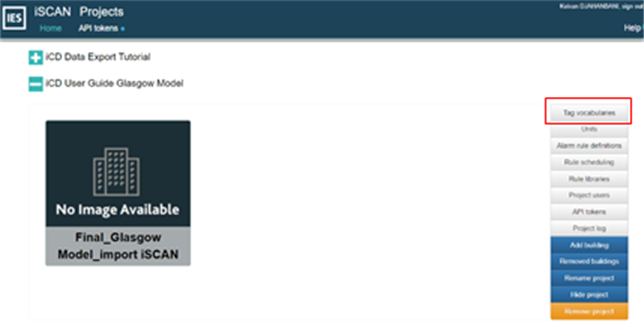
1. In the iSCAN project, click on Tab vocabulary (see image below) to access the Tag vocabulary page and click Create Tag Vocabulary.
Figure 9-6 iSCAN Project window
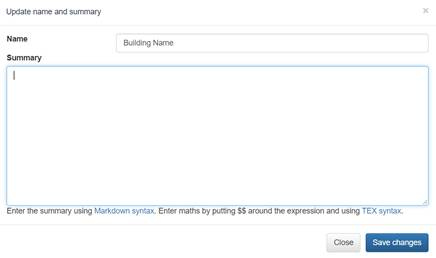
2. Create a name for the first tag vocabulary. In the example below, because this tag vocabulary relates to building names, it was simply called “Building name”. Then click on the Tag vocabulary name to open it.
Figure 9-7 iSCAN Tag Vocabulary window (1)
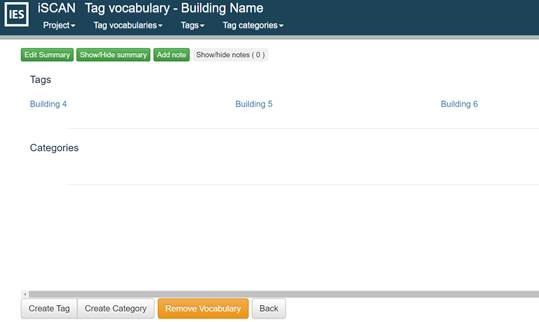
3. Create tags by clicking the Create Tag button. In the example below, the goal is import data back to iCD for three buildings of the Glasgow city centre called Building 4, Building 5 and Building 6. Thus, three tags were created in the “Building name” Tag vocabulary and were called Building 4, Building 5 and Building 6.
Figure 9-8 iSCAN Tag Vocabulary (2)
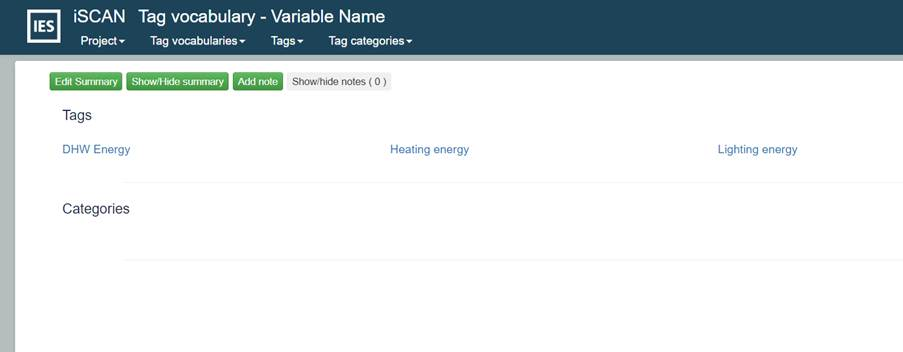
4. Create a second tag vocabulary containing tags with the names of the variables to be exported. In the example, a tag vocabulary called “Variable name” were created. As the channels for the Heating energy, DHW energy and lighting energy will be imported for each building; three tags were created with these respective names.
Figure 9-9 iSCAN - Tag Vocabulary (3)
5. Go back to the project’s channel list (Data> Channel list). Click on the Tags tab.
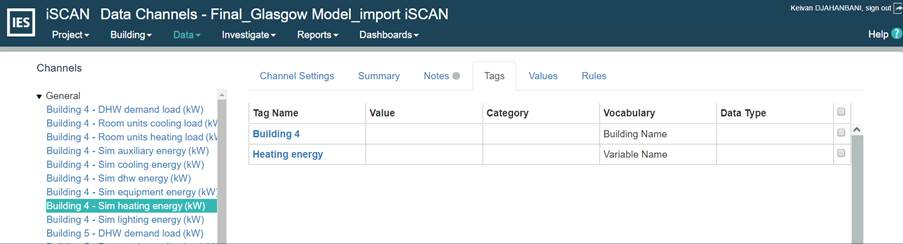
6. To each channel to be exported, assign the appropriate Building name tag and Variable name tag. In the example below, the channel containing the heating energy of building 4 is assign two tags: Building 4 and Heating energy.
Figure 9-10 iSCAN - Data Channels
7. Go back to iCD. Make sure the iSCAN endpoint is correctly set. For more information on how to set the iSCAN endpoint see chapter 9.1.1 iSCAN Endpoint setting.
8. Go to Extension > IES iCD > IES iSCAN Client > Channel Associations
9. The dialog scans the available channels within the defined endpoints. Once done click Next Step.
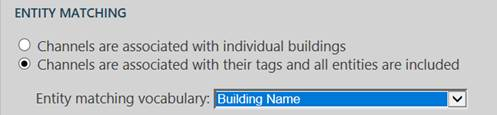
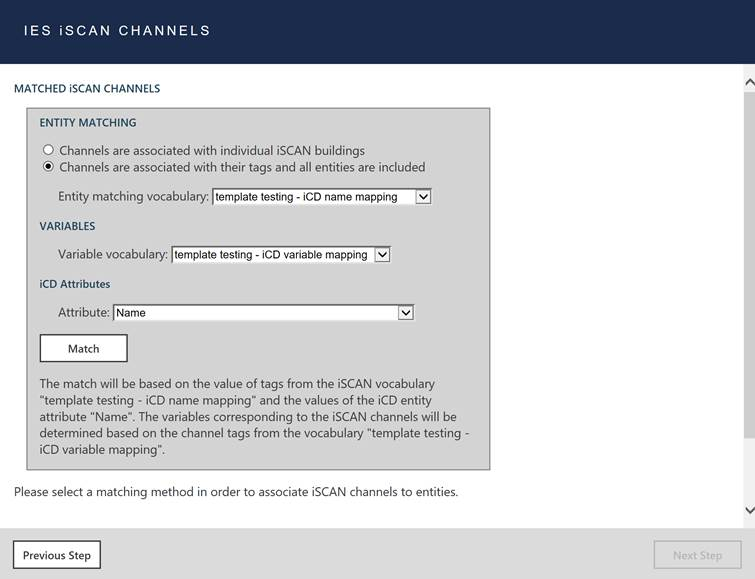
10. Click the match button to set the how iCD will match the channel to buildings in the model. Set the Entity Matching as “Channels are associated with their tags and all entities are included”.
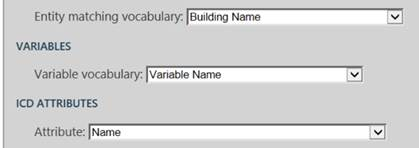
11. Set the Entity matching vocabulary with the Tag vocabulary containing the building names. In the example here, the “Building name” Tag vocabulary created in iSCAN will be used for the match.
Figure 9-11 iSCAN Channels – Entity Matching (1)
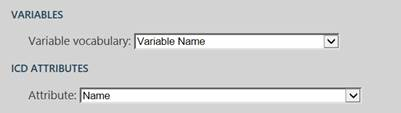
12. Set the variable vocabulary with the one created in iSCAN. In this example, the vocabulary tag “Variable name” is used.
Figure 9-12 iSCAN Channels- Entity Matching (2)
13. Set the iCD attribute to match as Name.
14. Click Match
Figure 9-13 iSCAN Channels
15. Click Next Step if the match is correct.
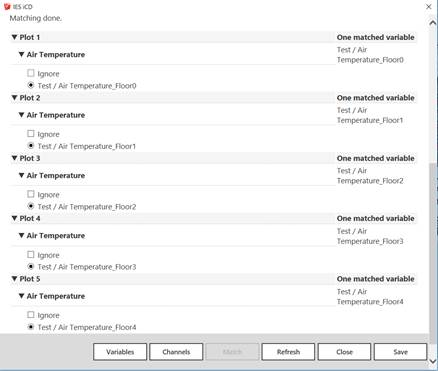
The imported channels will be available for each building as custom attribute (see image below).
To create Tags in iSCAN:
Go to Project < Tag Vocabularies < Add Tag Vocabulary < Create a Tag Vocabulary
Tag vocabularies are the datasets or folders where tags can be created. Any number of tag vocabularies can be created based on the user’s choice.
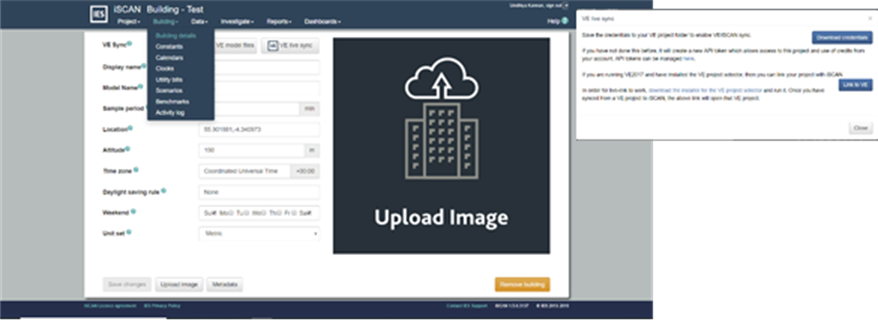
To import the data from the iSCAN project file an API token and project URL is required and these can be accessed in the iSCAN project under API Tokens.
Go the Buildings < Building details < Select VE live sync < Click Download Credentials.
Open the Downloaded API file in the note pad.
API token is a unique identifier which allows the user to access a particular project in iSCAN. To validate the iSCAN API token, enter the 3rd line of the API token in the Add project (this is the project name) and 2nd line of the API token in token code in IES iSCAN Endpoint (refer 3b) in iCD. Select Check in Actions to Validate the token. The Status will change from Availability unknown to Available. Select Save.
Go to Extensions < IES iSCAN Client < Channel Associations. Select Channels are associated with tags and all entities are included in Entity Matching option and Entity matching Vocabulary as Names and Variable Vocabulary as Variables to match the data’s. The data’s from the iSCAN will be matched and imported to the iCD model.
Figure 9-15 IES iCD – iSCAN import & match