The Query Tool in iCD is used to assign, edit or review object’s attributes.
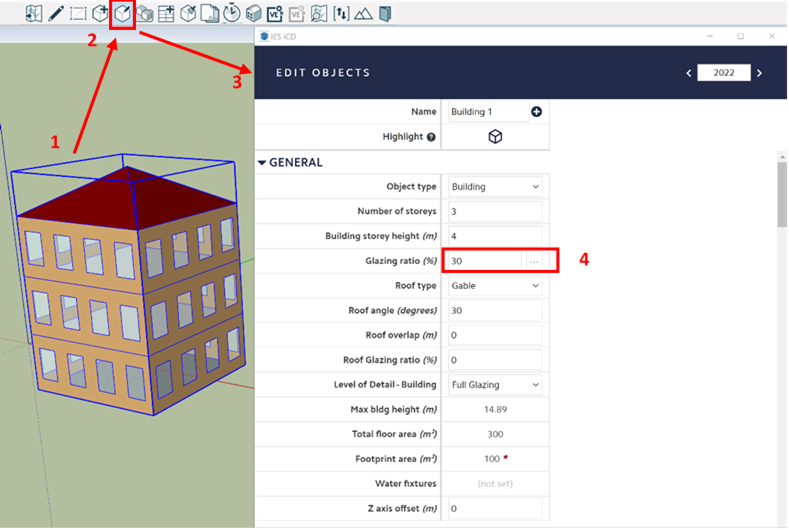
The building query tool is accessible from the iCD toolbar (see image below). In order to review or edit an object attribute:
1. Click the desired object to select it;
2. open the Query tool clicking on the icon in the toolbar (see image below).
3. The Edit Objects dialog opens
4. Review or edit the desired attribute
Figure 4-31 Room/Building Query Tool icon location (red rectangle) and dialog for Building 1
Sub-object attributes
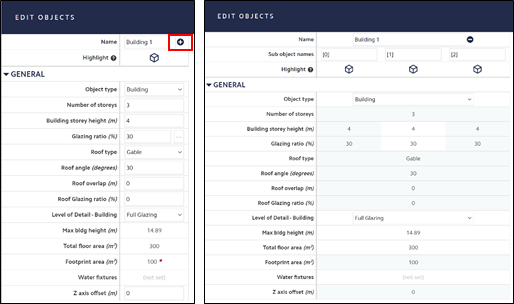
If the selected object consists of a collection of sub-objects (such as a building composed of several spaces or floors) the attributes values can be viewed and edited for each individual sub-object by clicking on the “+” sign next to the object’s name.
Example: In the example below, the building called Building 1 is composed of 3 spaces. Clicking the “+” sign next to the object’s name shows attribute’s values for each of them. The user can then modify the glazing ratio for each space individually.
Figure 4-32 Building Query Tool
Note: Some attributes are Building-level attributes and will show a single value for all sub-objects. In the above example, Roof Type is applicable to the entire buildings: A single value (“Gable”) is applied to all sub-spaces.
Highlight
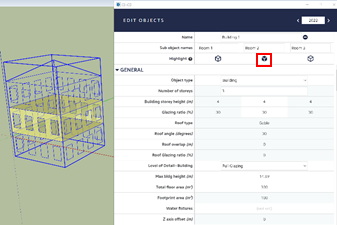
The highlight functionality allows to identify a sub-object within an object (like a space within a building) from Edit Object dialog or to identify a building within a group of selected buildings. It is useful tool to understand which column in the query tool corresponds to which space in the model.
To highlight an object or a sub-object from the query tool, simply the “box” icon of the desired column.
The example below shows Building 1. Clicking the box below “Room 2” highlights the position of this space in the model.
Figure 4-33 Highlight of Room 2 within Building 1
Note: when an object is highlighted, the box icon turns black.
Note: To highlight multiple object press Ctrl and click on the boxes corresponding to the columns that needs to be highlighted.
Time dimension
In iCD, attributes’ values are defined in time and can set and modified to specific years. The year field on the top right of the Edit Object Dialog allows the user to change the year and edit attributes value for each desired year. For more information see chapter 4.15.2 Evolution of iCD attributes over time.
Categories
Attributes in the Room/Building Query Tool are organized in different categories.
Note: Some attributes are only available for one of the two simulation templates (ASHARE or ICL templates). If so, the mention “ASHRAE template only” or “ICL template only” is specified. For more details on how to set the simulation template, see chapter 3.3 Preferences.