The locate entity functionality was re-worked in order to allow the user to easily find and select objects in iCD based on their attributes’ values.
To use the new object selection tool, click on the Locate Entity icon in the toolbar (see Figure 4-100).
Figure 4-109 Locate Entity icon in the toolbar
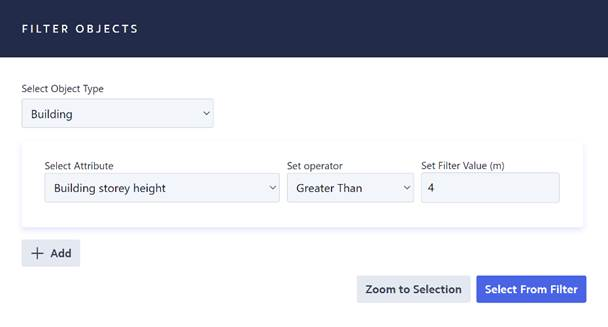
It opens the Filter object dialog
In this dialog, you can select the object type you want to research
Then:
- select the attribute to filter your selection
- The operator or the condition
- And finally, the value targeted for the filter
Ex: below the filter will selects all buildings which have the attribute Building Storey height greater than 4m.
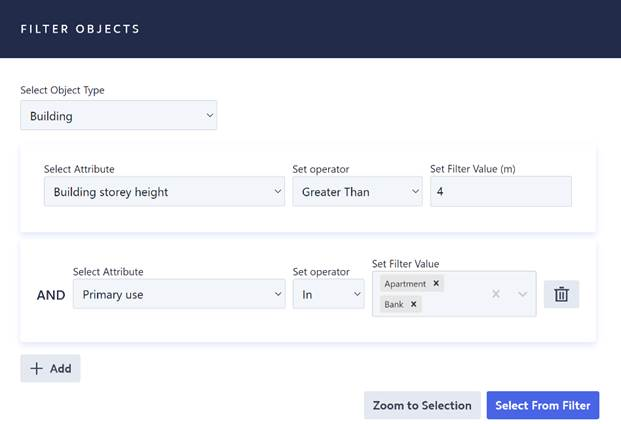
Clicking the +Add button, it is possible to narrow down the selection adding more condition with an “And” predicate
Ex: below the filter will select all buildings that have a Building storey height greater than 4m and that have a primary use set to Apartment.
Once the filter is set, clicking “Select from Filter” selects all the objects that match the filter conditions.
“Zoom to selection” sets the zoom to view all the selected objects.