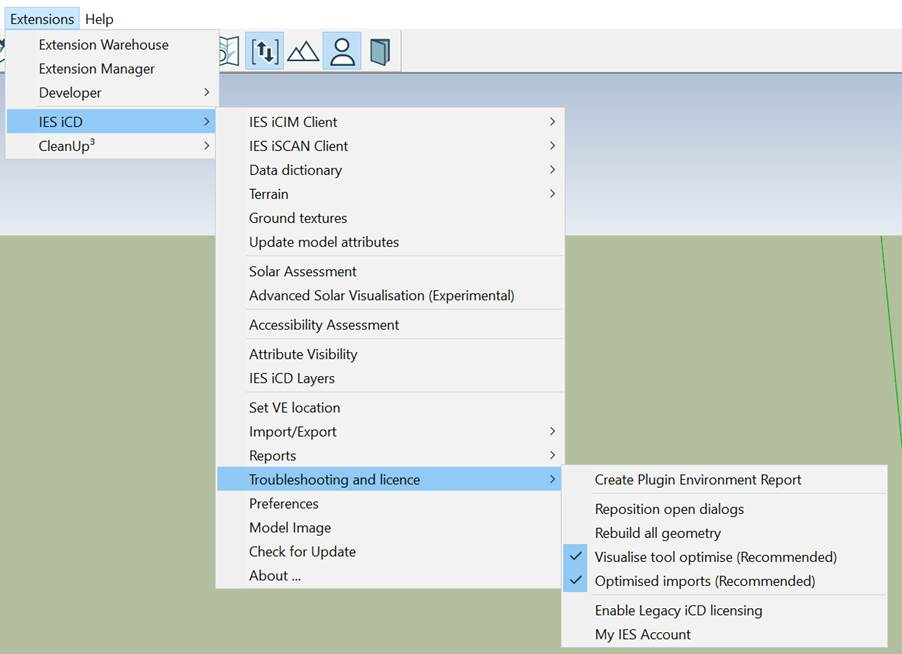
Create Plugin Environment Report – This will generate a .txt file of the environment in which iCD is running. Supplying this information can help IES Technical Support solve any issues the user is experiencing.
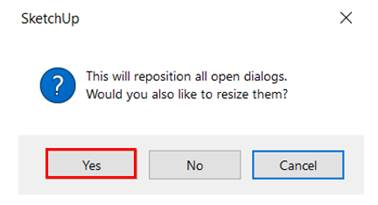
Reposition open dialogs – when the user clicks on this, a dialog box will open prompting a confirmation of the action needed. Clicking on “Yes” will re-size and re-position them on the screen.
Visualise tool Optimise (Recommended) and Optimise imports (Recommended) – It is recommended that the end users keep them enabled / true as they do background validation checks to make sure the model is set up to run correctly and enable seamless import / export of data and to make visualisation faster.
Enable Legacy iCD licensing – This option allows the user to temporarily switch back to the legacy licensing in case of an issue occurs with the newly introduced Single Sign-On mechanism.
My IES Account – Opens the My IES Account dialog for the user to review its subscription status.