When iCD is launched for the first time, the toolbar will be grey and inactive as long as the user’s license has not been validated. The only available icons when the user is not yet logged in are the My IES Account icon and the Help icon.
In order to login the user needs to:
1. Click My IES account icon
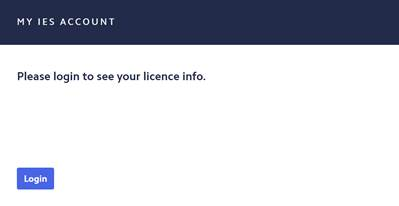
This opens the My IES Account dialog
2. Click the “Login” button at the bottom of the dialog
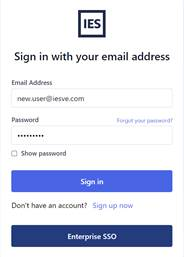
3. The user is then navigated to the IES sign in page and needs to enter:
a. The address email linked to his IES account
b. And his password
c. And finally click “Sign in”
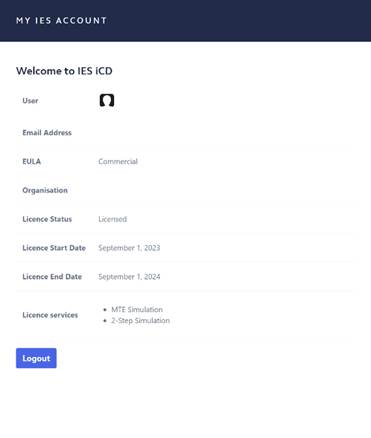
4. Once the credential validated, the user is navigated to a confirmation page. He can then close it and get back to iCD. The My IES Account dialog now displays the user’s license information and the iCD plugin is available to use