A new sub surface type has been added into the VE called ‘Surface Tile’. Like other sub-surface types (door, glazing, hole), this new type can be applied to the model in the following ways:
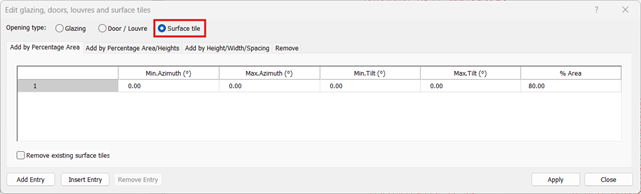
Via the ‘Edit glazing, doors, louvers and surface tiles’ dialog
The Surface tile object has been made available in this dialog and can be added to a model as:
Percentage Area
Percentage Area/Height
Height/Width/Spacing
It can also be removed via this dialog
Surface tiles can only be applied to horizontal surfaces (the ceilings of rooms/zones or the floors of plenums / voids)
By default, the software will not apply surface tiles to vertical surfaces regardless of what azimuth values are entered in the ‘Edit glazing, doors, louvers and surface tiles’ dialog. However, the tilt values will have to be edited as follows:
To apply to ceilings of selected spaces/zones:
·Min Tilt = 0
· Max Tilt = 90
To apply to floors of selected plenums or void:
·Min Tilt = 90
·Max Tilt = 180
Figure: Updated ‘Edit glazing, doors, louvers and surface tiles’ dialog
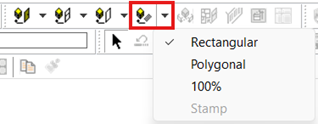
If users wish to draw in detailed surface tile geometry, then, as with other sub-surface types, users can move down to surface level and add a surface tile in the exact same manner as they do with other sub-surface types using the new ‘add surface tile’ icon.