Scotland Section 3: 2022 Overheating analysis
The Scotland Section 3: 2022 Overheating Analysis Navigator is intended for residential (dwellings), Residential (institutional; where people sleep on the premises), Residential (other; hall of residences) and the residential elements in mixed-use developments.
Navigator:
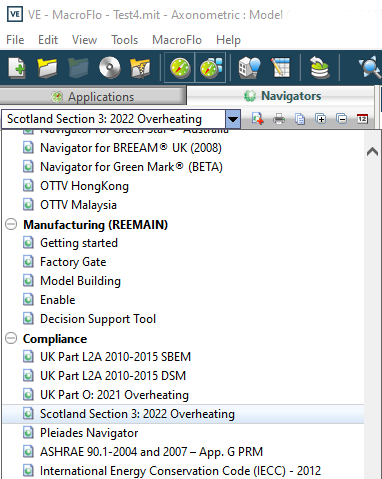
The Scotland Section 3: 2022 Overheating Analysis Navigator is accessed via the Navigators tab > Compliance section.
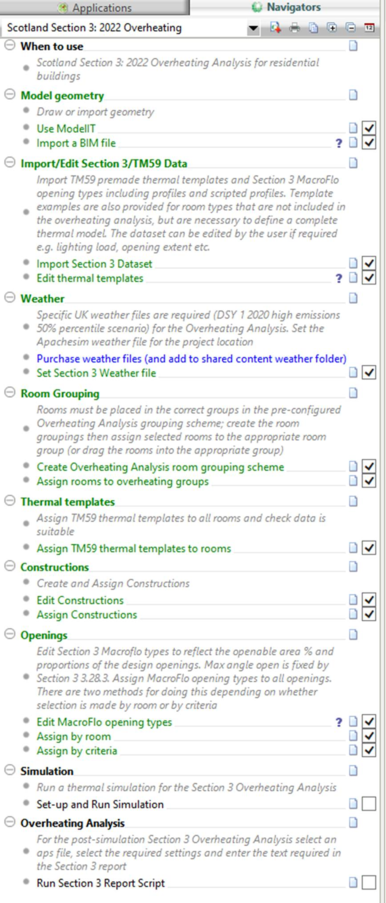
The Scotland Section 3: 2022 Overheating Analysis Navigator provides a workflow for users to follow but users are not bound to the workflow and can use it as required to meet their own needs, for example if preferred the user can use new project > TM59 template option.
The Scotland Section 3: 2022 Overheating Analysis Navigator:
The following sections describe detail on key parts of the Navigator.
Import TM59 data
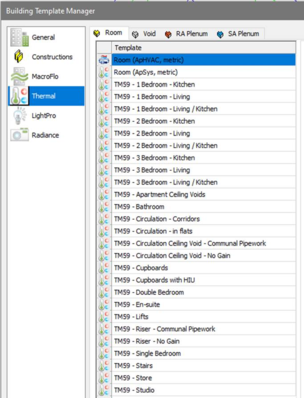
Pre-made thermal templates & profiles are provided based on TM59 requirements for rooms to be analyzed. Also provided are suggested templates for rooms not to be analyzed but are required as part of defining a complete thermal model.
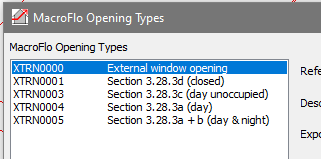
Pre-made Macroflo opening types are also provided based on Section 3: 2022 opening requirements. The opening types are assigned with pre-made scripted profiles that provide the required Section 3: 2022 3.28.3 operation control.
The Navigator action imports the pre-made data into the project. The templates, profiles and opening types can then be edited as required, an example being editing the opening types opening extent.
Weather data
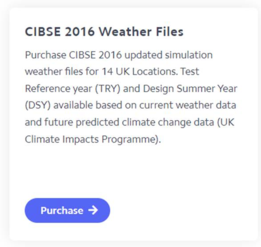
Although the Section 3: 2022 Navigator will work with any weather file the user needs to setup the model specifically for an Section 3 analysis. Specific UK weather files are required (DSY 1 2020 high emissions 50% percentile scenario) for the Overheating analysis: these will first need to purchased and added to the VE installation.
The link in the Navigator leads to the IES Simulation weather files page: CIBSE option 2 EPW future weather files are required (https://www.cibse.org/weatherdata see order options).
Aplocate is then used to set the simulation weather file to the relevant DSY 1 2020 high emissions 50% percentile scenario weather file.
Room grouping
The Section 3: 2022 Overheating Analysis requires the user to arrange the model rooms in specific room grouping.
The Create overheating analysis room grouping scheme Navigator action automatically creates the room grouping schema in the project.
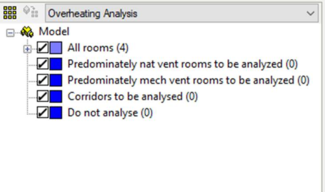
Select spaces(s) and use the Assign rooms Navigator option or drag rooms from the All-rooms group to the appropriate analysis room group in the browser pane with the grouping combo-box set to Overheating analysis (as above).
Constructions
Users should use project design constructions but bear in mind:
In order to meet the requirements of TM59 section 3.3 any internal blinds should be part of the base build and not clash with the opening of the windows; if blinds are used to achieve a PASS the results without blinds should also be provided.
In order to meet the requirements of and Section 3 (3.28.3) any internal blinds should be removed from glazed constructions.
Macroflo opening types
When editing the opening types, for example openable area % etc. bear in mind security & guarding requirements – see Section 3 (3.28.3).
The provided Macroflo templates utilize scripted profiles to meet the operational requirements of TM59: 2021 plus the requirements of Section 3 (3.28.3).
It should be noted that there are differences between TM59:2017 section 5 and Section 3: 2022 - overheating 3.28.3 in terms of opening operation; users should only select Section 3 scripted profiles for compliance purposes.
The Section 3 (3.28.3) scripted profiles operate as follows:
-
Section 3.28.3a (day) – Within daytime 8-23 hours, when in occupancy; if Ta 22 to 26 degC, ramp opening 0-1. Openings closed at night;
-
Section 3.28.3a + b (day & night) - Within daytime 8-23 hours, when in occupancy; if Ta 22 to 26 degC, ramp opening 0-1. Within night-time 23-8 hours, night-time purge if > 23 degC at 23 hours;
-
Section 3.28.3c (day unoccupied) - Within daytime 8-23 hours, occupancy not tested (assumed unoccupied) secure openings assumed. Openings closed at night;
-
Section 3.28.3d (closed) – Closed (doors).
It should be noted that there is a potential issue of interpretation regarding ‘occupancy’ between Section 3 (When a room is occupied during the day 8am to 11pm … ) and TM59 occupancy profiles (kitchen & living spaces 9am to 10pm) …
-
The scripted profiles provided assume window operation between 8-23 hours as per 3.28.3
-
The occupancy profiles provided with the TM59 thermal templates assume 9 to 22 hours as per TM59; however the user is free to edit the TM59 occupancy profiles in the UK Compliance Overheating view should this interpretation be incorrect.
The user should identify the rooms to be analyzed, assign templates and edit & assign Macroflo templates to the room openings (specifically set openable area % (bearing in mind guarding requirements) and degree of opening profile).
Miscellaneous
Corridors are typically assessed where community heating pipework is present; see TM59 section 3.8 & 3.9 and setting heat gains in such spaces.
Within dwellings standing gains should be included using the provided templates; these should be edited following TM59 section 3.8.
Additional mechanical ventilation such as MVHR should be added to the thermal templates; see TM59 section 2.2.
Model simulation & analysis:
Once the overheating model is setup press the Setup and Run simulation action to setup and run a thermal simulation.
The following settings are recommended for the Compliance overheating simulation:
-
-
-
60 minute reporting interval.
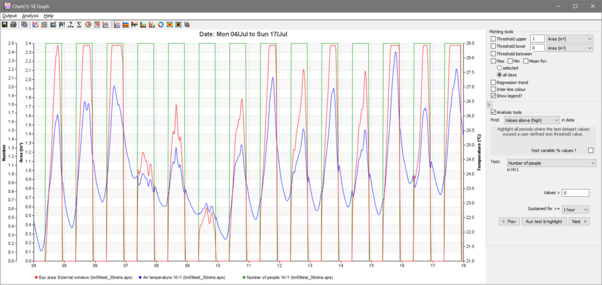
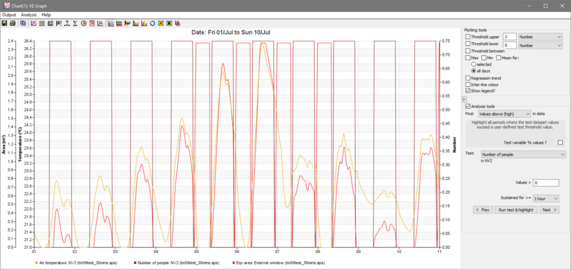
It is also useful to set detailed surface output ON for selected rooms so that the simulation results can be checked in VistaPro. For example the scripted profiles utilised in the Section 3 opening types (3.28.3) will show operation like this:
Daytime occupied opening operation
Daytime occupied & night-time purge opening operation
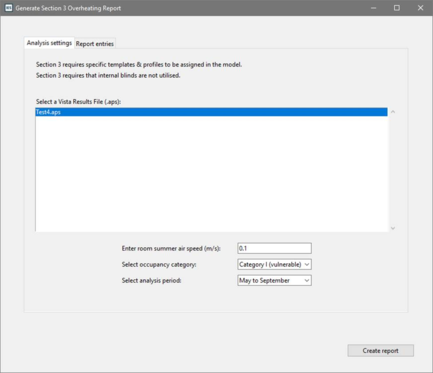
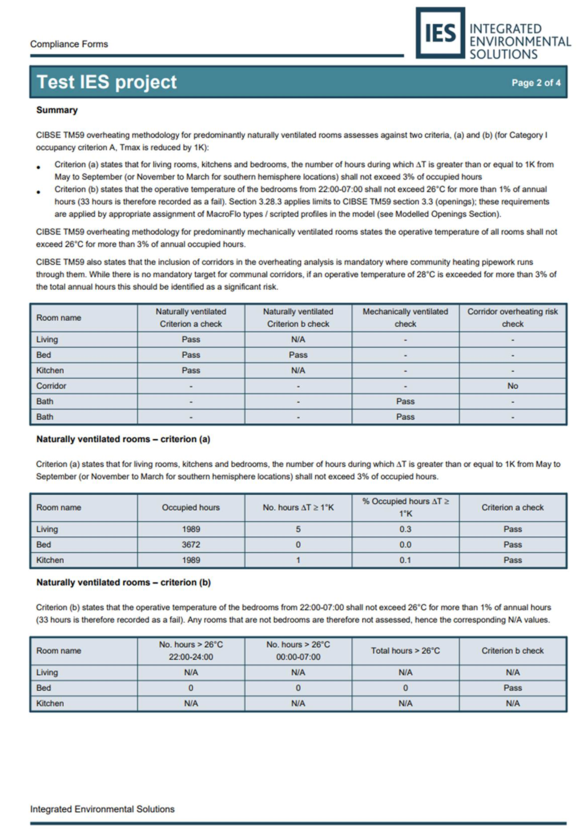
Once the overheating model thermal simulation is complete press the Run Section 3report script action. The Section 3 analysis dialog will appear:
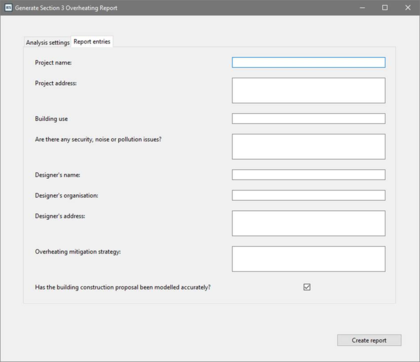
Select / enter the required analysis settings and report settings:
-
-
-
The occupancy category (category I is for vulnerable occupants and mandatory for Section 3);
-
The analysis period (November to March is for southern hemisphere use);
-
Project details & strategy statements (secondary tab).
To run the analysis and create the report press the action Run Calculation.
Report:
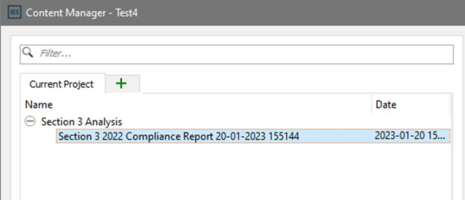
Once complete the Section 3: 2022 analysis Excel output report is available in the Content manager
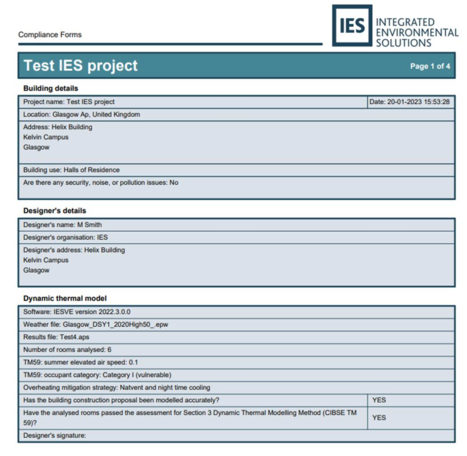
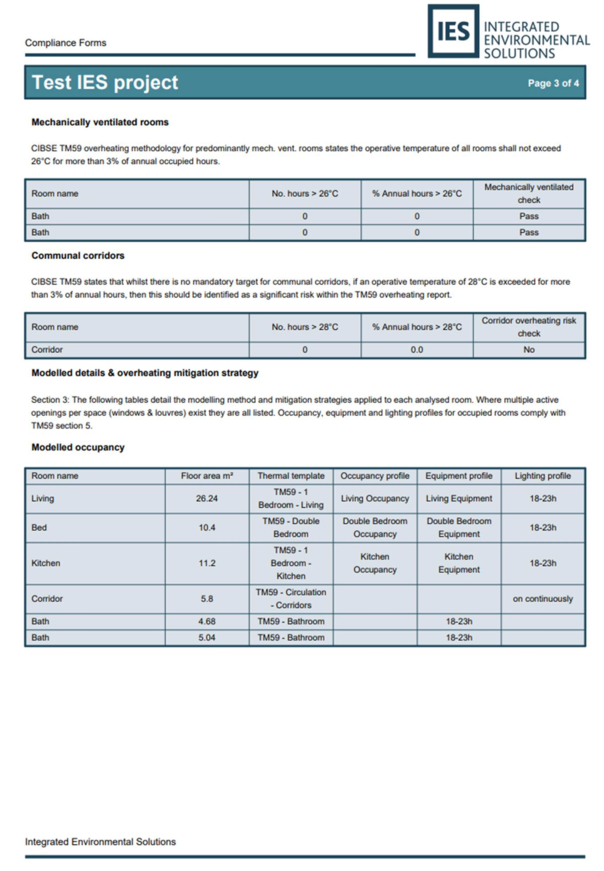
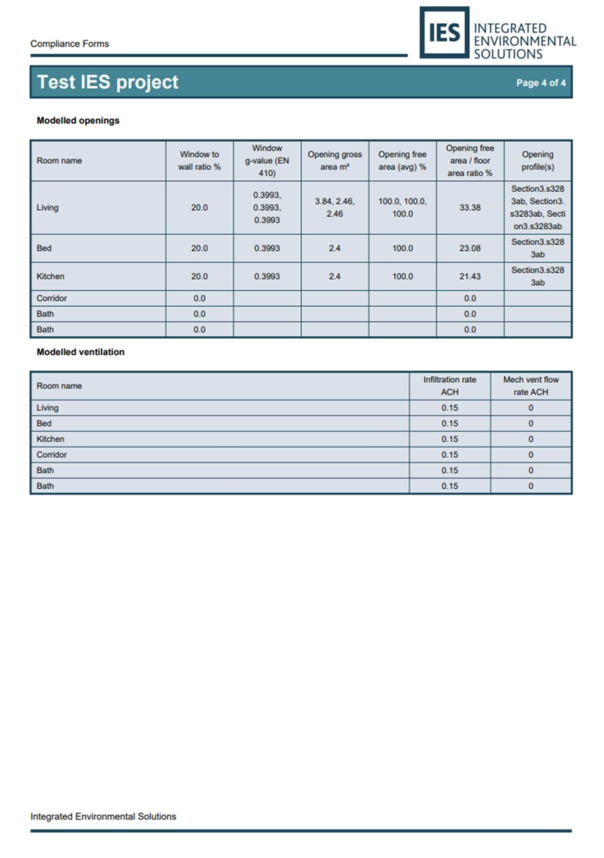
Select the report and the PDF document will be displayed:
The room data page collates data for the analyzed rooms plus provides useful metrics (free area / floor area %, WWR % etc.) to help review the design and assist user documentation & submittal.