PV Panels, Translucent shades, Import Options & ConstructDXF
Place Free-standing PV
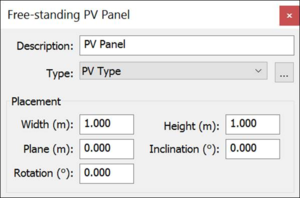
ModelIT now offers the ability to create geometric PV panels using the Place Free-Standing Panel tool.
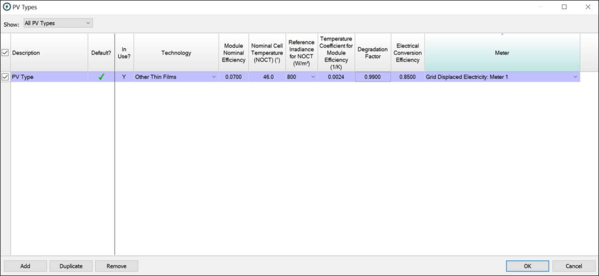
Set the placement parameters and dimensions using the PV Types editing tool – PV panels of all kinds will be assigned PV Types that specify their photovoltaic and metering attributes.
A Meter assigned to each PV Type will allow the output of groups of PV panels to be aggregated for reporting purposes.
The PV Panels become objects and can be selected in the room browser list. Properties can be edited in Apache, along with parametric PV panels (Enter PV Panels into the Search facility for more info).
Draw Translucent Shades
The translucent shade feature enables users to model such translucent surfaces as glass brise soleil. Meshes or lattice shading devices can also be modelled with a single transparent surface, drastically reducing computation and modelling times.
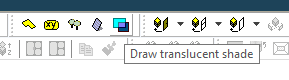
Within ModelIT the ‘Draw translucent shade’ button is displayed on the toolbar, with exception of Axonometric view.
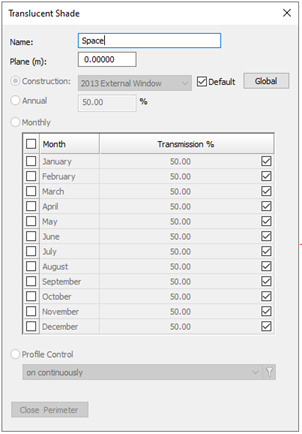
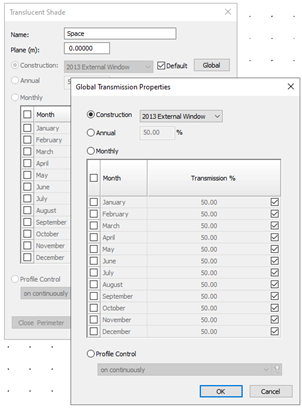
Selection of the ‘Draw translucent shade’ button displays the below dialog. Users can input a translucent shade name and set plane height. In addition, the translucent shade dialog is updated to allow users to choose where the transmission value is taken from. The choices are as follows:
Construction: Transmission and angular dependence values are brought through from the construction. Construction is the default selection when a user upgrades a model from VE 2019.
Annual: A single transmission value is used for every month. The angular dependence in this case is always constant
Monthly: The transmission value that vary on a month by month basis. The angular dependence in this case is always constant
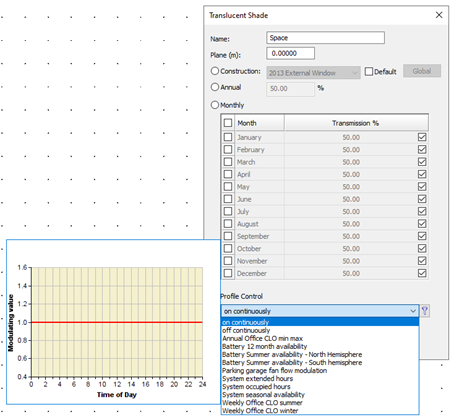
Profile Control (i.e. Hourly): The transmission value that vary on an hour by hour basis based on a selected Modulating profile. The angular dependence in this case is always constant
The above selections are applied locally to a single translucent shade or globally to all translucent shades that want to use the global properties.
When the translucent shades dialog is launched it is updated to show the new selections. The ‘Global’ tick box is engaged by default. This means that the transmission selections and values shown in the translucent shades dialog are taken from the global settings. These values and selection are greyed out in the translucent shade dialog.
If the user clicks on the ‘Global’ button, the global transmission properties editing box pops up and allows the user to edit the global properties. Any edits will apply to all translucent shades using the global properties i.e. with the tick box engaged.
When the global properties are edited and the user clicks ok, any changes made are reflected back in the translucent shade dialog.
If the user unticks the Global tick box then the local selections and values become live in the translucent shade dialog and can be edited.
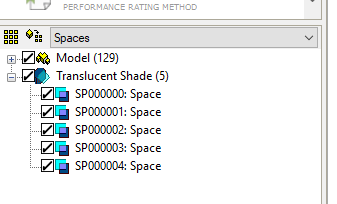
Upon drawing a translucent shade within the ModelIT model view translucent shades are added to the browser tree.
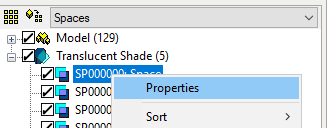
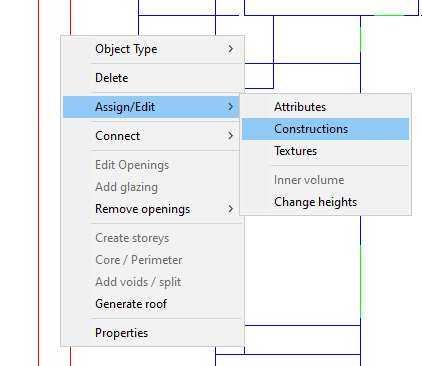
Users can change the translucent shade properties by right-click > properties selection of translucent shades via the browser tree. Another way is to right-click the translucent shade within the model viewer and select Assign/Edit > Constructions.
Import Options
Import BIM File
(“File” Þ “Import BIM File”)
See Section 7.8 for details.
Import GEM file
(“File” Þ “Import GEM File”)
See Section 7.6 for details.
Construct DXF
See the Construct DXF section of this Help Site by searching in the Index.