Activating & Archiving Projects
Activating a Recent Project
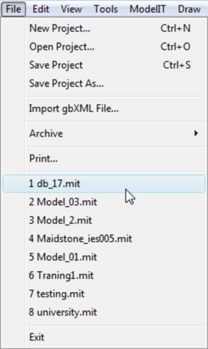
A list of recently active projects can be viewed in the “File” pull-down menu.
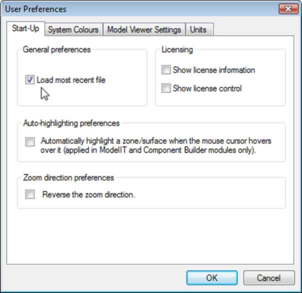
Alternatively, if you are going to be working with one project for a prolonged period of time you can go to your Tools>Preferences menu and tick the ‘Load most recent file’ option so that your project loads automatically every time you start the software. (For information on the other options see section 4.1)
Opening an Existing Project
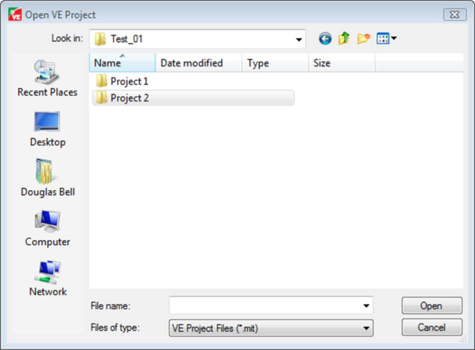
You can click on the “Open project” icon on the toolbar or by clicking on the “File” > “Open Project…” item pops-up the “Project Browser” window:
Copying Projects
When you want to copy a project to another folder or to an external drive, you should use “File” > “Save As” rather than attempting to copy files through Explorer. This ensures that all the data files in the sub-directories are created in the new location.
Archiving Projects
Archiving a project is used to compress the project for back-up purposes and also allows a model to be sent via email to colleagues or clients. The VE project archives have been updated to .zip file format (previously in CAB format). It is good practice to make regular archives of your project so that you can freeze the model in its current state, make backups and recover projects than may have been corrupted.
Create Archive – Current Project
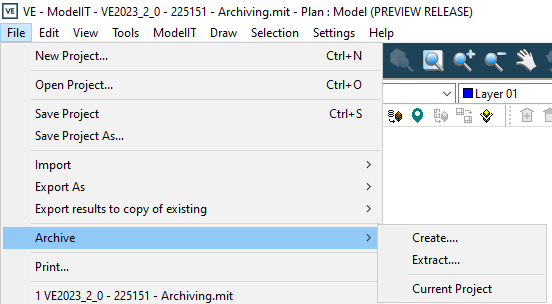
To create an archive of the currently loaded project, select File > Archive > Current Project:
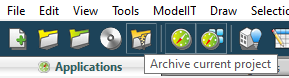
You can also click the

icon on the generic toolbar. Note that the option is only enabled if the current project is saved (i.e. it will be greyed for new projects that have yet to be saved to disk).
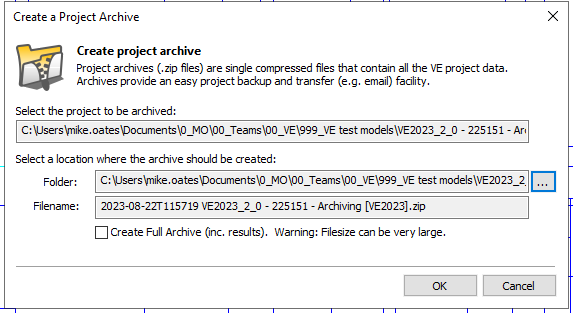
A window will then open asking where you wish to save the *.zip file. You can select the name of the .zip file at this same time.
Create Archive – Any project
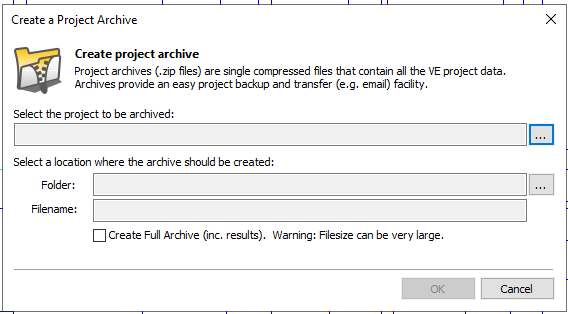
You can also create an archive of any project at any time by selecting File > Archive > Create… and then selecting the *.mit (ModelIT) file of the project you wish to select in the pop-up window.
Extract Archive
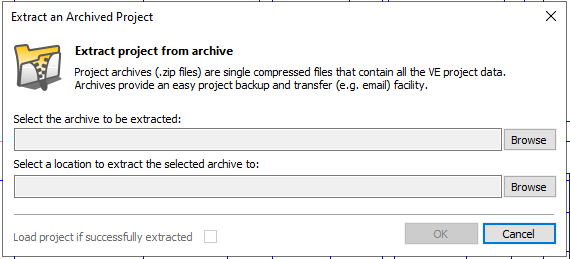
In order to extract an archive, you must select File > Archive > Extract… and in the pop-up window that appears, select the *.zip file of interest, click “Extract (Browse)” and then choose the desired location of the project. The project can then be opened in the normal manner – you can also choose to automatically open the project after extracting.
Note: .cab files will continue to be supported from projects archived within older versions of the VE.