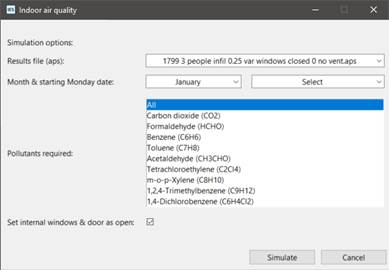
The simulation options dialog allows the user to set the source APS file, start month & a valid start Monday in the selected month and the required simulated pollutants for the Indalo® IAQ simulation.
Fig 10: Simulation options dialog.
Indalo® always simulates a full week Mon – Sun; the dialog only offers Monday dates that allow a full week plus two pre-conditioning days (so Mondays 1st 2nd January and Dec > 25th are not valid).
The duration is fixed to 7 days as Indalo requires the data to be for 7 days even if a lesser period is required. The year is set by the VE APS file weather file.
Users need to ensure that the start date and period includes data i.e. a non-active period in the annual thermal simulation is not selected; users should review the APS file to check this issue.
The dialog also allows the user to set internal windows and doors to open or closed; this is intended to allow the user to toggle their operation to see the difference in results.
VE weather data is also exported to Indalo® so that the Indalo® simulation uses the same weather for the simulated 7 days.
Simulate parses the VE model data in to the Indalo® JSON format, the JDON file is written to the project folder as Indalo_job.json and this file is uploaded to the Indalo simulation server. A message confirms server upload status.
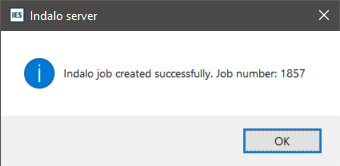
Validation or failure of validation of the uploaded JSON file by the Indalo® server is confirmed by a dialog. We suggest users make a note of the job number.
Fig 11: Simulation validation dialog.
The calculated air permeability values, weather file name and Indalo® server response code and response DICT if the code is not [201] are printed in the VE Scripts output pane. This output should be sent IESVE / Octopus Labs technical support in the event of failure of validation.
Fig 12: VE Scripts output pane.
Once uploaded the script exits and returns focus to the VE.