3.4.9.3 Simulation Settings
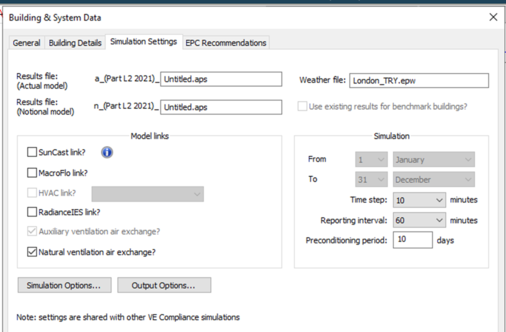
Use this dialog to edit the settings for Scotland Section 6 (2022) ApacheSim compliance and EPC simulation. These settings are shared (as appropriate) by all simulations in VE compliance, but may be overridden for test runs. Simulation settings are described in the VE Compliance and Apache View user guides.
The special features applying for the various types of VE Compliance simulations are as follows. Results file names are given a prefix to distinguish the following types of simulation:
· Compliance simulation for actual building (including test run) - prefix ‘a_’
· Compliance simulation for notional building (including test run) - prefix ‘n_’
· EPC simulation for reference building (including test run) - prefix ‘r_’
For compliance simulations and compliance test runs the weather file is automatically set to the Test Reference Year (TRY) appropriate to the building location.
Options are provided, as in the Apache module, to incorporate
· SunCast link? – tick this box if you wish to use SunCast solar shading data in the simulation of the actual building.
· MacroFlo link?
· ApacheHVAC links?
· If these options are used, special care must be taken with ventilation settings and profiles to ensure that these are consistent with the standard room conditions laid down for Scotland Section 6 (2022) simulations. Guidance on this issue is provided in Appendix A. Where an ApacheHVAC system is used, the standard ventilation rates may be included in the system air supplies. See Appendix A for further guidance on ventilation settings.
· Radiance link? Tick this box if you with to use data from Radiance to inform lighting control/dimming in simulation
· The ‘Auxiliary ventilation air exchange?’ check box is ticked automatically. This is because auxiliary ventilation air exchanges form part of the standard room conditions for Scotland Section 6 (2022) simulations.
· Natural ventilation air exchange? – tick this box if you have specified any ventilation by means of natural ventilation air exchanges
In the case of compliance simulations, ticking the check box Use existing results for notional building bypasses the simulation for the notional building in cases where this building has not changed since the previous compliance simulation. This would be the case if, for example, the only input to have been changed was a system efficiency.
The same applies for the option Use existing shading file.
In the case of compliance simulations, the simulation period is forced to the whole year, and Simulation Options are forced to standard settings to ensure uniformity.
Preconditioning period – make sure (using test runs if necessary) that this is sufficient to establish a realistic starting condition for the simulations.
You may also change the reporting interval and output options to generate more detailed results data for Vista.
Note that the weather file is forced to the appropriate TRY dataset for compliance simulations. If this file is not present compliance simulations will not be enabled.