3.4.8.2 Building Regs tab
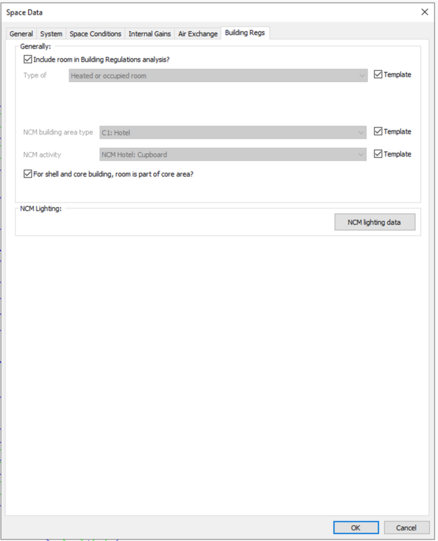
The content of this tab varies with the Regulatory Framework. The VE Compliance user guide covers those parts common to different frameworks. Here it is covered in its entirety as it appears for Scotland Section 6 (2022).
Include room in Building Regs analysis?
Tick this box to include the room in the building regulations analysis. By switching off rooms using this box you can perform separate analyses on different parts of the model.
Simulations in VE Compliance will include only the rooms that have this box ticked. If an included room is adjacent to an excluded room, or a room in an inactive layer, the adjacency is treated as a ‘reflexive boundary condition’, which means that conditions in the adjacent, non-included, room will be assumed to be the same as in the included room.
Type of room
This setting determines how the room will be treated for Scotland Section 6 (2022). The options are as follows:
· Heated or occupied room – the usual designation, applying to all occupied spaces within the insulated building envelope (whether they are directly served by heating plant or not). Spaces of this type must be assigned an NCM activity, and will be treated as heated for the purpose of the Scotland Section 6 (2022) analysis.
· Unheated roof – assign this type to a ‘cold’ roof space that has insulation at its base (i.e. at ceiling level). Rooms assigned this type will not be explicitly modelled in the notional building but incorporated in the elements linking the unheated space with adjacent conditioned spaces.
· Glazing cavity – windows, rooflights & doors connecting heated rooms with this space will be treated as external. This type is included to cover cases where a glazing cavity is treated for modelling purposes as a separate space.
· Other buffer space – this room type applies to spaces such as car parks, unheated stairwells and other spaces that form a buffer between the conditioned areas of the building and the outside. This type should only be assigned to spaces lying outside the insulated building envelope. Rooms assigned this type will not be explicitly modelled in the notional building but incorporated in the elements linking the unheated space with adjacent conditioned spaces.
· Internal void or warm roof – this room type applies to ceiling and floor voids, and to ‘warm’ roofs – those with insulation at rafter level. This type should be applied to unheated, unoccupied spaces that lie within the insulated building envelope.
Note: Where a space is subdivided for simulation purposes into separate levels connected by holes there are 3 possible approaches to the assignment of ‘Type of room’:
a. Combine all the levels into one space.
b. Assign the upper levels the same type of room and activity as the occupied space at floor level. They will then be heated and ventilated like that space, but will not receive gains because their floor area will be zero.
c. Assign the upper levels the type ‘Internal void or warm roof’, so that they will be unheated.
A drawback with option c) is that in the notional building air exchange between the levels will not be modelled so there will be unrealistic thermal barriers between them. Options a) and b) are therefore preferred.
External ventilation rate (air changes per hour)
This parameter applies only to rooms of type unheated roof space, unheated buffer space and glazing cavity. It is used for the calculation of effective U-values through the space from adjacent heated spaces using BS EN ISO 13789:2017.
NCM building area type
An efficient way to set NCM activities for rooms is to set the activity in the Room Template. The activity will then be automatically set, along with other Room Template attributes, for all rooms to which the template is assigned.
For unheated rooms (those with Type of room set to anything other than Heated room), the NCM activity is undefined and is not displayed.
NCM activity
Each heated or occupied room (defined by the Type of room setting) must be assigned an NCM activity. This defines the standard operation pattern of the room for the purpose of Scotland Section 6 (2022), which is defined by attributes on the various Room Data tabs. The assignment of these Room Data attributes is effected by the NCM template corresponding to the activity.
NCM activities are grouped by NCM building type, which must be specified in a separate field.
It is recommended that the NCM activity is set in the Room Template. This saves work as it means that the activity will be automatically set for all rooms assigned that template. If no activity is specified in the template the room’s NCM activity will revert to the default activity for the model building type.
If the NCM building type or NCM activity is set in the template it may (like other template settings) be overridden in the room by un-ticking the Template check box and selecting an alternative activity from the drop-down list.
For unheated rooms (those with Type of room set to anything other than Heated room), the NCM activity is undefined and is not displayed. In this case a special NCM template called ‘NCM unheated space’ is automatically assigned to the room.
In Scotland Section 6 (2022) certain Space Data settings are under your control (via the thermal template, which may be overridden in individual rooms) and others are set automatically by the NCM template. This is explained in the context of each of the Space Data tabs in the sections which follow. A brief account of the data used to populate the various tabs appears on the tab title bar.
For shell and core building, room is part of core area?
Special rules apply to shell and core buildings, rooms belonging to the shell area being treated differently from those belonging to the core area. This box is used (where applicable) to make this distinction.
High pressure drop air treatment
This setting does applies only to certain NCM building activities.
NCM lighting data
This button opens the NCM lighting data dialog (described in the following section) to adjust Display Lighting parameters and general lighting photoelectric and occupancy control settings when NCM Simple Lighting Control is specified on the internal gains tab for lighting gains.
Limiting solar gains
This heading introduces results from the Limiting solar gain analysis: the check status (whether the room passes the solar gain check), the solar gain calculated for the room and the solar gain benchmark which, if exceeded, results in a fail against this requirement.
NCM lighting data dialog
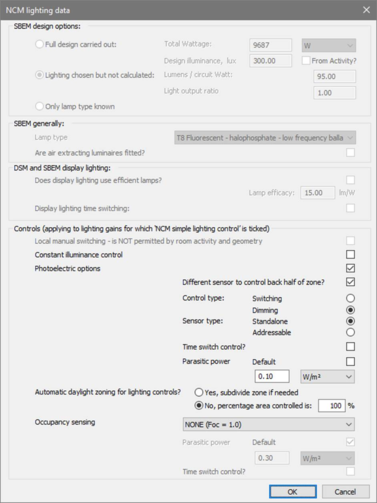
This dialog defines lighting the characteristics of control measures which are to be modelled using the NCM Simple Lighting Control method.
This dialog is shared between the ApacheSim and SBEM based ratings frameworks. The following description is limited to the settings applicable to ApacheSim (the controls frame).
Controls (applying to lighting gains for which ‘NCM simple lighting control’ is ticked)
Local manual switching
When permitted by the NCM rules, local manual switching may be selected by ticking this box.
Constant illuminance control
Ticking this box causes an allowance to be made for constant illuminance control, reducing lighting energy.
Photoelectric options
Ticking this box simulates photoelectric control of lighting in response to daylight.
Different sensor to control back half of zone?
Ticking this box improves the quality of photoelectric control by adding a second sensor.
Control type
Select ‘Switching’ or ‘Dimming’.
Sensor type
Select ‘Standalone’ or ‘Addressable’
Time switch control?
Tick the box to turn off parasitic power at times when the lighting profiles are off.
Parasitic power
Set the parasitic power value in W/m2. Parasitic power set with this parameter applies to both photoelectric and constant illuminance control.
Automatic daylight zoning for lighting controls
Select the approach required; sub-divide or percentage area controlled.
Occupancy sensing
Select from options specifying combinations of manual and automatic occupancy sensing control.
Parasitic power
Set the parasitic power value for occupancy sensing control in W/m2.
Time switch control?
Tick this box to turn off parasitic power at times when the lighting profiles are off.