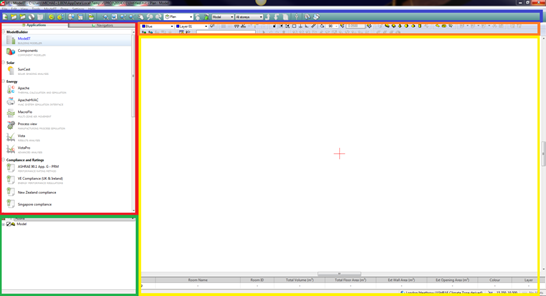
When IES-VE is started, the screen shown in Fig. 1 will be displayed. In Fig. 1, each part of the screen is highlighted by coloured rectangles that indicate the different panels. These are outlined as follows:
· Applications and navigators panel (red) – the applications tab is used to select the current operating application and the navigators tab is used to browse and operate navigators, which are streamlined task-lists for particular aspects of BIM modelling. Clicking on the applications will change the contents of the viewport, the list browser and the application toolbar to display the functions relevant for that particular application. See section 3 below for details about the Indalo® navigator.
· List browser (green) – this is a list of all current rooms or components in the model, which can be organised and displayed in different groupings. This is used to select specific rooms, surfaces or components to view and can also be used to set some properties.
· Main toolbar (blue) – the toolbar containing the main modelling functions that are often used in multiple applications. This includes different viewing options and standard functions, such as those for opening and closing models.
· Application toolbar (orange) – the toolbar containing the functions specific for the currently selected application.
· Viewport (yellow) – main visual display.
Fig.1: Main IES-VE screen with coloured rectangles added to indicate the various parts of the user interface. These parts are the applications and navigators panel (red), list browser (green), main toolbar (blue), application toolbar (orange) and viewport (yellow).