In this tab, climate-based daylight modelling (dynamic advanced CBDM analysis) results files can be viewed and post processed.
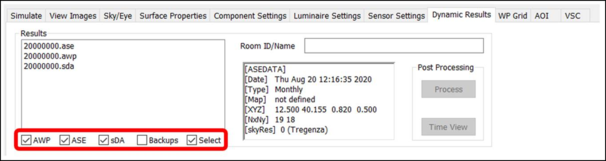
If numerous dynamic simulations have been performed for the model, this list may be long. Use the filter checkboxes at the bottom to limit the list to only certain file types, or select space(s) in the model, and tick the Select checkbox, so that only valid results files for selected spaces will be listed.
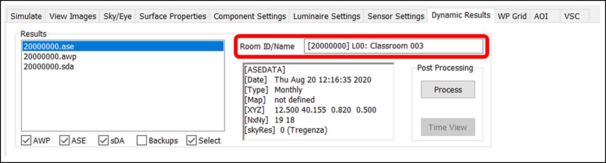
Once a results file is selected on the left, the information window displays the ID of the space that is currently selected, with a list of data underneath, including: date of the simulation; simulation frequency; minimum x and maximum y grid coordinates, working plane height, grid size, number of grid points along the x and y axes; and sky resolution.
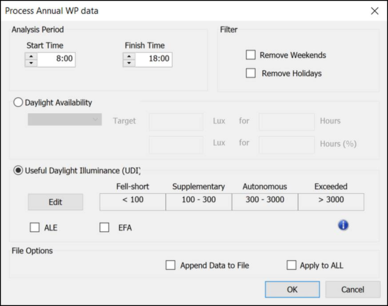
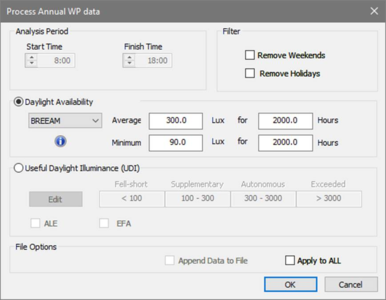
The Process button opens a window that allows you to post-process the selected results file. Analysis times and thresholds can be set, dependent on the selected results type:
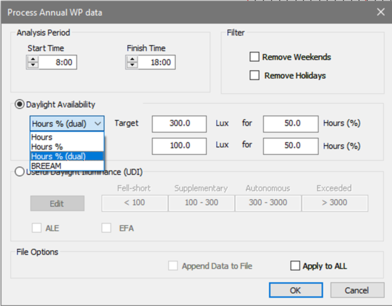
For UDI simulations, there are two options to choose from, the Daylight Availability and Useful Daylight Illuminance (UDI). The first option has 4 options:
· Hours: user-defined target Lux for target Hours.
· Hours%: user-defined target lux expressed as percentage (also defined by the user).
· Hours % (dual): same as Hour % but processes two sets of values.
· BREEAM: (HEA 01 4b) process two sets of values average e.g. 300 Lux for 2000 Hours and minimum e.g. 90 Lux for 2000 Hours. The processing complies with BRE Knowledge Base KBCN0471 (in summary: use average illuminance, across all points in the AOI, per hour). For many rooms users will need to manually assess the results of all rooms against the HEA 01 60% or 80% of floor area requirement (see KBCN0471 for further information).
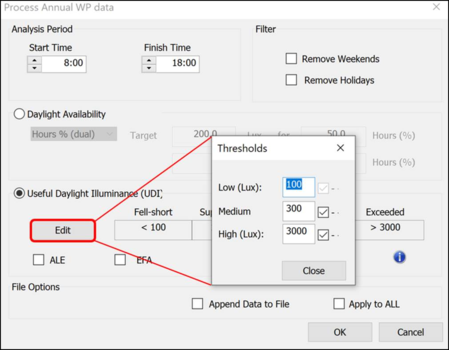
When the Useful Daylight Illuminance (UDI) option is selected, the user can edit the band using the Edit button. Also, the bands can be excluded from the analysis using the relevant check boxes in the threshold dialog:
The Annual Light Exposure (ALE) check box will set the analysis to calculate the accumulated lux or the accumulated lux for occupancy.
The Education Funding Agency (EFA) check box will set the analysis to calculate lux levels within these parameters.
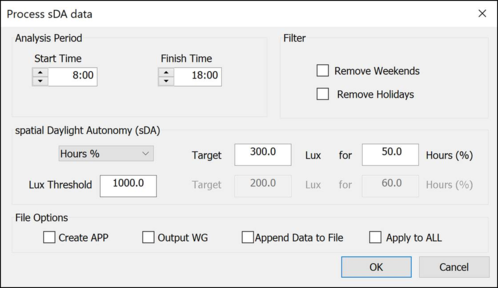
For sDA simulations, the user can select from the options below to post-process the results:
· Hours % user-defined target lux expressed as percentage (also defined by the user)/
· Hours % (dual): same as Hour % but for two sets of values
· LM-83
The tick box for Create APP
The tick box for Output WG
The Append Data to File checkbox will add results to an existing processed results file instead of overwriting it.
The Apply to ALL checkbox will process (or append data to) all simulated spaces, regardless of the space selected.