Once the data is uploaded to iPIM the project will appear on the Active projects page.
Figure 4.1.1.3a: Viewing the iPIM project
Click “Open” to view the project.
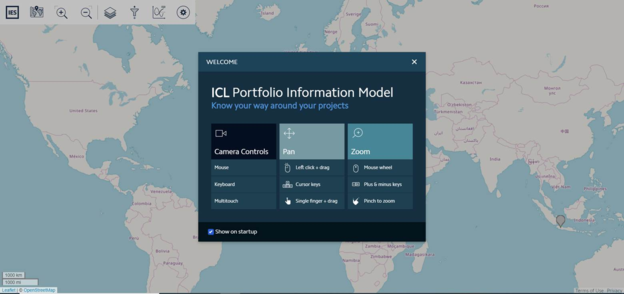
The project opens to the welcome page. Click the “x” to close this page.
Figure 4.1.1.3b: Welcome Page
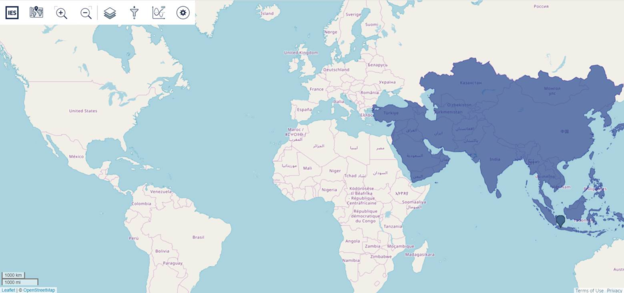
The user can now see the map of the world. Depending on the data entered in the CSV, a single continent or multiple continents will be highlighted with the pins.
Figure 4.1.1.3c: World Map showing the location of the project
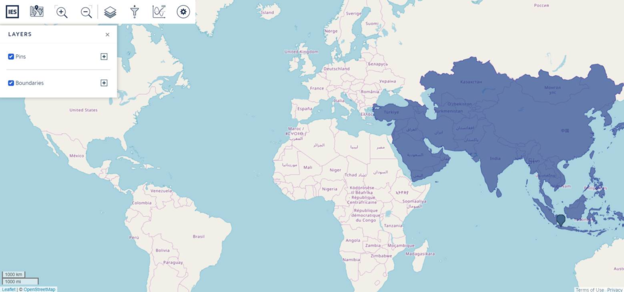
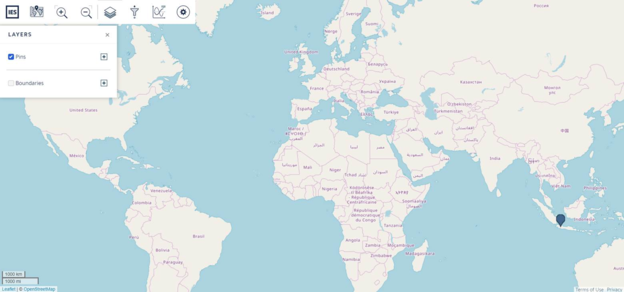
The user can go to the “Layers” tool and uncheck the boundaries to view the pins more clearly.
Figure 4.1.1.3d: World Map, with layers tool checked
Figure 4.1.1.3e: World Map, with layers tool unchecked
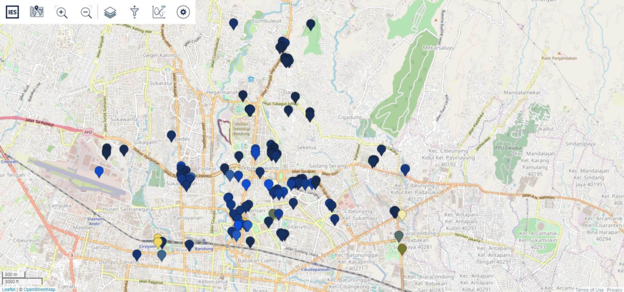
Now the user can zoom into the project using the navigational tools as shown on the welcome screen. To view the navigational tools, to zoom to the project pins. See chapter 5.1 Welcome Page[RR2]
Figure 4.1.1.3f: Zoomed in to view the project pins
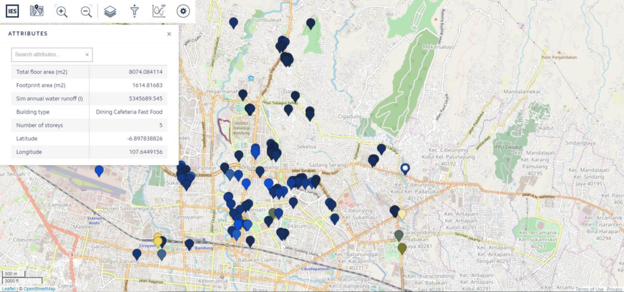
Click on any pin to view the data.
The next time the user opens iPIM, the user will resume from the last closed page or last zoom level. [RR3]
Figure 4.1.1.3g: Pin data
In here upon opening the PIM project, the default attribute displayed on the pins is the first quantitative value stored in the CSV file. In CSV samples we showed in 3.1.1.2. format of CSV the first value was the attribute ‘Total Floor Area (m2)’. To display a different value upon opening the project, then the order of the CSV columns must be rearranged.